This chapter explores the creation of a complex iPad control surface for remote controlling QLab over a wifi network. If you are using QLab 4, much of what's discussed here is best achieved using cue carts and the QLab Remote iOS app, an approach that's described in detail in the cookbook chapter called Carts And Remotes. Nevertheless, it's still worth reading this chapter as it contains a good deal of useful information about OSC.
There are a number of apps that will run on tablets or smartphones which enable you to construct remote control applications for QLab using OSC or MIDI. There are quite a few reasons you might want to do this:
Touch OSC is a popular app for creating such a control surface. Although it is limited in internal programming functions, it is quite straightforward. Before we get into the main example, let's look at just creating a simple GO button.
The OSC for a workspace-level GO command is very straightforward: /go. So we
might create a button and assign the /go message to it. Touch OSC layouts, as
they're called, are created in the Touch OSC Editor app which can be downloaded
here from the Touch OSC link above.
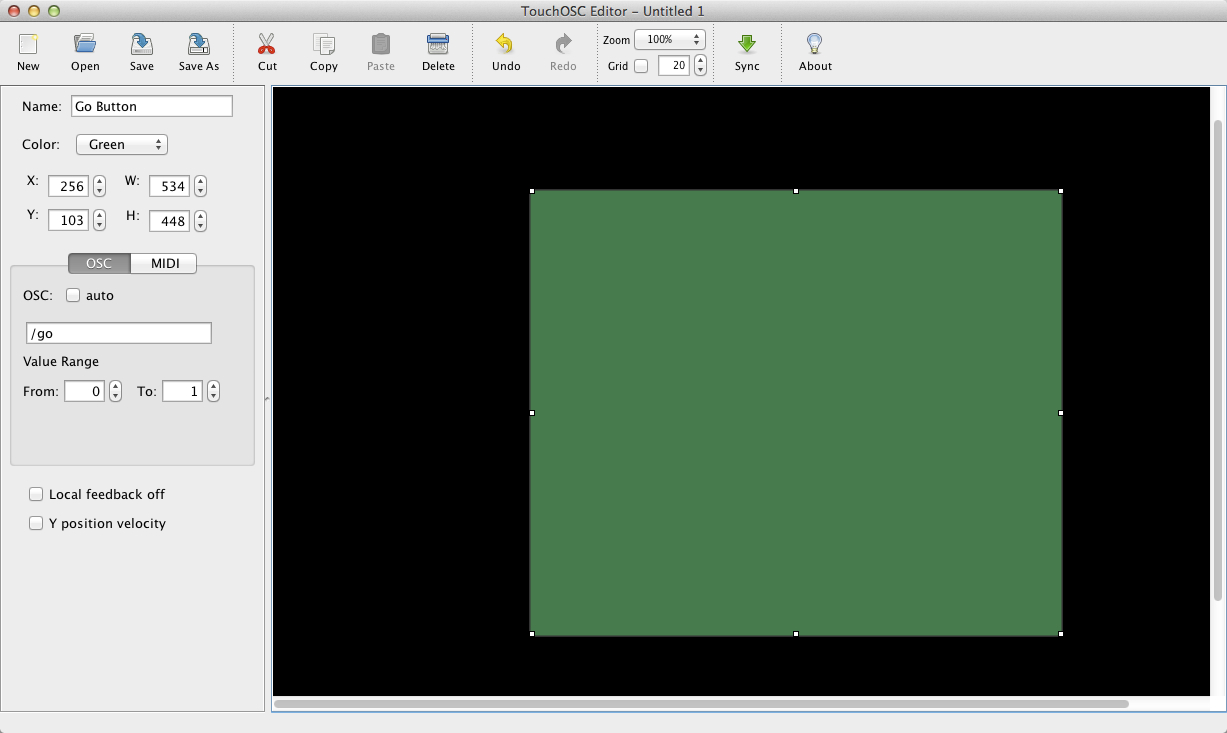
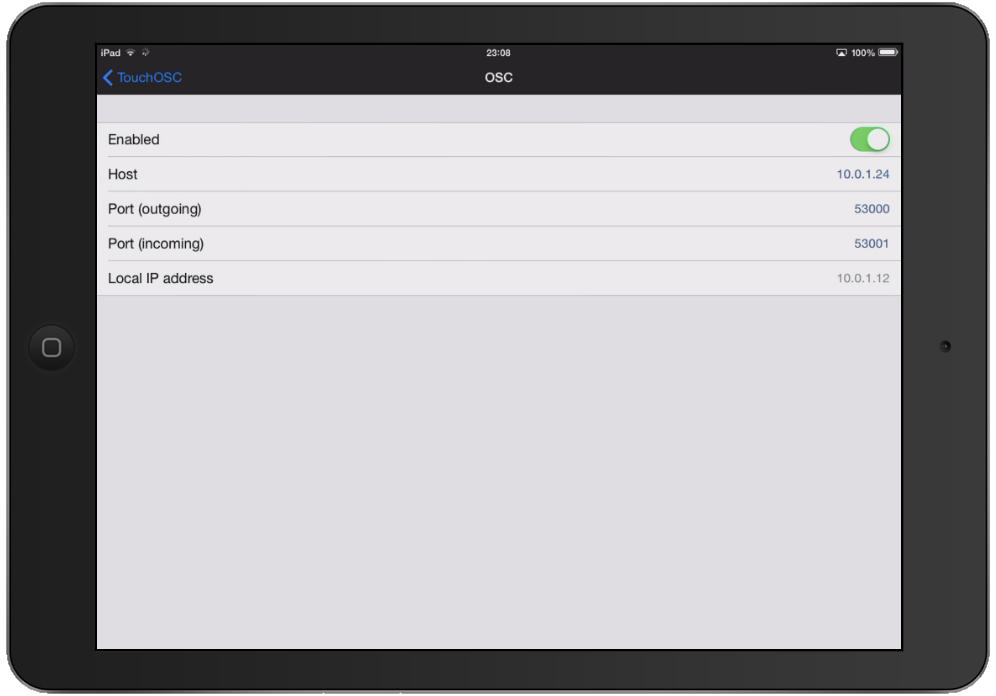
We then set up our OSC networking. This is done from the Touch OSC app on the iPad. "Host" is the field where you put the IP address of the Mac running QLab.
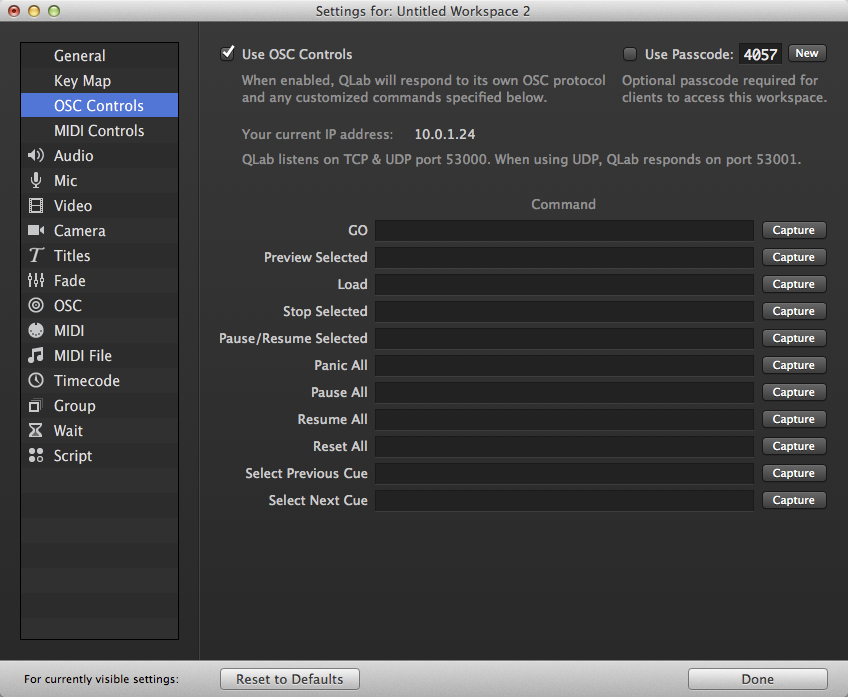
And finally, in QLab, go to Workspace Settings → OSC Controls and make sure Use OSC controls is switched on.
We now have a big green button which lights up when pressed and sends a /go
OSC message to QLab. Like this:
As you can see in the video, when you press the button the workspace GO is
triggered. Unfortunately, when you release it, it sends the message again, and
you get a double go. If you look at the Touch OSC edit screen above you will see
it is sending two different messages: /go 1 for the press and /go 0 for the
release (message plus value range). QLab listens for the OSC /go message but
ignores the argument, the 1 or 0, when processing the message, and treats both
the same resulting in the double go. There are various workarounds for this,
none of which are entirely satisfactory. This doesn't matter for all the major
controls, because there is another method of OSC control already built-in to
QLab. This method doesn't even require any custom messages in Touch OSC, it will
just work with the defaults.
Here's our controller in Touch OSC editor, with the default message for the
pushbutton: /1/push1 This means the button called "push 1" on Page 1 of the
layout.
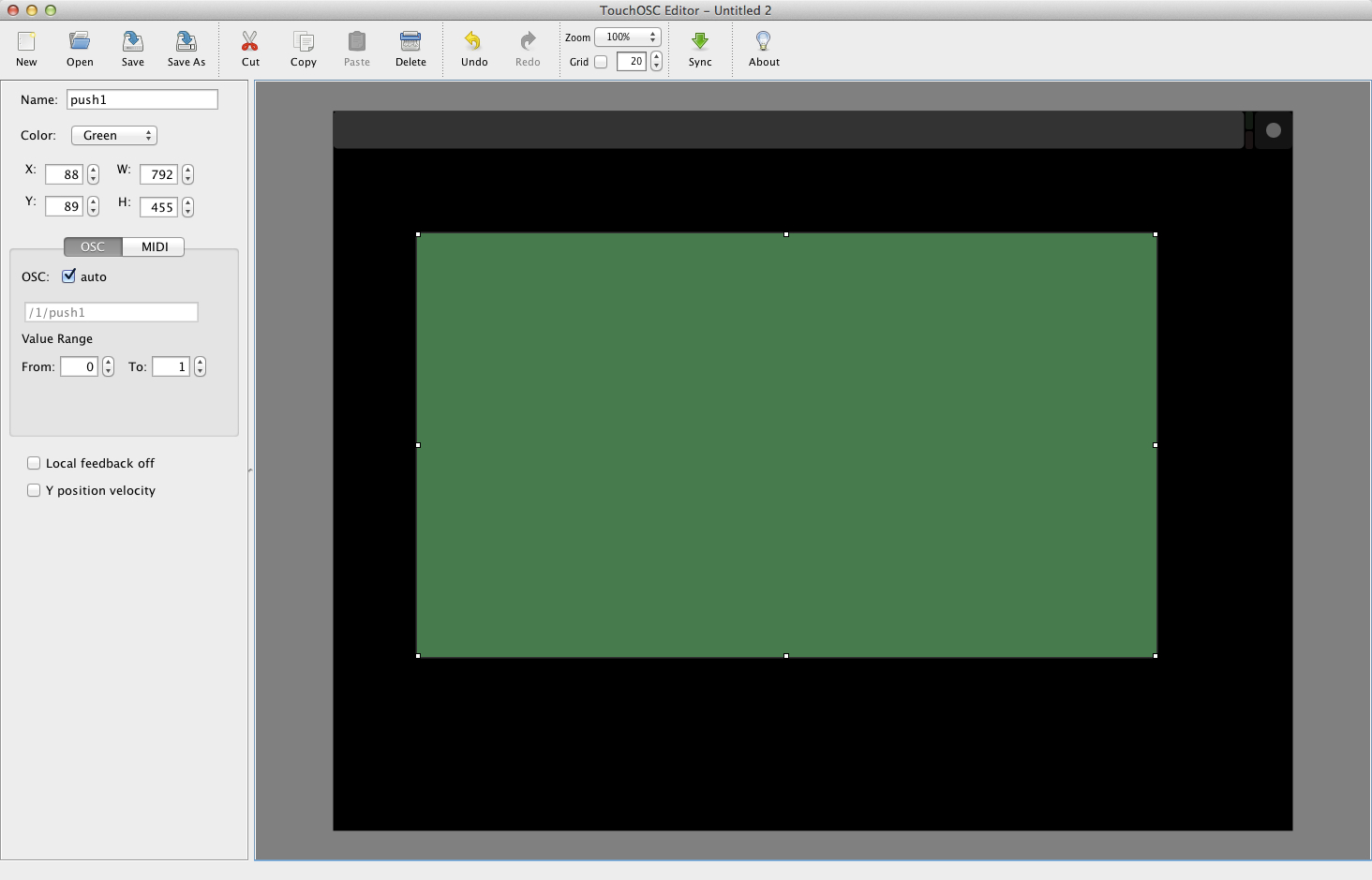
It will send /1/push1 1 for a press and /1/push1 0 for the release. In QLab,
in Workspace Settings → OSC Controls, we click the Capture button,
next to the GO field, and press the Touch OSC button.
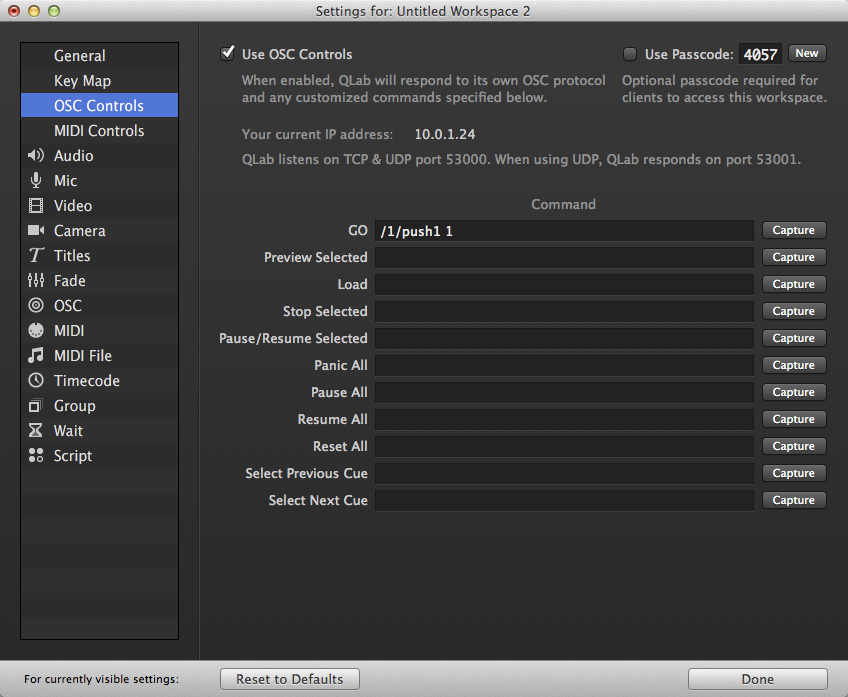
This captures the complete OSC message, including the argument. So the press
message, /1/push1 1, will trigger the GO, because that's what QLab is
listening for. The release message, /1/push1 0, won't trigger the GO, because
the message is different. You can create all 15 buttons, one for each OSC
control, and capture the default press messages for each.
Now that we have a simple example up and running, we will attempt something more complex.
This QLab workspace and associated Touch OSC layout provide a "Jingle Player"
style set of 32 push buttons on the iPad. When you press a hotkey in QLab (the
project uses 1), the player will load the first 32 files in a folder called
"audio" inside the project folder with the workspace. Each Touch OSC button is
named for the cue that will play when it's pressed, and the buttons light up
while their cue is playing and go dark when their cue stops. In order to do
this, there has to be full bidirectional communication between QLab and Touch
OSC. This is a bit of a problem as Touch OSC doesn't have any built-in
programming to parse any information that QLab sends to it, so all the clever
stuff has to be done within QLab and passed to Touch OSC as simple OSC messages.
Here it is in action:
First, you need to ensure that you have two-way communication between Touch OSC and your Mac. On the iPad, put the IP address of your Mac in the host field, in the example, this is 10.0.1.24:
You also need to enter ports 53000 and 53001 in the ports incoming and outgoing fields.
In QLab, in Workspace Settings → OSC (or, in QLab 4, Workspace Settings → Network), you need to set up a patch to send OSC to Touch OSC on the iPad. Patch 1 is usually used for loopback to localhost for QLab to send commands to itself. In this example, we have used Patch 2. Put the IP address of your iPad in the IP address field mine is 10.0.1.12.
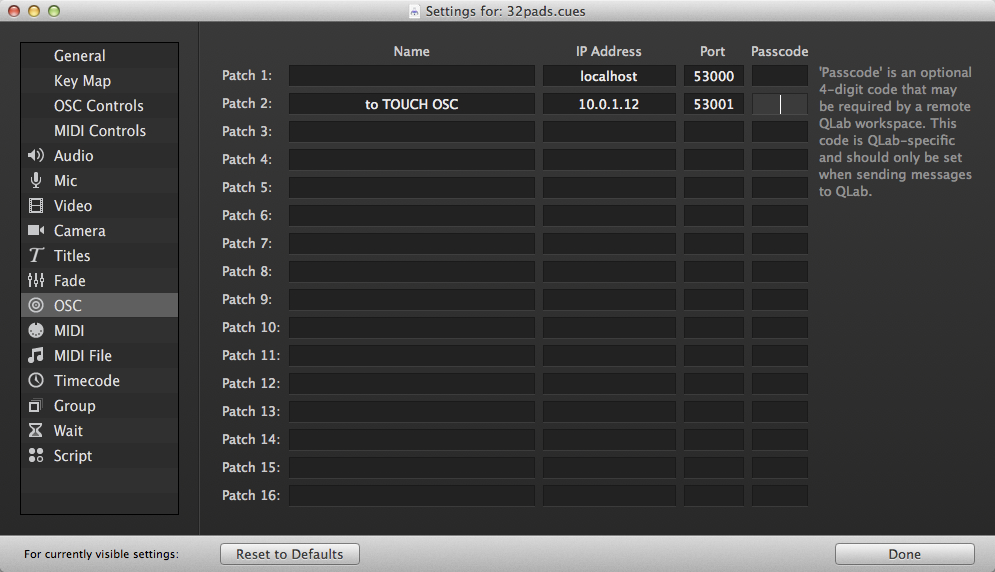
In the Touch OSC editor, we create 32 push buttons named 1-32 and with a custom
OSC message: /cue/{button name}/start with a value range from 0 to 1. So for
button 1, the name is 1 and the OSC is: /cue/1/start So if this button is
pushed, it sends the OSC to QLab to start cue 1:
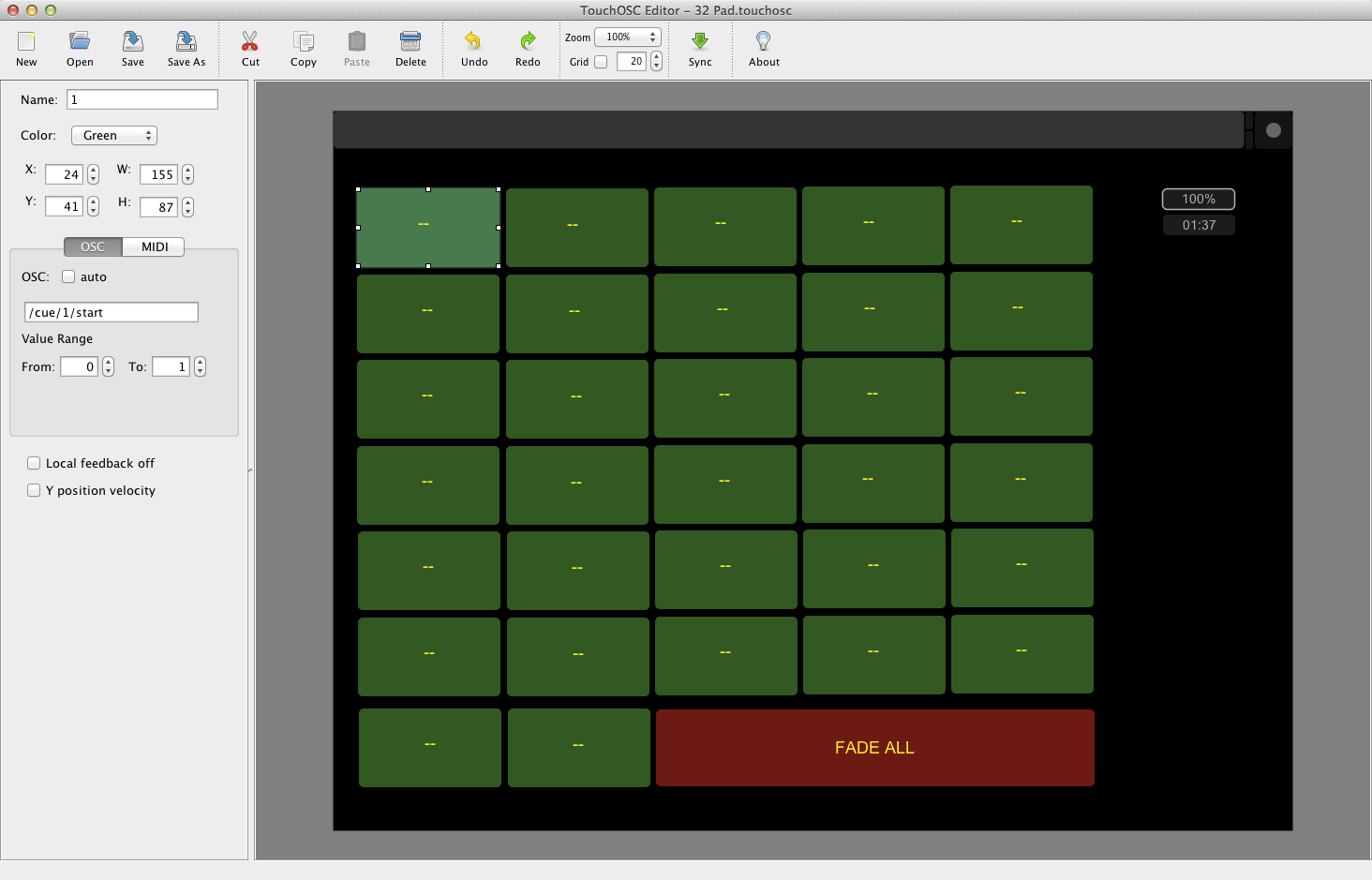
On top of each button we create a label object and name it "n" plus the name of the button, so the label on button 1 is named "n1". This gives us a name which QLab can use to address each label.

We also create a large push button, named PANIC, that will send:
/cue/FAD/start. This will trigger the cue numbered "FAD" in QLab which fades
and stops all running cues. We also need to make a label with the text "FADE
ALL", named "Fadelabel", which QLab can use to address it.
All the scripts are kept out of the way in the QLab workspace in a cue list called Routines. Here is the Routines cue list in QLab:
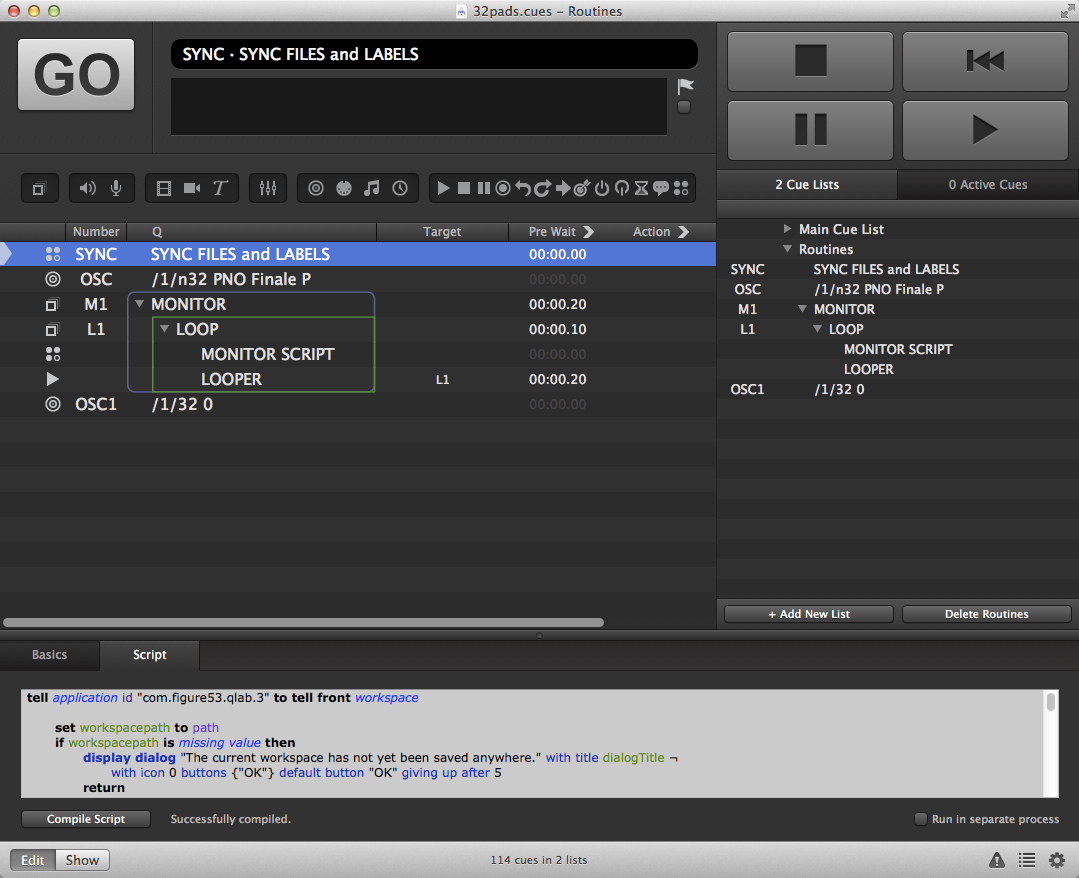
The cue numbered SYNC is a Script cue, which finds the first 32 files in the audio folder of the workspace folder, loads them into the 32 cues in the Main Cue List, and sends the name of each cue to the labels on the buttons in Touch OSC.
applescripttell application id "com.figure53.qlab.3" to tell front workspace
  set workspacepath to path
  if workspacepath is missing value then
    display dialog "The current workspace has not yet been saved anywhere." with title dialogTitle ¬
    with icon 0 buttons {"OK"} default button "OK" giving up after 5
    return
  end if
  tell application "System Events"
    --Find the path of the audio folder that is in the folder with this workspace
    tell application "System Events"
      set sharedPath to POSIX path of container of file workspacepath
    end tell
    set workspacepath to sharedPath & "/audio"
    set theTitleList to list folder workspacepath without invisibles
    set theitemcount to number of items in theTitleList
  end tell
  set theindexnumber to 1
  repeat 32 times
    if theindexnumber is less than or equal to theitemcount then
      --set the filetarget for each cue to the correct item in the audio folder
      set newfiletarget to workspacepath & "/" & item theindexnumber of theTitleList
      set file target of cue ((theindexnumber as string) & "S") to newfiletarget
      set the armed of cue (theindexnumber as string) to true
      set the q name of cue ((theindexnumber as string) & "S") to item theindexnumber of theTitleList
      delay 0.1
      --set the button name to the first 12 characters title of the cue
      set thebuttonname to q list name of cue ((theindexnumber as string) & "S")
      if length of thebuttonname is greater than 12 then
        set thebuttonname to text 1 thru 12 of thebuttonname
      end if
    else
      set thebuttonname to "--"
      set the armed of cue (theindexnumber as string) to false
      set the q name of cue (theindexnumber as string) to "--"
    end if
    set thecustomstring to "/1/n" & theindexnumber & " \"" & thebuttonname & "\""
    set the custom message of cue "OSC" to thecustomstring
    start cue "OSC"
    set theindexnumber to theindexnumber \+ 1
  end repeat
end tell
The files are loaded, the label names are created, and then the last part of the
script sets the custom message of the cue called OSC and starts that cue. So in
our example for button 1 the script creates a custom message to send to Touch
OSC: /1/n1 "06 Ambush.wa" which tells Touch OSC to set the name of label n1 on
page 1 to the name of the file that will be played.
The second Script cue is inside a loop, which repeats three times per second all the time. This cue is (re-)started by every button push, in case there has been an ESC key press.
applescripttell application id "com.figure53.qlab.3" to tell front workspace
  set thecueindex to 1
  repeat 32 times
    set cueindex to (thecueindex as string)
    set therunning to the running of cue cueindex
    if therunning is false then
      set the custom message of cue "OSC1" to "/1/" & cueindex & " 0"
    else
      set the custom message of cue "OSC1" to "/1/" & cueindex & " 1"
    end if
    start cue "OSC1"
    set thecueindex to thecueindex \+ 1
  end repeat
end tell
This script checks each button to see if its associated audio file is playing. If it is, it sends a message to Touch OSC to light up the corresponding button. For example, if cue 1 is playing, the following message is sent to Touch OSC:
/1/1 1
which lights up button 1 on page 1. If the script discovers that the cue has stopped playing, it sends:
/1/1 0
which switches the light off.
Music in Demo Video: "Ambush", "Darkness is Coming" Kevin MacLeod (incompetech.com). Licensed under a Creative Commons Attribution 3.0 Unported License.