Note: This chapter was written for QLab 3, but it works with QLab 4 and QLab 5 as well. If you are using this approach in QLab 4 or QLab 5, you'll need to replace any reference to
q type "OSC"withq type "Network"to reflect the fact that what QLab 3 calls the "OSC" cue is called the "Network" cue in QLab 4 and QLab 5. There are a few additional differences in QLab 5 which are detailed at the end of the chapter. Downloads for QLab 3, QLab 4, and QLab 5 are all provided.
This workspace is really useful if you are using QLab to control a lighting console, a mixer, a media server, QLab on another computer, or any other device which can be controlled by MIDI or OSC, and you need a bunch of control cues with sequential numbers. For instance, if you need a thousand MIDI cues for QLab to send to a lighting console, this workspace can produce them very quickly and save you hours of typing. It is probably best to generate the cues using this workspace, then cut and paste them into your workspace.
The workspace contains four generators and they all work with template cues to configure the appropriate non-changing parameters of the sequence, e.g. Destination Patch, Device ID Command etc. They allow you to choose the number of cues generated and an increment value (not for MIDI PC). They also allow you to select whether numerical values in the sequence will be integers or floats, i.e. if cue 1 is 1 or 1.0. They name the generated cues as fully as possible.
The "OSC custom message" generator substitutes the character sequence $$$ in the custom message for the current index value of the sequence (it asks for the starting number.)
The "QLab format OSC" generator uses the Q number in the template cue as its starting value as does the MSC Generator.
The "MIDI PC" generator uses the program number in the template cue as the first of the sequence and also asks you whether to use MIDI program change 0 or MIDI program change 1 as preset 1 (i.e, whether your MIDI device uses a scale of 0-127 or 1-128.)
Here it is in action:
Each generator is a Script cue and an associated template cue. The idea is that you enter the static information into the template cue, then run the Script cue in order to generate the show control cues.
To minimize the number of dialogs that the user has to fill in, the template cue sets up as much as possible:
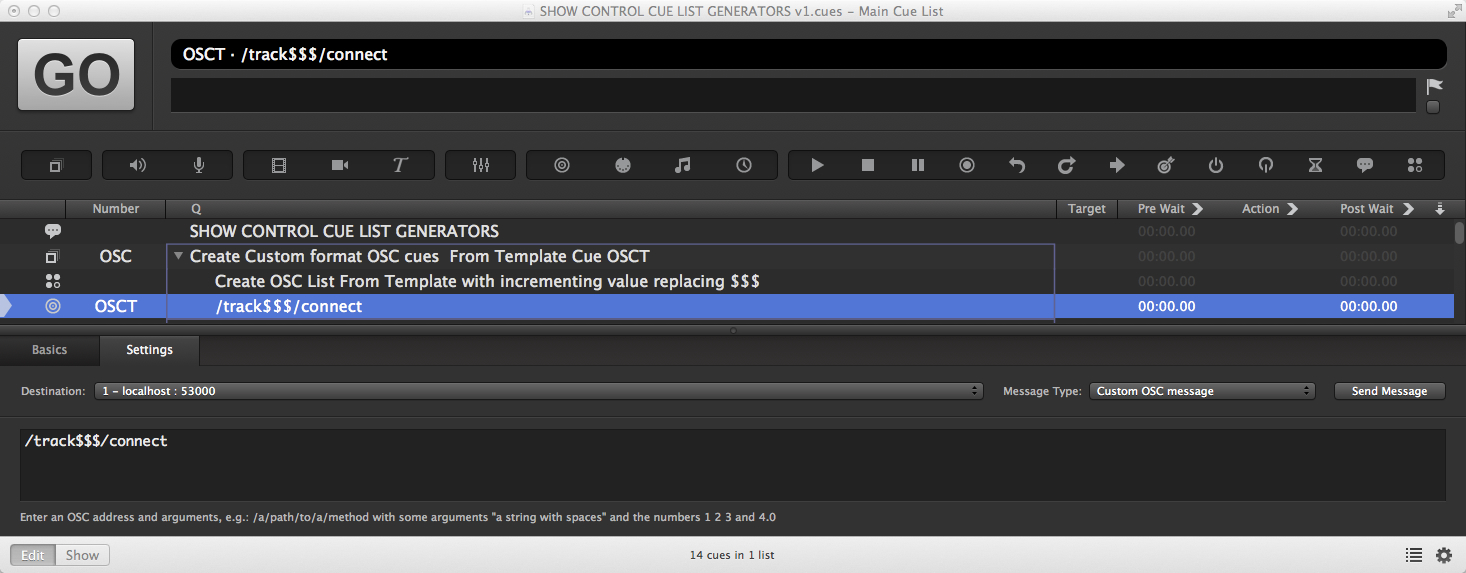
For the OSC cue, the type will be set to custom message, the Destination patch set, and the custom message entered, substituting the character sequence $$$ for the variable that will be incremented in each generated cue.
The example uses a command for the Resolume Arena video server:
/track1/connect
The template cue has that as /track$$$/connect, and will generate the
sequence; /track1/connect, /track2/connect, /track3/connect, etc.
Here's the script:
applescriptdisplay dialog "Number of cues to generate:" default answer "100"
if button returned of result = "cancel" then
  return
else
  set therepeat to (text returned of result) as integer
end if
display dialog "Starting value for variable?" default answer "1"
if button returned of result = "cancel" then
  return
else
  set theindex to (text returned of result) as real
end if
display dialog "Increment?" default answer "1"
if button returned of result = "cancel" then
  return
else
  set theincrement to (text returned of result) as real
end if
display dialog "Integer value format" buttons {"1", "1.0"} default button "1"
set integertype to button returned of result
display dialog "Device Name for Q Name Text:" default answer ""
if button returned of result = "cancel" then
  return
else
  set thedevicename to (text returned of result) as string
end if
tell application id "com.figure53.qlab.3" to tell front workspace
  try
    if the osc message type of cue "OSCT" is not custom then
      display dialog "This generator only makes lists from Custom OSC Messages"
      return
    end if
    set the thedestinationpatch to patch of cue "OSCT"
    repeat therepeat times
      make type "OSC"
      set theselectedcue to last item of (selected as list)
      set the q_num of theselectedcue to theindex as string
      set the q number of theselectedcue to ""
      set the patch of theselectedcue to thedestinationpatch
      set the osc message type of theselectedcue to custom
      set thecustommessage to the custom message of cue "OSCT"
      set AppleScript's text item delimiters to "$$$"
      set the item_list to every text item of thecustommessage
      if theindex mod 1 is 0 and integertype is "1" then
        set AppleScript's text item delimiters to (theindex as integer) as string
      else
        set AppleScript's text item delimiters to theindex as string
      end if
    set thecustommessage to the item_list as string
    set AppleScript's text item delimiters to ""
    set the custom message of theselectedcue to thecustommessage
    set the q name of theselectedcue to thedevicename & " OSC " & q default name of theselectedcue
    set theindex to theindex \+ theincrement
    end repeat
  end try
end tell
When the Script cue is run, it first requests information which isn't included in the template cue:
It checks that the template cue is formatted correctly, then copies that cue's destination patch to use in generated cues. It then makes a new OSC cue with a custom message. It removes any automatically generated cue number that QLab provides. It then assembles the custom message using a rather nifty routine to substitute the current index value for the character string $$$. It does this by setting the text item delimiters to $$$ which means that AppleScript will treat the string as two text items separated by $$$. We then set the text item delimiter to the index value which means that AppleScript now sees the string as two text items separated by our index value. When the custom message is set to the item list string, it reverts to just being treated as a single string again. The cue name is then generated to include as much information as possible.
The process is repeated for the number of cues that are set to be generated in the first dialog. Each time the script loops, it increments the variable by the increment value that was entered.
The QLab format OSC cue is a cue that produces a standard OSC message for the control of QLab, usually running on a separate machine on the network. The template cue is used to set the Destination patch. the starting cue number and the QLab command.
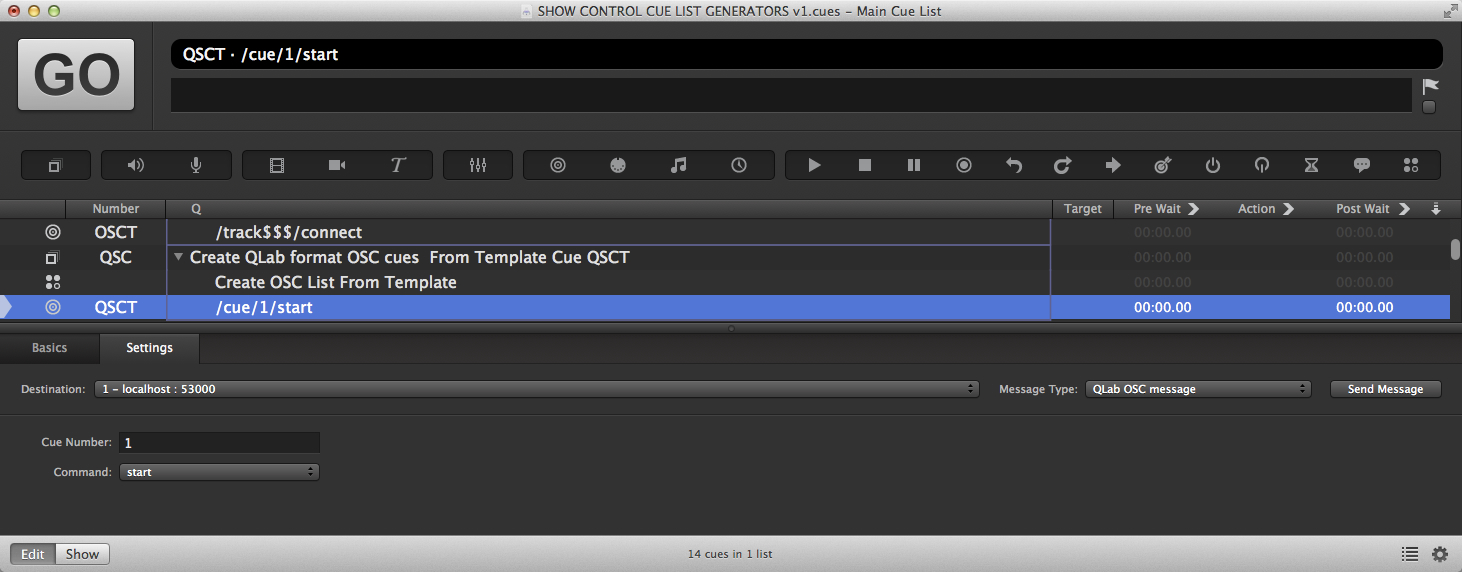
Here's the script:
applescriptdisplay dialog "Number of cues to generate:" default answer "100"
if button returned of result = "cancel" then
  return
else
  set therepeat to (text returned of result) as integer
end if
display dialog "Increment?" default answer "1"
if button returned of result = "cancel" then
  return
else
  set theincrement to (text returned of result) as real
end if
display dialog "Integer value format" buttons {"1", "1.0"} default button "1"
set integertype to button returned of result
display dialog "Device Name for Q Name Text:" default answer ""
if button returned of result = "cancel" then
  return
else
  set thedevicename to (text returned of result) as string
end if
tell application id "com.figure53.qlab.3" to tell front workspace
  if the osc message type of cue "QSCT" is not qlab then
    display dialog "This generator only makes lists from QLab OSC messages"
    return
  end if
  set theindex to q_num of cue "QSCT" as real
  set the thedestinationpatch to patch of cue "QSCT"
  repeat therepeat times
    make type "OSC"
    set theselectedcue to last item of (selected as list)
    if theindex mod 1 is 0 and integertype is "1" then
      set the q_num of theselectedcue to (theindex as integer) as string
    else
      set the q_num of theselectedcue to theindex as string
    end if
    set the q number of theselectedcue to ""
    set the patch of theselectedcue to thedestinationpatch
    set the osc message type of theselectedcue to qlab
    set the q name of theselectedcue to thedevicename & " QLab OSC " & q default name of theselectedcue
    set theindex to theindex \+ theincrement
  end repeat
end tell
When the script is run, it first requests information which isn't included in the the template cue:
It checks that the template cue is formatted correctly and copies the destination patch to use in generated cues. It copies the cue number to use as the starting value and the QLab Command, e.g start, stop, etc. It then makes a new OSC cue with a message formatted for QLab. It removes any automatically generated cue number that QLab provides. The cue name is then generated to include as much information as possible.
The process is repeated for the number of cues that are set to be generated in the first dialog. Each time the script loops, it increments the variable by the increment value that was entered.
QLab sends MSC using MIDI cues. The template cue is used to set the message type to MSC, and to set the destination patch, the starting cue number, the Command Format, the Command, and the deviceID number:
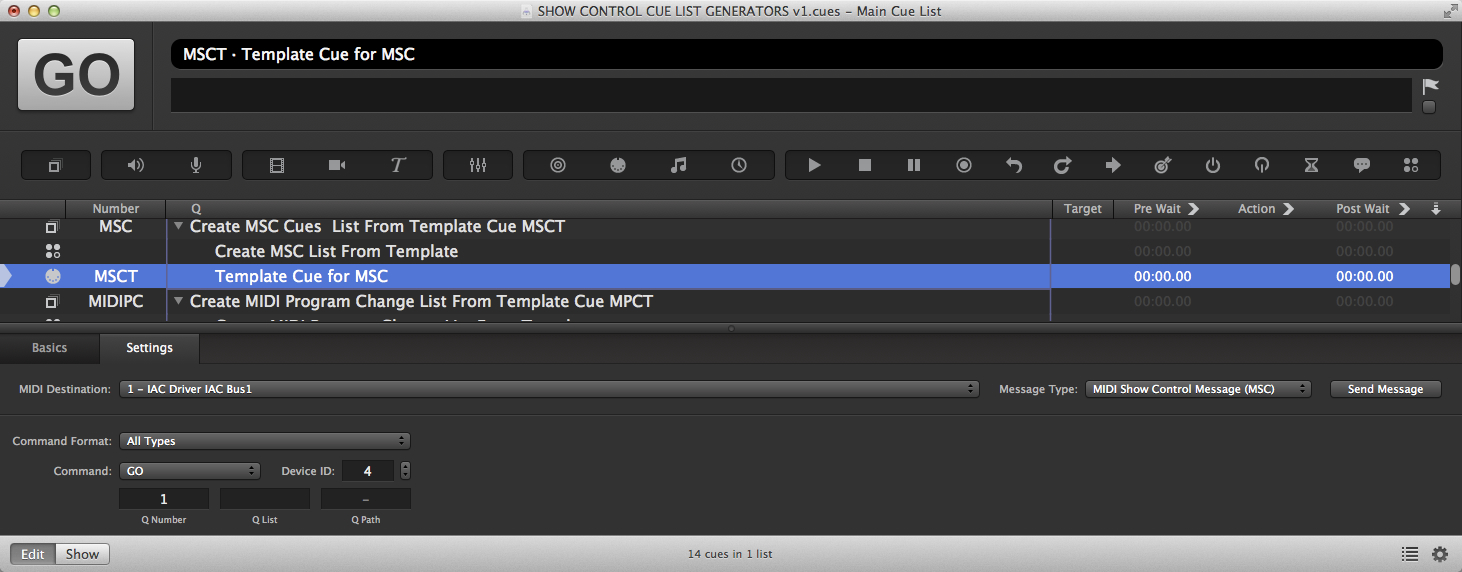
The cue number is used as the starting cue number. If required by your device, a Q List and Q Path can also be specified in the template cue.
Here's the script:
applescriptset thecommandnamelist to {"GO", "STOP", "RESUME", "TIMED_GO", "LOAD", "SET", "FIRE", "ALL_OFF", "RESTORE", "RESET", "GO_OFF"}
display dialog "Number of cues to generate:" default answer "100"
if button returned of result = "cancel" then
  return
else
  set therepeat to (text returned of result) as integer
end if
display dialog "Increment?" default answer "1"
if button returned of result = "cancel" then
  return
else
  set theincrement to (text returned of result) as real
end if
display dialog "Integer value format" buttons {"1", "1.0"} default button "1"
set integertype to button returned of result
display dialog "Device Name for Q Name Text:" default answer ""
if button returned of result = "cancel" then
  return
else
  set thedevicename to (text returned of result) as string
end if
tell application id "com.figure53.qlab.3" to tell front workspace
  set theindex to q_number of cue "MSCT" as real
  set the thedestinationpatch to patch of cue "MSCT"
  set thedeviceID to deviceID of cue "MSCT"
  set thecommandformat to the command format of cue "MSCT"
  set thecommandnumber to the command number of cue "MSCT"
  if thecommandnumber is less than 12 then
    set thecommandname to item thecommandnumber of thecommandnamelist
  else
    display dialog "Sorry can't generate a list with that command"
    return
  end if
  set theqlist to the q_list of cue "MSCT"
  set theqpath to the q_path of cue "MSCT"
  repeat therepeat times
    make type "MIDI"
    set theselectedcue to last item of (selected as list)
    set the q number of theselectedcue to ""
    set the patch of theselectedcue to thedestinationpatch
    set the message type of theselectedcue to msc
    set the command format of theselectedcue to thecommandformat
    set the command number of theselectedcue to thecommandnumber
    set the deviceID of theselectedcue to thedeviceID
    if theindex mod 1 is 0 and integertype is "1" then
      set the q_number of theselectedcue to (theindex as integer) as string
    else
      set the q_number of theselectedcue to theindex as string
    end if
    set the q_list of theselectedcue to theqlist as string
    set the q_path of theselectedcue to theqpath as string
    set the q name of theselectedcue to thedevicename & " MSC (deviceID" & thedeviceID & ") " & thecommandname & " " & the q_number of theselectedcue
    set theindex to theindex \+ theincrement
  end repeat
end tell
When the script is run, it first makes a list of all the possible MSC commands, which will be added to the cue name of the generated cues for clarity. It then requests information which isn't included in the template cue:
It then checks that the template cue is formatted correctly and copies the destination patch to use in generated cues. It copies the cue number to use as the starting value and the Command, Command Format, DeviceID, Q list, and Q path values. It then makes a new MIDI cue set to send MSC messages. It removes any automatically generated cue number that QLab provides. The cue name is then generated to include as much information as possible.
The process is repeated for the number of cues that are set to be generated in the first dialog. Each time the script loops, it increments the variable by the increment value that was entered.
The MIDI program change is one of the MIDI messages that can be sent as a standard MIDI voice message from a MIDI cue. The template cue is used to set the destination patch and the MIDI channel number:
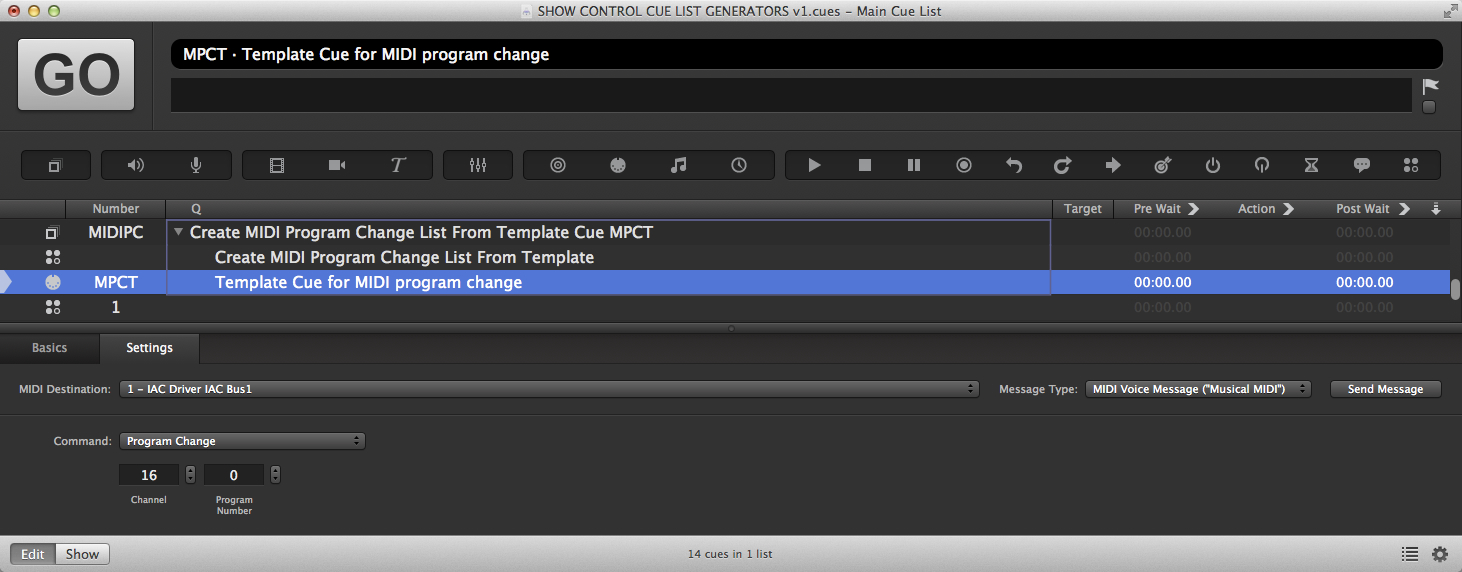
The template cue's program number is used as the starting program number.
Here's the script:
applescriptset theMIDIrangelist to {"MIDI PC 0 selects Preset 1 on Device (0-127)", "MIDI PC 1 selects Preset 1 on Device (1-128)"}
set theoffset to (choose from list theMIDIrangelist with title "MIDI PC Numbering" with prompt "What Program Change Range does your device use?" default items {"MIDI PC 0 selects Preset 1 on Device (0-127)"})
if theoffset = false then
  return
else if theoffset = "MIDI PC 0 selects Preset 1 on Device (0-127)" then
  set theoffset to 0
else
  set theoffset to 1
end if
display dialog "Number of cues to generate:" default answer "100"
if button returned of result = "cancel" then
  return
else
  set therepeat to (text returned of result) as integer
end if
display dialog "Device Name for Q Name Text:" default answer ""
if button returned of result = "cancel" then
  return
else
  set thedevicename to (text returned of result) as string
end if
set theincrement to 1
tell application id "com.figure53.qlab.3" to tell front workspace
  set theindex to byte one of cue "MPCT"
  set the thedestinationpatch to patch of cue "MPCT"
  set themidichannel to channel of cue "MPCT"
  repeat therepeat times
    make type "MIDI"
    set theselectedcue to last item of (selected as list)
    set the q number of theselectedcue to ""
    set the q name of theselectedcue to thedevicename & " (ch" & themidichannel & ")" & " PRESET " & (theindex \+ theoffset) as string
    set the patch of theselectedcue to thedestinationpatch
    set the message type of theselectedcue to voice
    set the command of theselectedcue to program_change
    set channel of theselectedcue to themidichannel
    set byte one of theselectedcue to theindex as integer
    set theindex to theindex \+ theincrement
  end repeat
end tell
MIDI program change messages are always in the range 0-127, but there are two standards in common use. On some devices, MIDI program change 0 will trigger preset 0. On others, notably on Yamaha digital audio consoles, program change 0 it will trigger preset 1.
When the script is run, it first asks which of these standards your device follows. It then requests information which isn't included in the template cue:
Unlike the other generators, you are not asked about increments or whole numbers versus floats, because everything in MIDI is sequential and everything uses whole numbers.
It then checks the template cue is formatted correctly and copies the destination patch to use in generated cues. It copies the program change number to use as the starting value and the MIDI channel number. It then makes a new MIDI cue set to send MIDI program change messages. It removes any automatically generated cue number that QLab provides. The cue name is then generated to include as much information as possible.
The process is repeated for the number of cues that are set to be generated in the first dialog. Each time the script loops, it increments the variable by the increment value that was entered.
Network cues work differently in QLab 5, and so these scripts need to be updated to reflect these differences. The most significant difference is that in QLab 5, the type of message that a Network cue sends is defined by the patch that the cue uses. The QLab 5 version of the example workspace contains these updated scripts.
The example workspace also adds a new generator which creates a series of Network cues using one of several template cues. Inside Group cue "NDC" is another group numbered "NDCT" which contains five Network cues, each using a different patch with a different type. To use this script, bring the template that you’d like to generate cues based upon to the top of group NDCT. The script will base its generated cues on that template cue. It will also ask an additional question to determine which numerical parameter in the template cue you’d like to increment.
These two changes make it simpler to do basic tasks like incrementing a series of matrix inputs and outputs on an outboard audio processor like a DS100; run the script once and tell it to increment matrix inputs, then run the script a second time and tell it to increment outputs.
This script will also keep an eye on the formatting in the template cue and keep the correct number of leading zeros if necessary.
