If you don't have access to a lighting rig to experiment with the lighting capabilities of QLab 4 or QLab 5, it really helps to have a simulation of one. This tutorial demonstrates how to use a software lighting visualizer that is reasonably detailed, fun to use, and free!
This chapter is not a lighting design tutorial but, as the chapter title suggests, a ready-built playground designed for teaching yourself (or others) how lighting works in QLab. It includes a complete set of working files to simulate a theatrical production lit by 35 generic lighting instruments with old school scrollers, and four moving lights.
The simulation uses a lighting visualizer called Capture Nexum Student Edition.
Capture Nexum is a fully featured cross-platform lighting visualizer that accepts Art-Net input and displays a WYSIWYG (what you see is what you get) simulation on-screen. The Student Edition, which is free, may be used for any purpose, educational or not. It compares favorably to the paid editions of Capture Nexum, with only the following limitations:
Here it is in action with QLab (best viewed full screen):
NOTE: in this video, the visualizer is running at a substantially reduced frame rate because screen recording software is running simultaneously.
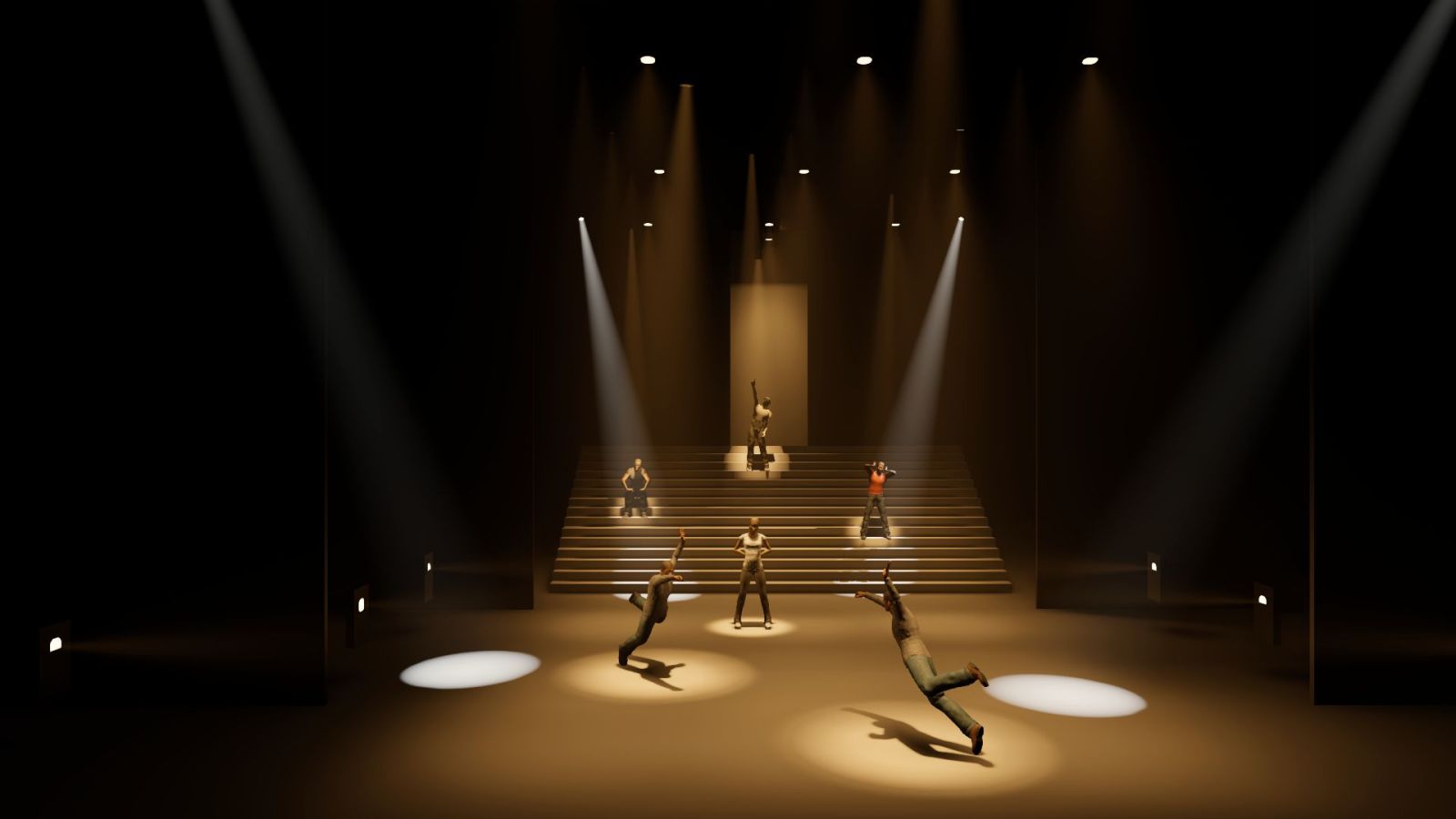
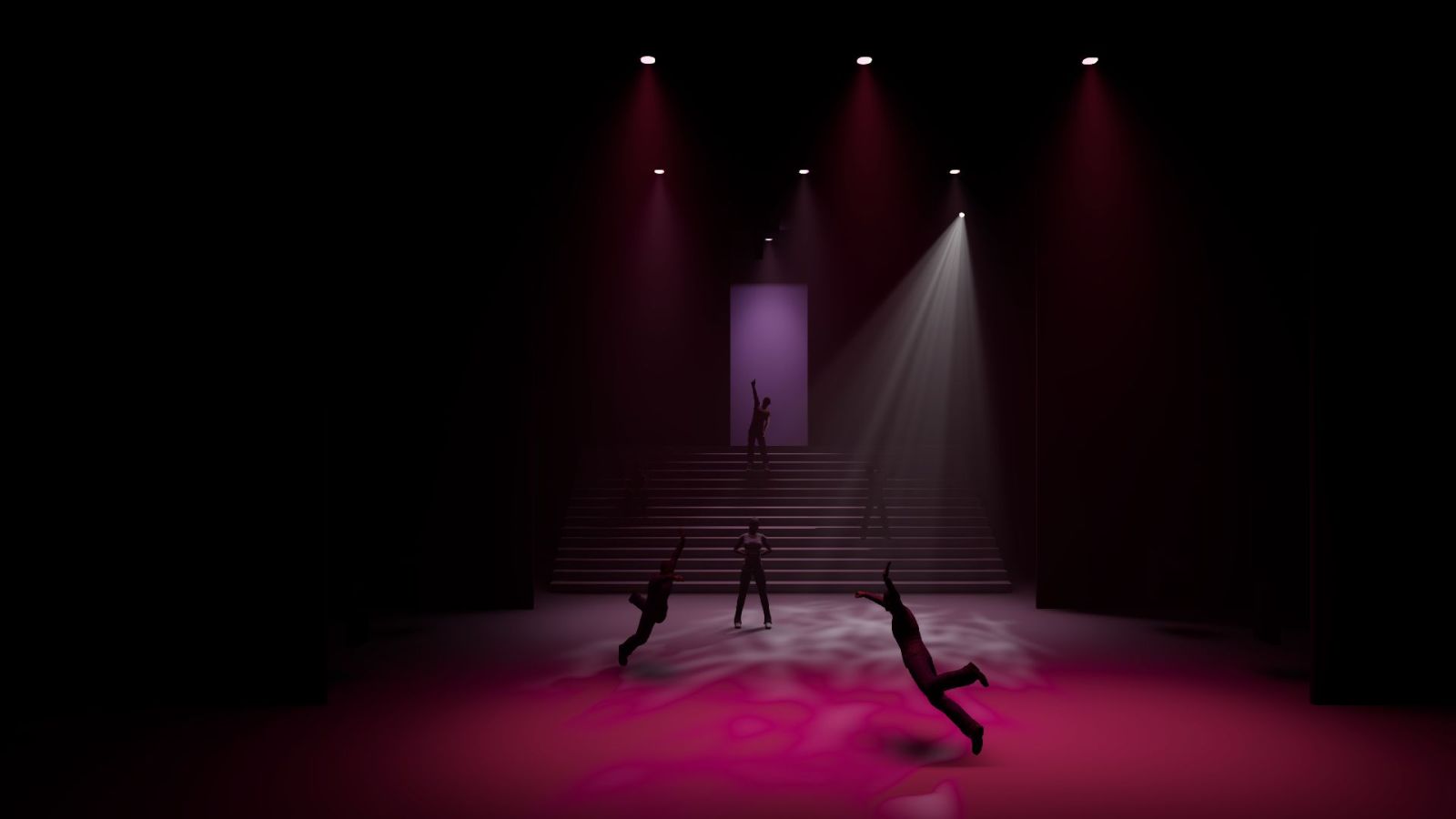
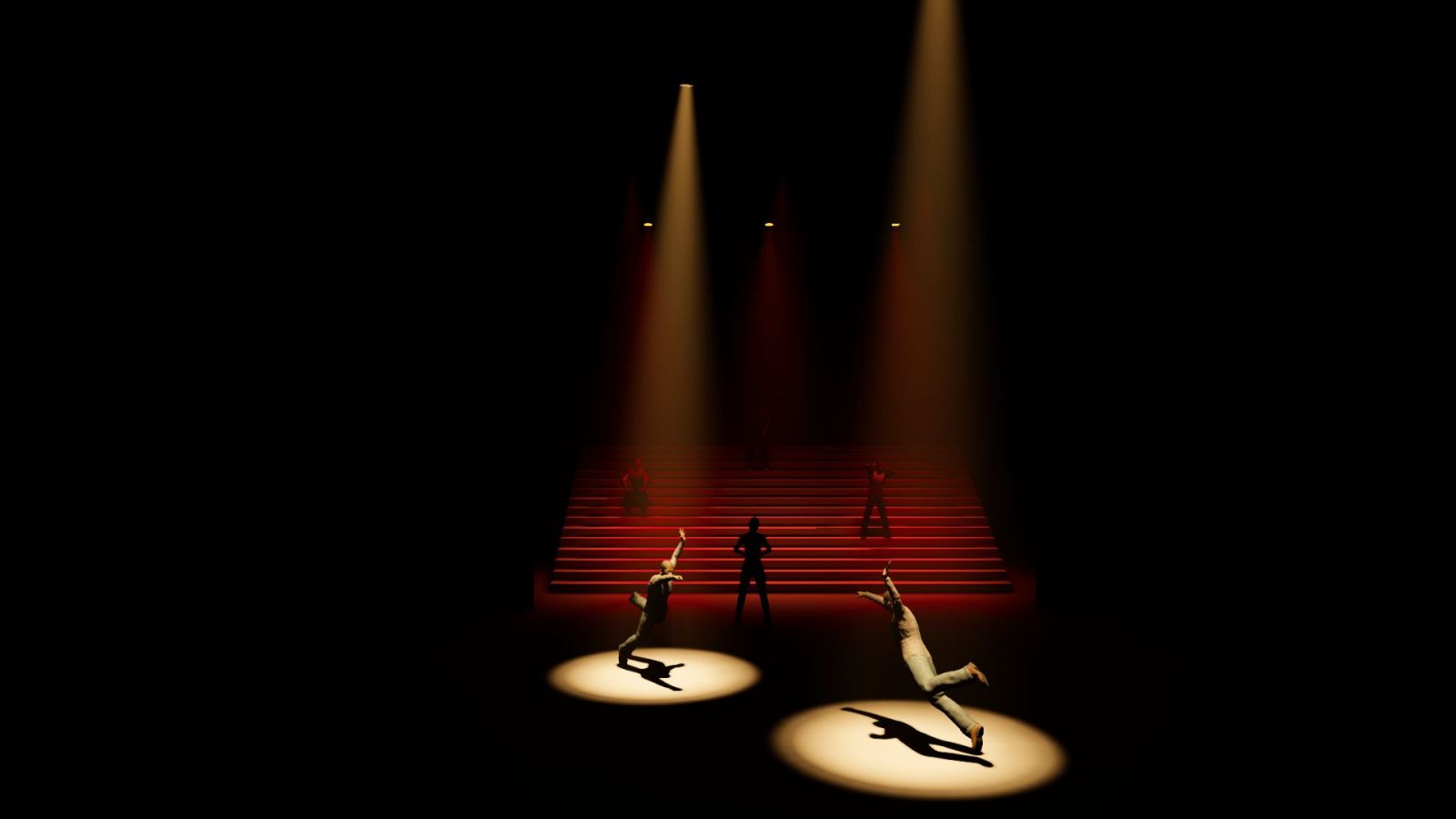
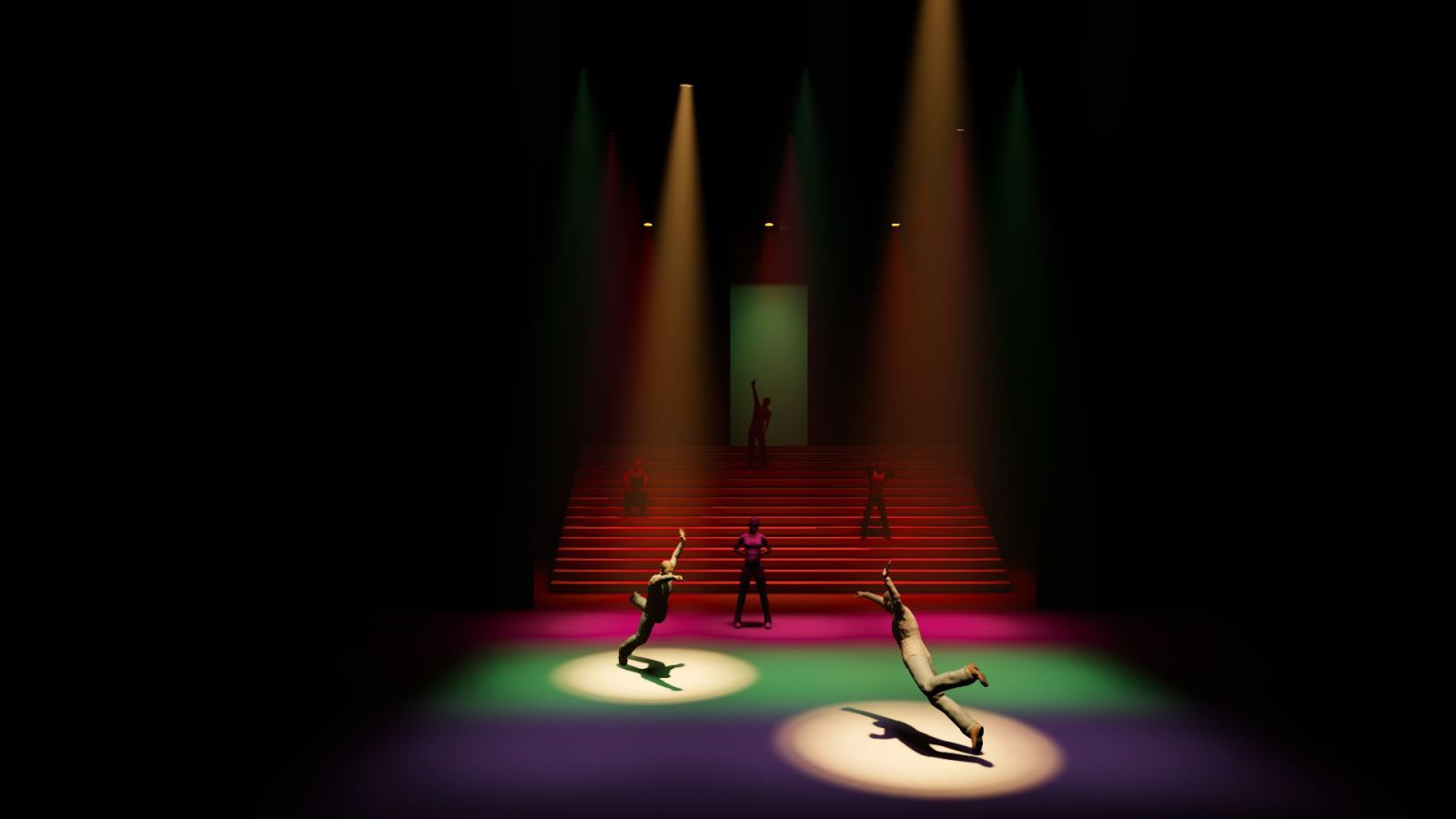
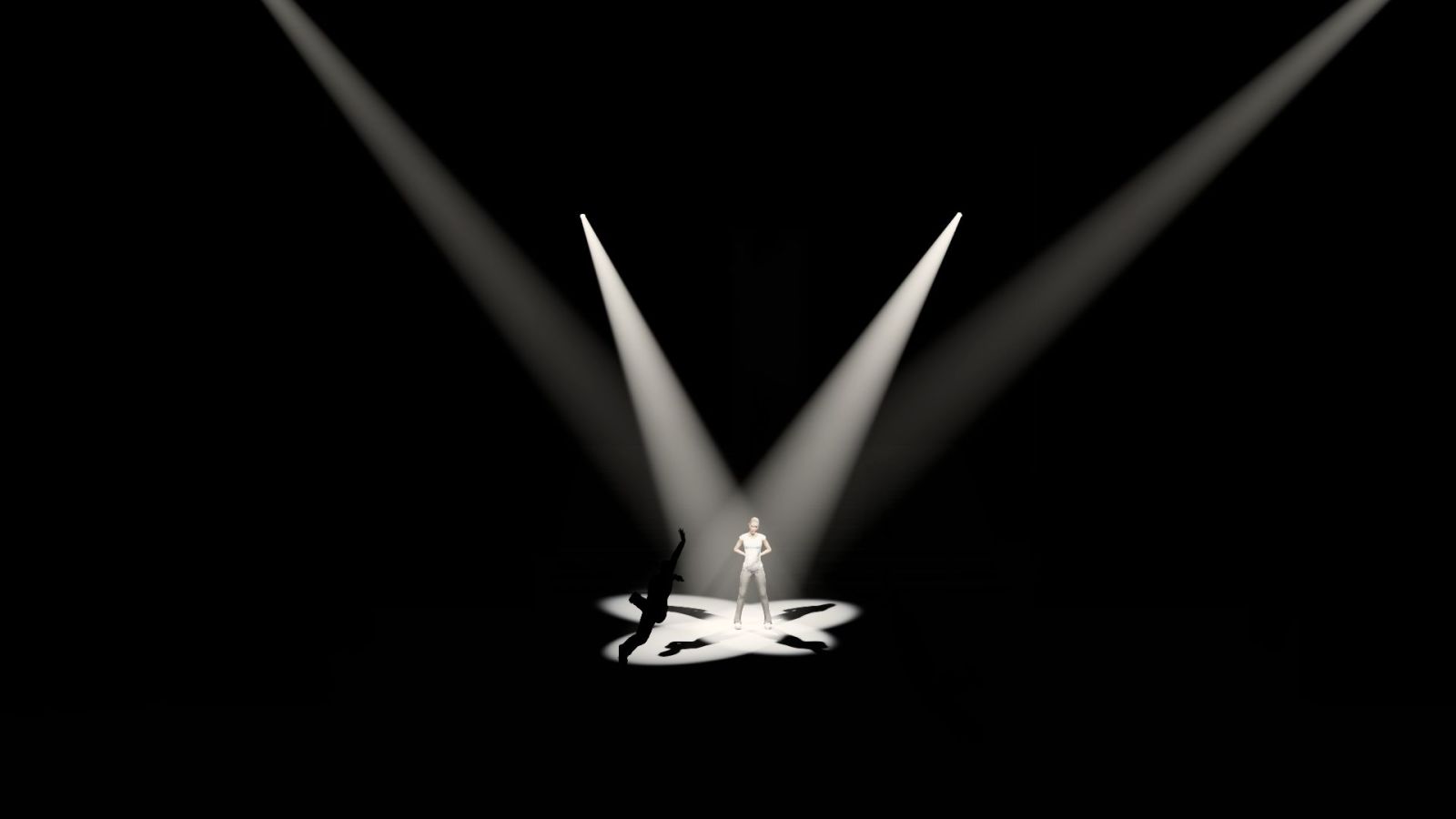
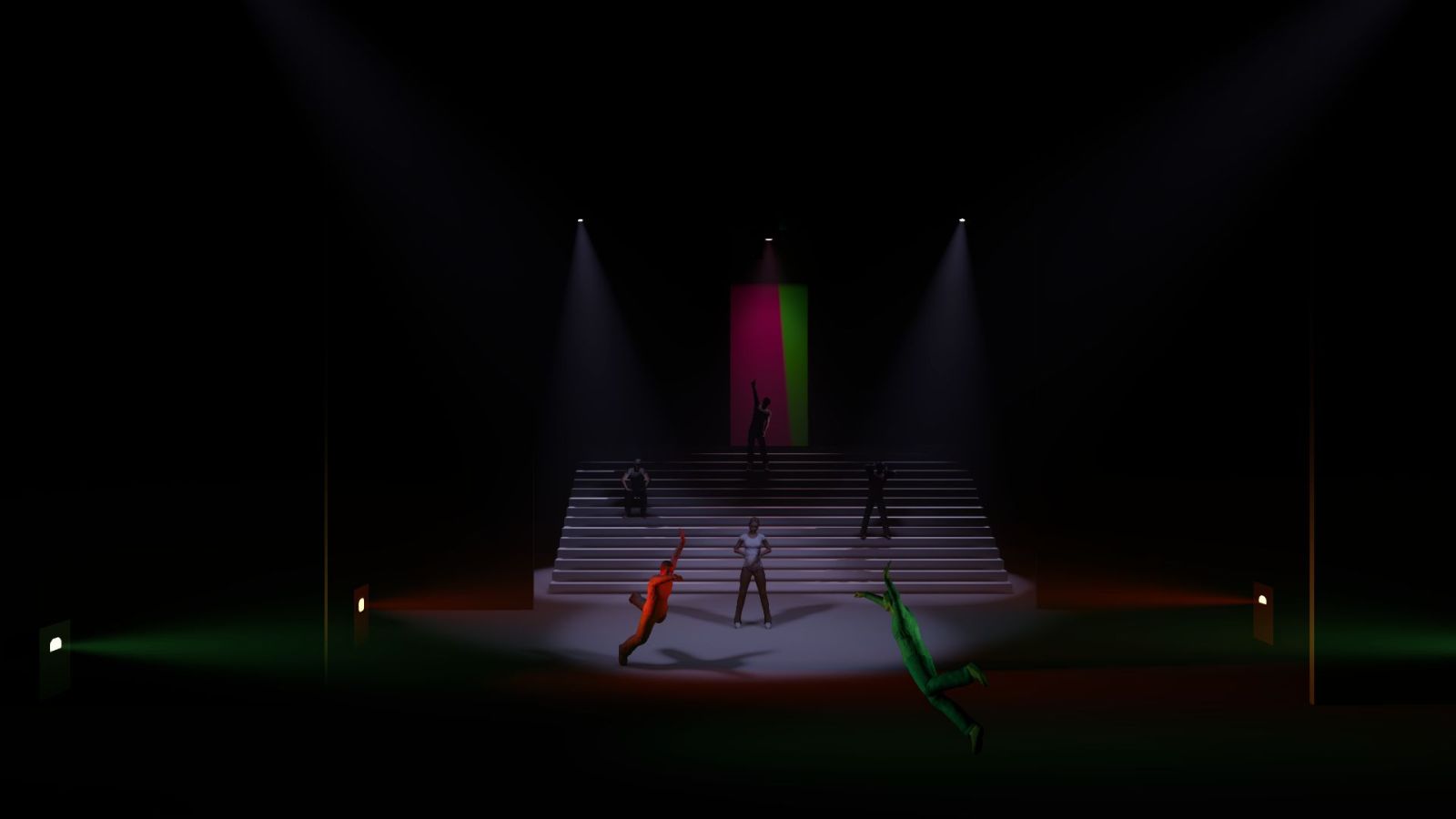
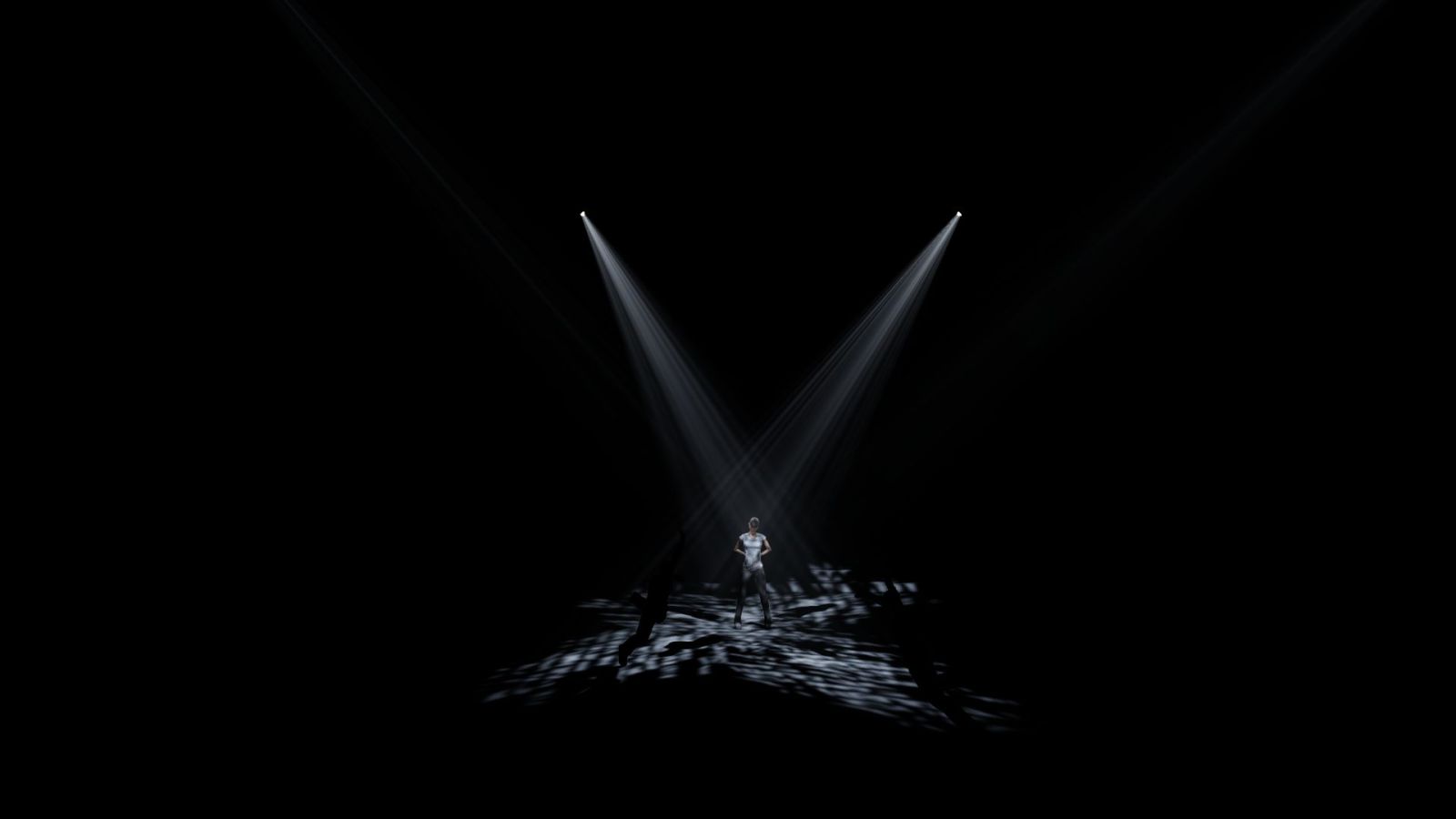
Here are some stills exported from Capture Nexum. You can click on each image to enlarge it.
| | | |
|:-----:|:-----:|:-----:|:-----:|
| |
| |
| |
| |
|
|
| |
| |
| |
| |
|
Getting this to work on your Mac is surprisingly straightforward:
Lighting Playground.c2s which will launch Capture Nexum.Lighting Playground.qlab4 which will launch QLab.In QLab, if the Light Dashboard is not already open, choose Light Dashboard from the Window menu or use the keyboard shortcut ⇧⌘D. Adjust some levels while looking at Capture Nexum.
If you don't see lights changing, you may need to choose QLab Preferences from the QLab menu and check the box marked Use broadcast mode for Art-Net lighting.
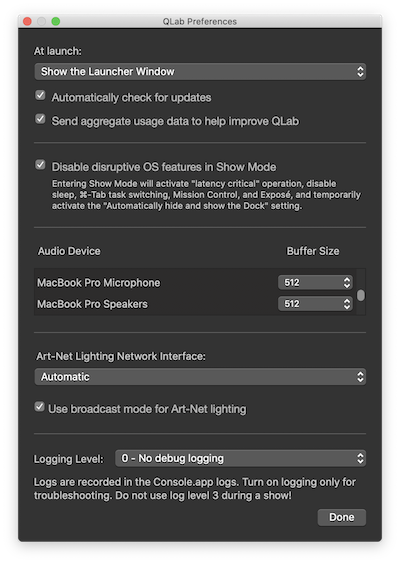
This adjustment may not be necessary, however.
The workspace includes some demo cues, and you can adjust those or create your own.
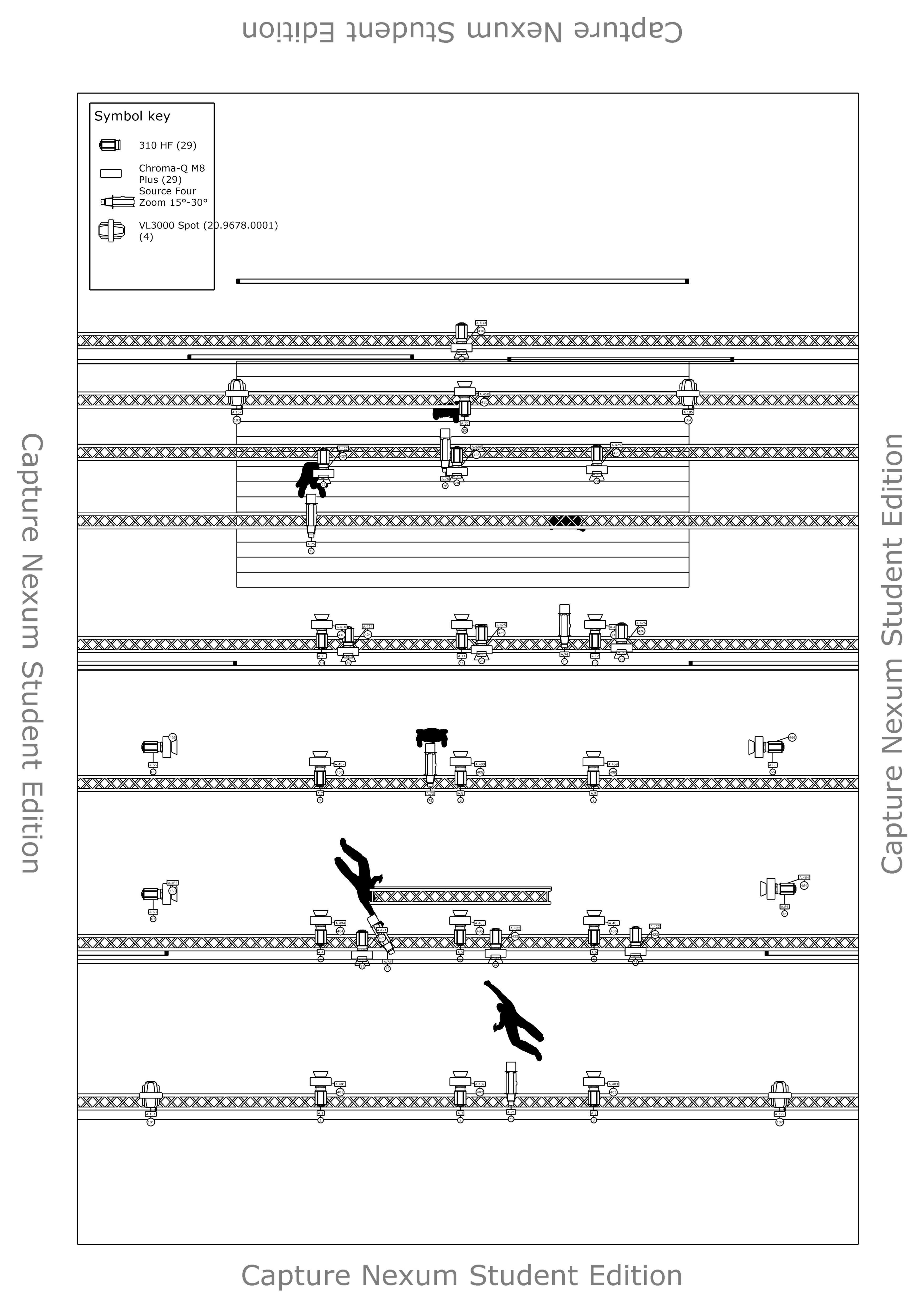
The example download includes paperwork, and here is a list of all the fixtures used:
| Fixture | Wattage | Channel | Patch | DMX Channels | Accessories |
|---|---|---|---|---|---|
| Robert Juliat 310 HF | 1000W | 1 | A.1 | 1 | Barndoors |
| Robert Juliat 310 HF | 1000W | 2 | A.2 | 1 | Barndoors |
| Robert Juliat 310 HF | 1000W | 3 | A.3 | 1 | Barndoors |
| Robert Juliat 310 HF | 1000W | 4 | A.4 | 1 | Barndoors |
| Robert Juliat 310 HF | 1000W | 5 | A.5 | 1 | Barndoors |
| Robert Juliat 310 HF | 1000W | 6 | A.6 | 1 | Barndoors |
| Robert Juliat 310 HF | 1000W | 7 | A.7 | 1 | Barndoors |
| Robert Juliat 310 HF | 1000W | 8 | A.8 | 1 | Barndoors |
| Robert Juliat 310 HF | 1000W | 9 | A.9 | 1 | Barndoors |
| Robert Juliat 310 HF | 1000W | 10 | A.10 | 1 | Barndoors |
| Robert Juliat 310 HF | 1000W | 11 | A.11 | 1 | Barndoors |
| Robert Juliat 310 HF | 1000W | 12 | A.12 | 1 | Barndoors |
| Robert Juliat 310 HF | 1000W | 21 | A.21 | 1 | Barndoors |
| Robert Juliat 310 HF | 1000W | 22 | A.22 | 1 | Barndoors |
| Robert Juliat 310 HF | 1000W | 23 | A.23 | 1 | Barndoors |
| Robert Juliat 310 HF | 1000W | 24 | A.24 | 1 | Barndoors |
| Robert Juliat 310 HF | 1000W | 25 | A.25 | 1 | Barndoors |
| Robert Juliat 310 HF | 1000W | 26 | A.26 | 1 | Barndoors |
| Robert Juliat 310 HF | 1000W | 27 | A.27 | 1 | Barndoors |
| Robert Juliat 310 HF | 1000W | 28 | A.28 | 1 | Barndoors |
| Robert Juliat 310 HF | 1000W | 29 | A.29 | 1 | Barndoors |
| Robert Juliat 310 HF | 1000W | 30 | A.30 | 1 | Barndoors |
| Robert Juliat 310 HF | 1000W | 50 | A.50 | 1 | Barndoors |
| Robert Juliat 310 HF | 1000W | 61 | A.61 | 1 | Barndoors |
| Robert Juliat 310 HF | 1000W | 62 | A.62 | 1 | Barndoors |
| Robert Juliat 310 HF | 1000W | 63 | A.63 | 1 | Barndoors |
| Robert Juliat 310 HF | 1000W | 64 | A.64 | 1 | Barndoors |
| Robert Juliat 310 HF | 1000W | 65 | A.65 | 1 | Barndoors |
| Robert Juliat 310 HF | 1000W | 66 | A.66 | 1 | Barndoors |
| ETC Source Four Zoom 15-30 deg | 750W | 71 | A.71 | 1 | Iris, Tophat |
| ETC Source Four Zoom 15-30 deg | 750W | 72 | A.72 | 1 | Iris, Tophat |
| ETC Source Four Zoom 15-30 deg | 750W | 73 | A.73 | 1 | Iris, Tophat |
| ETC Source Four Zoom 15-30 deg | 750W | 74 | A.74 | 1 | Iris, Tophat |
| ETC Source Four Zoom 15-30 deg | 750W | 75 | A.75 | 1 | Iris, Tophat |
| ETC Source Four Zoom 15-30 deg | 750W | 76 | A.76 | 1 | Iris, Tophat |
| Vari-Lite VL3000 Spot | 1600W | 102 | A.129 | 28 | |
| Vari-Lite VL3000 Spot | 1600W | 101 | A.101 | 28 | |
| Vari-Lite VL3000 Spot | 1600W | 103 | A.157 | 28 | |
| Vari-Lite VL3000 Spot | 1600W | 104 | A.185 | 28 | |
| Chroma-Q M8 Plus | - | 401 | A.401 | 1 | |
| Chroma-Q M8 Plus | - | 402 | A.402 | 1 | |
| Chroma-Q M8 Plus | - | 403 | A.403 | 1 | |
| Chroma-Q M8 Plus | - | 404 | A.404 | 1 | |
| Chroma-Q M8 Plus | - | 405 | A.405 | 1 | |
| Chroma-Q M8 Plus | - | 406 | A.406 | 1 | |
| Chroma-Q M8 Plus | - | 407 | A.407 | 1 | |
| Chroma-Q M8 Plus | - | 408 | A.408 | 1 | |
| Chroma-Q M8 Plus | - | 409 | A.409 | 1 | |
| Chroma-Q M8 Plus | - | 410 | A.410 | 1 | |
| Chroma-Q M8 Plus | - | 411 | A.411 | 1 | |
| Chroma-Q M8 Plus | - | 412 | A.412 | 1 | |
| Chroma-Q M8 Plus | - | 421 | A.421 | 1 | |
| Chroma-Q M8 Plus | - | 422 | A.422 | 1 | |
| Chroma-Q M8 Plus | - | 423 | A.423 | 1 | |
| Chroma-Q M8 Plus | - | 424 | A.424 | 1 | |
| Chroma-Q M8 Plus | - | 425 | A.425 | 1 | |
| Chroma-Q M8 Plus | - | 426 | A.426 | 1 | |
| Chroma-Q M8 Plus | - | 427 | A.427 | 1 | |
| Chroma-Q M8 Plus | - | 428 | A.428 | 1 | |
| Chroma-Q M8 Plus | - | 429 | A.429 | 1 | |
| Chroma-Q M8 Plus | - | 430 | A.430 | 1 | |
| Chroma-Q M8 Plus | - | 450 | A.450 | 1 | |
| Chroma-Q M8 Plus | - | 461 | A.461 | 1 | |
| Chroma-Q M8 Plus | - | 462 | A.462 | 1 | |
| Chroma-Q M8 Plus | - | 463 | A.463 | 1 | |
| Chroma-Q M8 Plus | - | 464 | A.464 | 1 | |
| Chroma-Q M8 Plus | - | 465 | A.466 | 1 | |
| Chroma-Q M8 Plus | - | 466 | A.465 | 1 |
Here is a plan view of the rig:
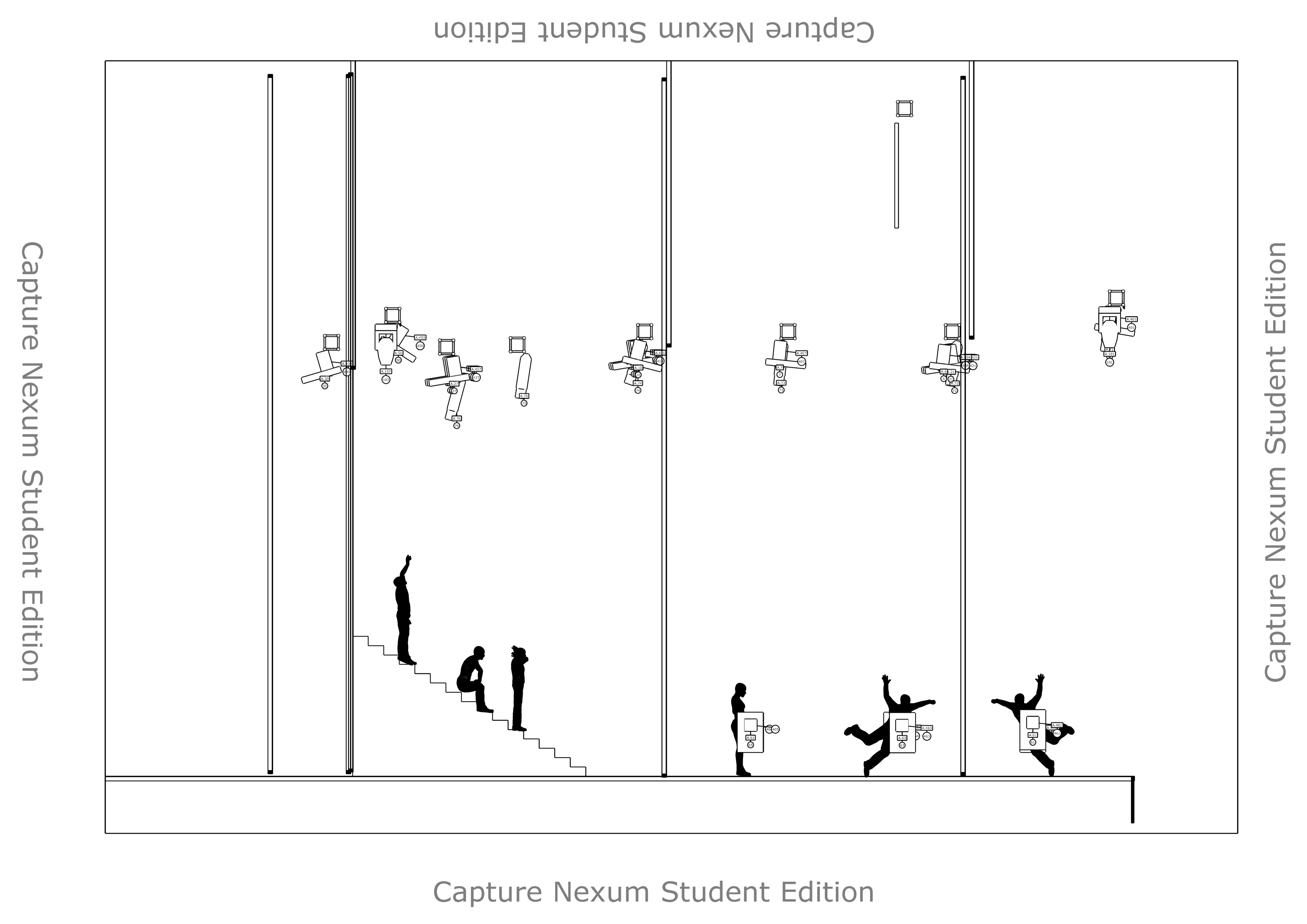
And a section view:
When you are ready to make your own models and rigs in the visualizer you will have to spend a bit of time with the Capture Nexum manual and/or tutorials. It's cross-platform and, like many cross-platform programs, has some idiosyncratic un-Mac-like ways of doing things. Nevertheless, it is definitely not the most challenging piece of software that a lighting designer might have to learn.
It's worth noting that since Capture Nexum receives lighting data via Art-net, you can run QLab and Capture on two separate computers.
Capture Nexum even supports video, and you can play Video cues straight from QLab into a Capture model. To do this, you will need a program called CITP Tool to convert a Syphon stream, which QLab can output, to CITP, which Capture Nexum can input.
The Student Edition has LCD panels for video display. The full version also has a variety of video projectors.
Capture Nexum is a commercial product and trademark of Capture Visualisation AB, Sweden.
CITP Tool is a commercial product copyright Krautscheid Medientechnik, Germany.
Art-Net is a trademark of Artistic License Holdings, Ltd.
