Sometimes different performances call for different cues. When this workspace opens, it lets you select a cue list out of a choice of eight. In this example, we suppose that a show requires a different set of cues for each day of the week and two sets for Saturday; one for the matinée, and one for the evening. It's easily adapted for other uses; you could have 21 choices for the morning, afternoon, and evening of each day. Or you could have just two choices for afternoon or evening performances. It also defaults to a choice called "Auto" which will read the system clock and go to the appropriate cue list automatically.
Here it is in action:
This workspace demonstrates a few fairly advanced techniques:
To make a cue automatically run when a workspace is opened, go to Workspace Settings → General and check the box labeled "When workspace opens, start cue number:", then enter the number of the cue you want to run in the adjacent text box:

In the example, cue SEL is tucked away in a cue list called Scripts.
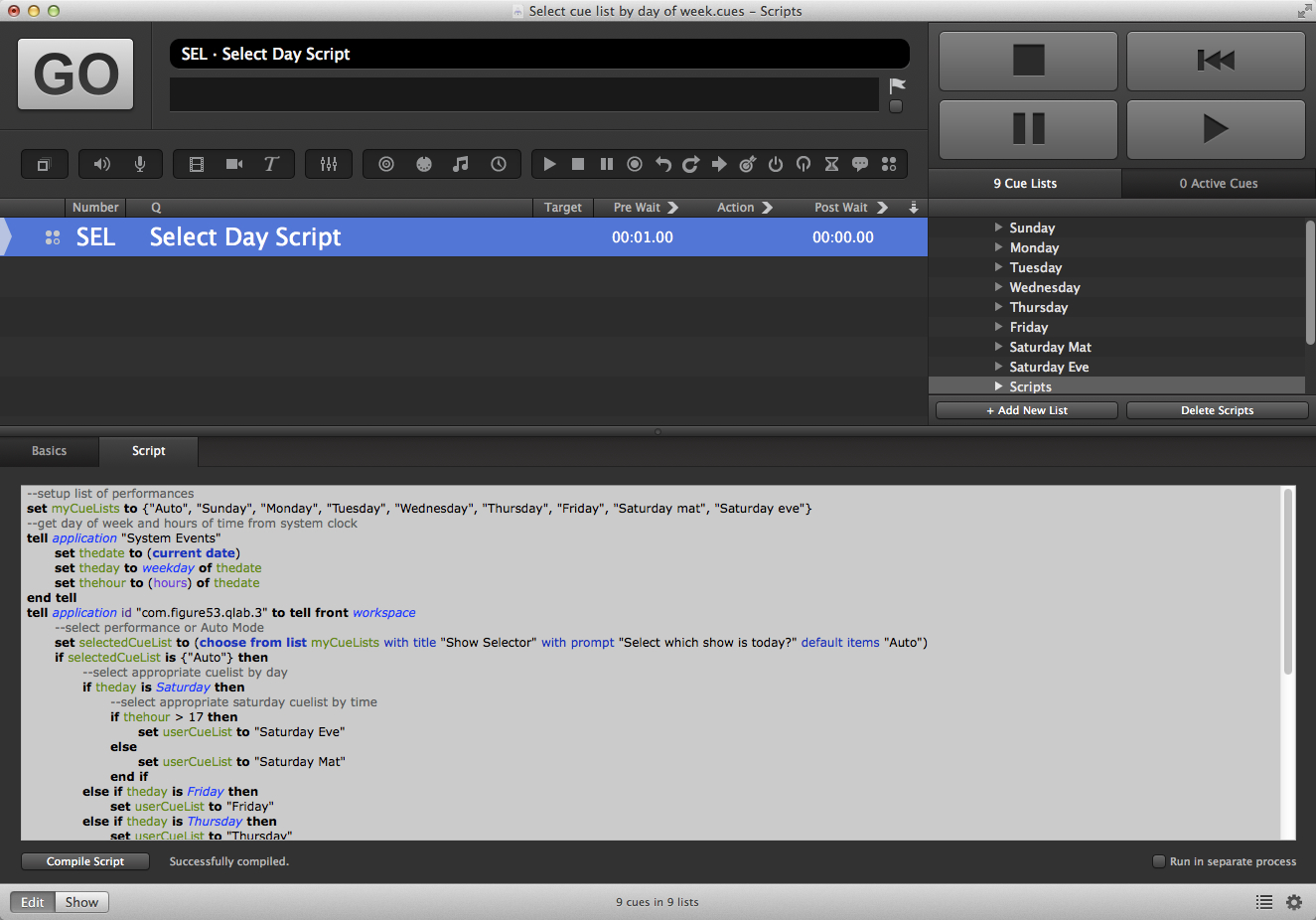
There are two important things to note. First, the checkbox labeled "Run in separate process", found in the lower right of the Script tab of the inspector, is not checked. Second, there is a one second pre-wait on the Script cue. Because the script is the first thing to happen when the workspace is opened, it doesn't yet know it is the front workspace. The pre-wait just makes sure that the workspace is completely open and has definitely become the active workspace before the script is run.
Here's the script:
applescript--setup list of performances
set myCueLists to {"Auto", "Sunday", "Monday", "Tuesday", "Wednesday", "Thursday", "Friday", "Saturday mat", "Saturday eve"}

--get day of week and hours of time from system clock
tell application "System Events"
  set thedate to (current date)
  set theday to weekday of thedate
  set thehour to (hours) of thedate
end tell

tell application id "com.figure53.qlab.3" to tell front workspace
  --select performance or Auto Mode
  set selectedCueList to (choose from list myCueLists with title "Show Selector" with prompt "Select which show is today?" default items "Auto")
  if selectedCueList is {"Auto"} then
    --select appropriate cuelist by day
    if theday is Saturday then
      --select appropriate saturday cuelist by time
      if thehour > 17 then
        set userCueList to "Saturday Eve"
      else
        set userCueList to "Saturday Mat"
      end if
    else if theday is Friday then
      set userCueList to "Friday"
    else if theday is Thursday then
      set userCueList to "Thursday"
    else if theday is Wednesday then
      set userCueList to "Wednesday"
    else if theday is Tuesday then
      set userCueList to "Tuesday"
    else if theday is Monday then
      set userCueList to "Monday"
    else if theday is Sunday then
      set userCueList to "Sunday"
    end if
  else
    set userCueList to selectedCueList
  end if

  --test for cancel button
  if userCueList is false then
    return
  else
    set current cue list to first cue list whose q name is userCueList
  end if
end tell
The script first creates a list of performances. It then gets the date from the Mac system clock and extracts the weekday and the hour of the time. It then presents a dialog box with all the cue lists available and waits for the operator to make a selection. If the operator selects "Auto", which is the default, the weekday and hour are used to determine which cue list is the appropriate one to open. The script also contains some code to respond appropriately if the cancel button is pressed.
