QLab allows you to create very complex sequences of cues with many media elements playing simultaneously, achieving precise control of when each individual element stops and starts.
Sometimes, however, this complexity isn't required, and what is needed is a safe system to play a single audio or video file, with safeguards against playing more than one item at a time or accidentally stopping the currently playing item.
This may be useful in situations like dance recitals, skating competitions, gymnastic displays, medal ceremonies, graduations, corporate events, etc.
It is also often useful in these situations to be able to distribute information about the currently playing cue, including its elapsed and remaining times, and the next cue number and name.
This project demonstrates a workspace that:
Here it is in action:
In the screen recording you can see the QLab workspace with a selection of National Anthem intros as example Audio cues.
"Canada" is played and "now playing" information about the cue is displayed on some commonly available devices. Clockwise from top left:
While "Canada" is playing, the operator can be seen scrolling down the list using the down arrow key, and the "next cue" information updates on all the displays.
When "Canada" finishes, the operator presses the space bar to play "Kenya".
While "Kenya" is playing, the operator types ⌃S to stop playback, which, as an extra precaution, requires the STOP to be confirmed through a dialog.
The operator then uses the down arrow to select "Monaco" and presses the space bar to play.
While "Monaco" is playing, the operator types ⌃F to bring up the recital-specific find tool and performs several searches.
The video also shows that presses of the space bar are ignored while a cue is playing.
Audio cues are added to the main cue list in the normal way.
In order to customize the action of the space bar to ignore presses while other cues are playing, it is disabled in Workspace Settings → Key Map so it can be used as a trigger for a Script cue which will perform the desired behavior.
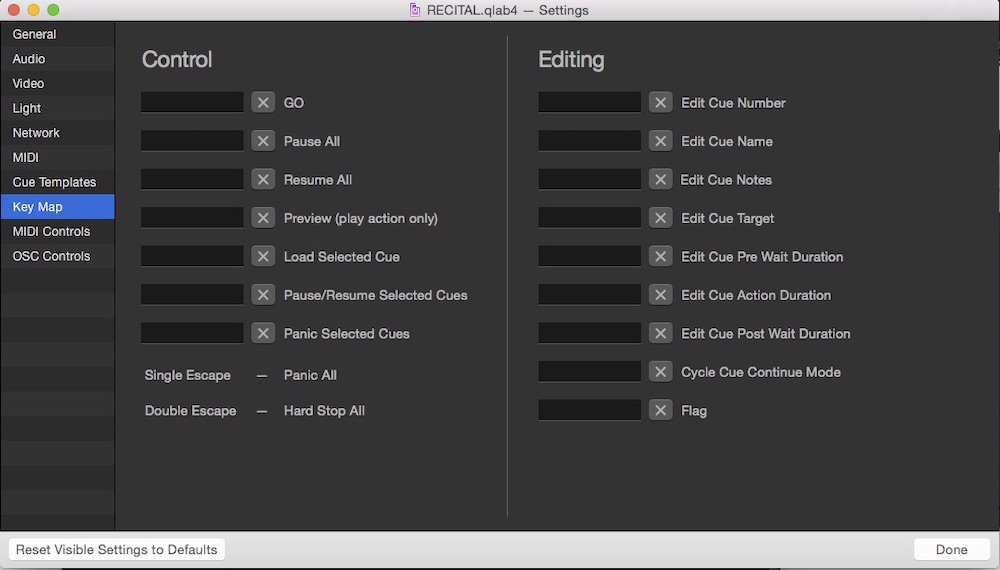
To minimize any possibility of accidental operation, all other standard QLab key bindings are also cleared out. Needless to say, you can retain any that are useful for your intended application. Note that the escape key cannot be disabled; we consider it a safety feature that there is always a standard method available to stop all cues.
Having disabled the standard Key Map, custom versions of some of the controls are made with Script cues in a cue list called "ENGINE."
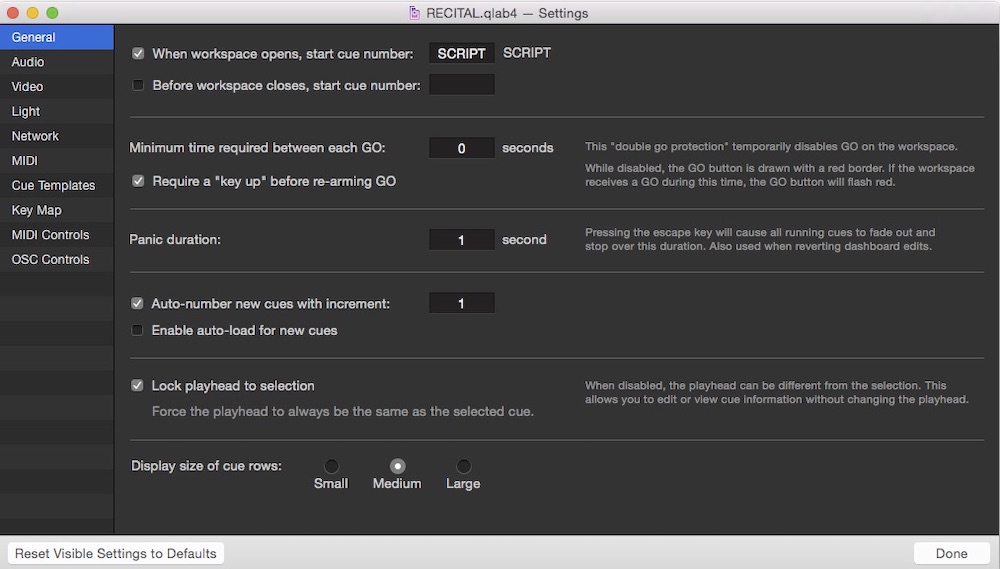
When the workspace is launched, a cue numbered SCRIPT is run automatically. This is configured in Workspace Settings → General. This will start the creation of the "now playing" information.
The first cue in the ENGINE cue list is a Group cue in timeline mode numbered TIMER. In the Triggers tab of the inspector, you can see that this cue has its hotkey trigger set to the space bar. If you want to use a MIDI controller as a GO button, you can add a MIDI trigger here as well.
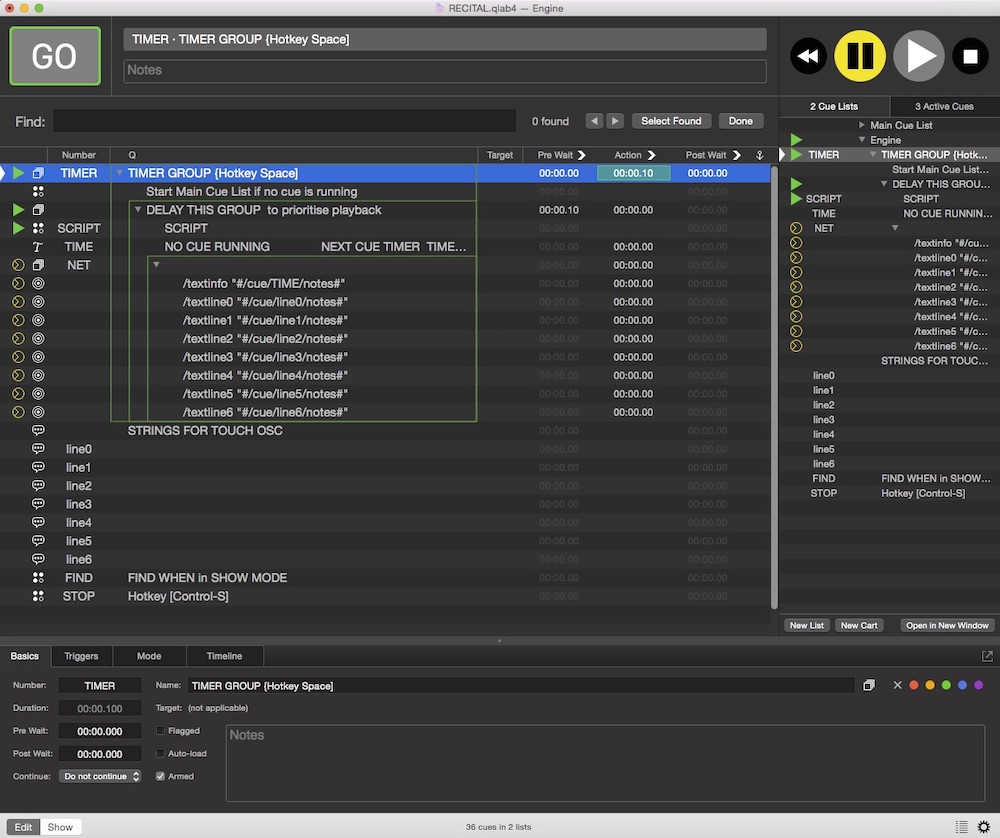
The first cue in the TIMER Group is a Script cue which finds out if any Audio cues are running. If none is, the script tells the main cue list to GO.
applescripttell application id "com.figure53.QLab.4" to tell front workspace
  set thecues to cues whose running is true and q type is "audio" as list
  if the (count of thecues) < 1 then
    start (first cue whose q name is "Main Cue List")
  end if
end tell
Next is a subgroup containing a Script cue numbered SCRIPT that repeats continuously to produce the "now playing" information. Next is a Text cue for displaying the "now playing" information on the video surfaces. After that comes another nested subgroup numbered NET which contains Network cues to send the "now playing" information via OSC messages.
The SCRIPT cue looks like this:
applescripttell application id "com.figure53.QLab.4" to tell front workspace
  set thenextcuenumber to ""
  set thenextcuename to ""
  set thecuenumber to ""
  set theqname to ""
  set thecuenumber to ""
  repeat
    set theactivecues to cues whose running is true and q type is "audio" or q type is "video"
    if (count of theactivecues) is greater than 0 then
      set theCurrentCue to last item of theactivecues
      set thecuenumber to the q number of theCurrentCue

      --elapsed time
      set theelapsedtimer to ((round (action elapsed of theCurrentCue) * 10) / 10)
      set theHours to (text -1 thru -2 of ("00" & (theelapsedtimer div 3600)))
      set theRemainderSeconds to (theelapsedtimer mod 3600)
      set theMinutes to (text -1 thru -2 of ("00" & (theRemainderSeconds div 60)))
      set theRemainderSeconds to (text -1 thru -4 of ("0000" & (theRemainderSeconds mod 60)))
      set theelapsedseconds to (theHours & ":" & theMinutes & ":" & theRemainderSeconds)

      --remaining time
      set theRemainingTimer to ((round (((duration of theCurrentCue) - (action elapsed of theCurrentCue)) * 10)) / 10)
      set theHours to (text -1 thru -2 of ("00" & (theRemainingTimer div 3600)))
      set theRemainderSeconds to (theRemainingTimer mod 3600)
      set theMinutes to (text -1 thru -2 of ("00" & (theRemainderSeconds div 60)))
      set theRemainderSeconds to (text -1 thru -4 of ("0000" & (theRemainderSeconds mod 60)))
      set theRemainingTime to (theHours & ":" & theMinutes & ":" & theRemainderSeconds)

      --format text
      try
        set thenextcue to last item of (selected as list)
        set thenextcuenumber to q number of thenextcue
        set thenextcuename to q list name of thenextcue
      end try
      if the (count of characters of thenextcuename) is greater than 50 then set thenextcuename to characters 1 thru 50 of thenextcuename as string

      set theqname to q list name of theCurrentCue
      if the (count of characters of theqname) is greater than 50 then set theqname to characters 1 thru 50 of theqname as string
      --extra code for TouchOSC
      set the notes of cue "line0" to "Current Track"
      set the notes of cue "line1" to "CUE" & thecuenumber
      set the notes of cue "line2" to theqname
      set the notes of cue "line3" to "  ELAPSED TIME =  " & theelapsedseconds
      set the notes of cue "line4" to "REMAINING TIME = -" & (theRemainingTime as string)
      set the notes of cue "line5" to "NEXT CUE " & thenextcuenumber
      set the notes of cue "line6" to thenextcuename

      set thedisplay to "CUE " & thecuenumber & linefeed & return & theqname & linefeed & return & linefeed & return & "  ELAPSED TIME =  " & theelapsedseconds & linefeed & return & linefeed & return & "REMAINING TIME = -" & (theRemainingTime as string) & linefeed & return & linefeed & return & "NEXT CUE " & thenextcuenumber & linefeed & return & thenextcuename

      set the text of cue "TIME" to thedisplay
      set the notes of cue "TIME" to thedisplay
      start cue "NET"
    else
      try
        set thenextcue to last item of (selected as list)
        set thenextcuenumber to q number of thenextcue
        set thenextcuename to q list name of thenextcue

      end try

      if the (count of characters of thenextcuename) is greater than 50 then set thenextcuename to characters 1 thru 50 of thenextcuename as string
      set line1 to "NO CUE RUNNING"

      set thedisplay to line1 & linefeed & return & linefeed & return & linefeed & linefeed & return & linefeed & return & linefeed & return & linefeed & return & linefeed & return & "NEXT CUE " & thenextcuenumber & linefeed & return & thenextcuename

      set the text of cue "TIME" to thedisplay
      set the notes of cue "TIME" to thedisplay

      --additional code for TouchOSC
      set the notes of cue "line0" to line1
      set the notes of cue "line1" to ""
      set the notes of cue "line2" to ""
      set the notes of cue "line3" to ""
      set the notes of cue "line4" to ""
      set the notes of cue "line5" to "NEXT CUE " & thenextcuenumber
      set the notes of cue "line6" to thenextcuename

      start cue "NET"

    end if
  end repeat
end tell
The script starts by clearing some variables to make sure it doesn't display any information left over from a previous session.
Following this is the main repeat loop, which first creates a list of all Video or Audio cues that are running. If there is a cue running, it collects the cue number and cue name of that cue (truncated to 50 characters), the cue name and cue number of the following cue, and the elapsed time and remaining time of the running cue. The times are formatted into a standard time display with padded zeros and 1/10 of second resolution, resulting in something like this: 00:01:30.4
All this information is then formatted and stored as text in a Text cue called, appropriately, TEXT. The same information is placed into the notes field of the Text cue. The text is formatted with carriage returns to put the information on separate lines of text, as well as linefeed characters in order to support Lemur as a display device. If you aren't using Lemur, the linefeed isn't necessary and just regular returns will be sufficient for formatting.
TouchOSC doesn't support multiline text in its label objects, so the next thing the script does is slice up the "now playing" information and store each line in the notes field of seven separate Memo cues. If you are not using TouchOSC, these lines of the script are not necessary.
If no Audio cues are running, the script displays "NO CUES RUNNING", the time displays are cleared, and the Next Cue information is formatted and stored in the notes fields of cues as before.
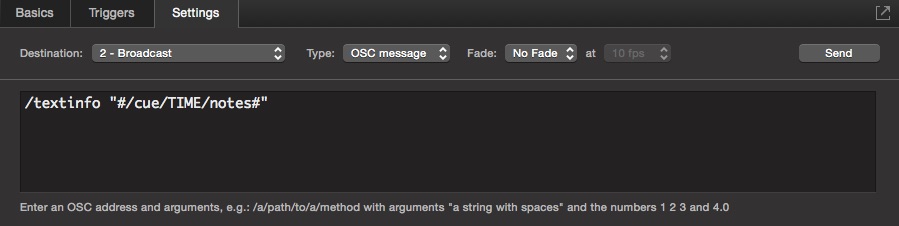
Finally, just before the loop repeats, the Group cue called NET is started which sends OSC messages to all the devices on the network. The arguments for these OSC messages are derived from OSC queries which get information from the notes field of the cues above, e.g. "#/cue/TIME/notes#"
The number of Network cues is as low as possible while still allowing the widest compatibility with various receiving programs.
All Network cues are using the same network destination patch which uses the broadcast IP address to send messages to all devices on the local network.
The broadcast address, which is an IP address ending in .255, is a very useful tool that allows an OSC message, or any other network traffic, to be directed all the devices on a local network. Many networking experts will say that broadcasting OSC data is not what the broadcast address was designed to do, and may advise very strongly against it.
For show control use, many users find that the usefulness of this technique outweighs any potential problems. For complex networks it may be best avoided, but in a simple network carrying show control data only, you will probably find that the broadcast address can be used without difficulties.
The precise details of setting up and using IP addresses, including the broadcast address, are outside the scope of this chapter. For more information, please see this page on Networking from the QLab manual.
Here is the Settings tab for the Network cue that sends OSC to Lemur, Open Stage Control, and any other software capable of displaying multi line text:
In Workspace Settings → Network we can see the setup for the network destination patch. This example uses IP addresses in the range 192.168.1.x with a subnet mask of 255.255.255.0. This means all devices on the network must have the same first three numbers in their IP addresses, but unique fourth numbers.
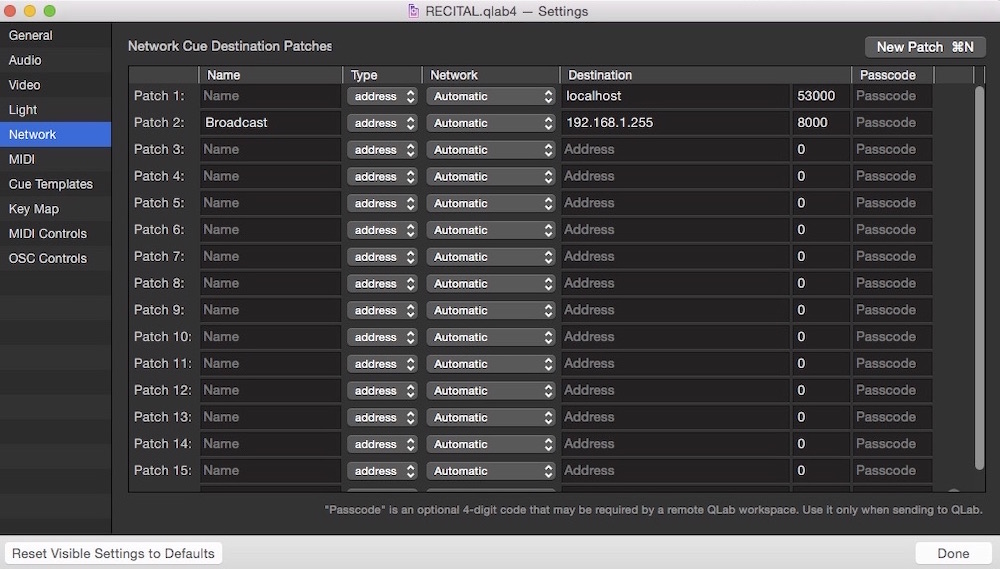
The port number for the patch is set to 8000. This is because Lemur only allows incoming messages on this port, and most other OSC software can be set to receive on any port.
Back in the ENGINE cue list, there are two more Script cues to discuss.
The cue numbered FIND (which has hotkey ⌃F) brings up a dialog which allows searching of the main cue list (even in Show Mode) and sets the playhead to the found cue.
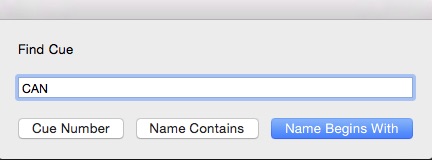
This script searches for the supplied text either as a cue number, anywhere within a cue name, or at the beginning of a cue name, depending which button is selected.
applescripttell application id "com.figure53.QLab.4" to tell front workspace
  display dialog "Find Cue " default answer "" buttons {"Cue Number", "Name Contains", "Name Begins With"} default button 3
  set theresult to result
  set thebutton to button returned of theresult
  set theanswer to text returned of theresult
  try
    if thebutton is "Cue Number" then
      set the playback position of (first cue list whose q name is "Main Cue List") to cue theanswer
    else if thebutton is "Name Contains" then
      set thecue to first item of (cues of (first cue list whose q name is "Main Cue List") whose q list name contains theanswer)
      set the playback position of (first cue list whose q name is "Main Cue List") to thecue

    else if thebutton is "Name Begins With" then
      set thecue to first item of (cues of (first cue list whose q name is "Main Cue List") whose q list name begins with theanswer)
      set the playback position of (first cue list whose q name is "Main Cue List") to thecue
    end if
  end try

end tell
This is a fairly straightforward script and its workings are fairly obvious from just reading the code in plain English.
The last cue in the list is a Script cue numbered STOP and it is likewise fairly straightforward:
applescripttell application id "com.figure53.QLab.4" to tell front workspace
  try
    display dialog "STOP CURRENT TRACK?"
    panic (first cue list whose q name is "Main Cue List")
  end try
end tell
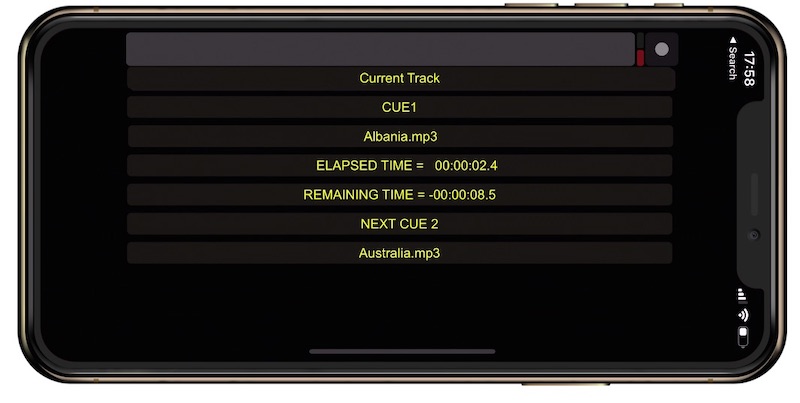
TouchOSC only allows the display of text in objects called labels, which are restricted to the display of a single line of text.
The QLab workspace sends seven lines of text as OSC messages to the addresses of the seven labels in TouchOSC. These are /textline0, /textline1, and so on.
The example download contains a TouchOSC layout called Recital-TouchOSC.touchosc with full-width label objects set up to display each line of text information.
TouchOSC needs to be configured on each device to use this layout, and to use the following settings:
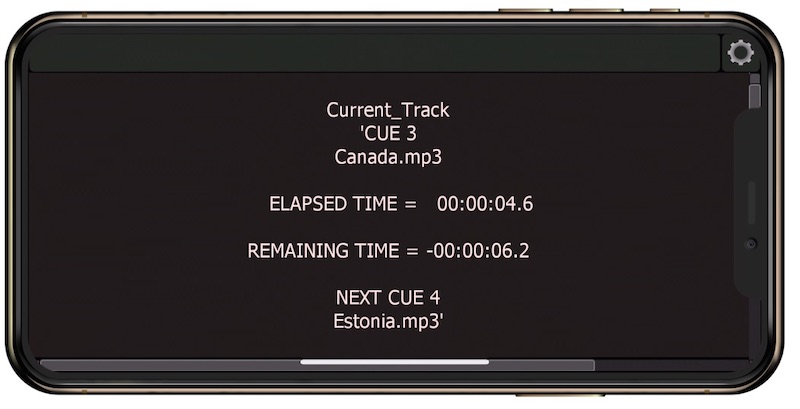
Lemur can receive all the text information as a single multiline string, including linefeed and return characters to break the lines up. The multiline text is sent from QLab to a Lemur monitor object with the address /textinfo
The example download contains two Lemur layout files called Recital-iPhone.jzml and Recital-iPad.jzml for iPhone and iPad respectively.
Other than installing the layout and making sure that your iOS device is on the same network as your Mac, no setup should be necessary.
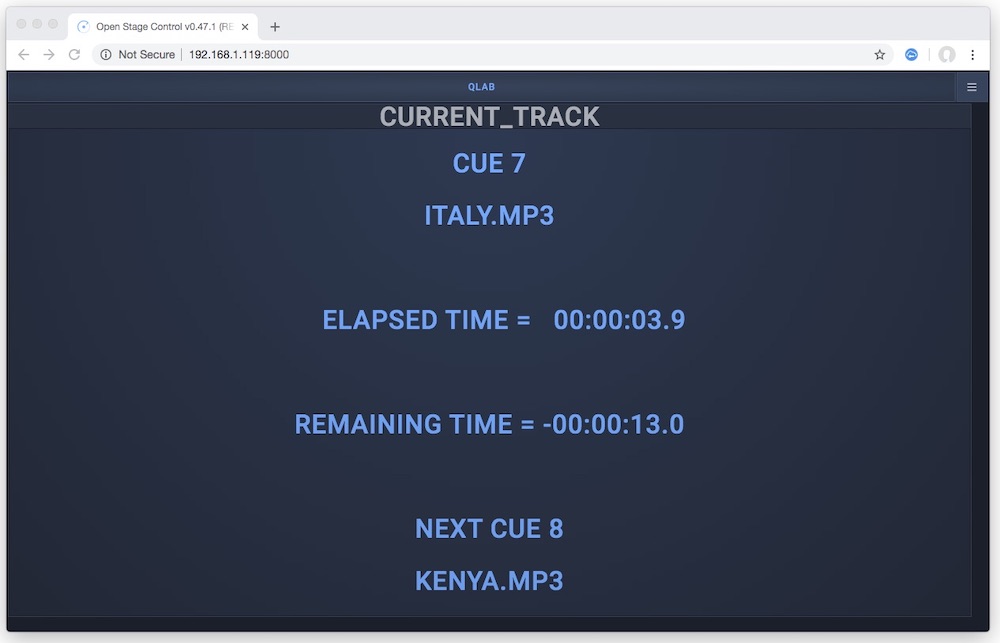
Open Stage Control is less well known than the other two OSC programs above, but it is ideal for this project. It serves up all the information from QLab as a web page, viewable by any device on the local network. When Open Stage Control is running, all you need to do is open a web browser and enter the IP address of the Mac running QLab plus the port number that we've configured already: 8000.
When you first launch Open Stage Control, it presents a launch page which should be configured like this:
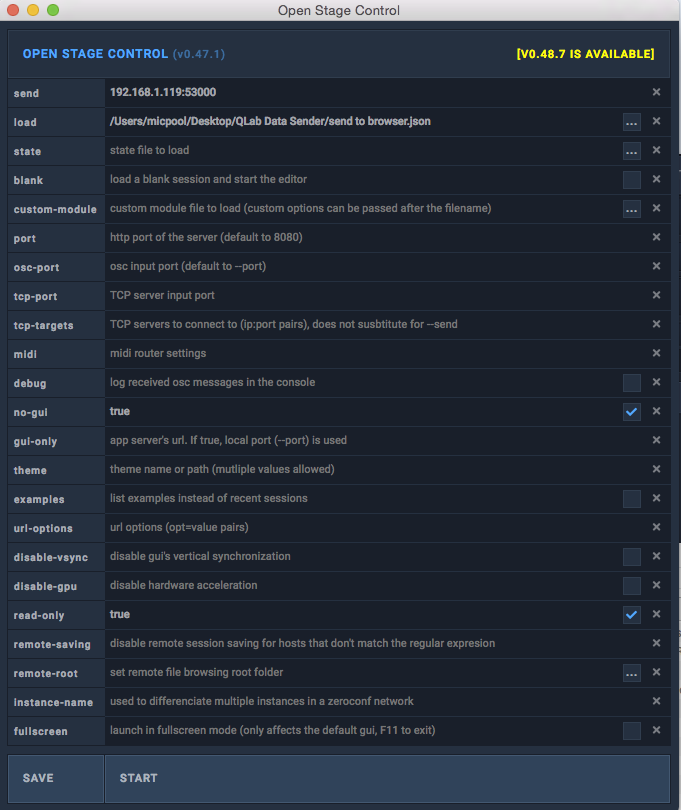
Only the items in light grey need to be set.
Click START to start the server. When running, the addresses at which the server can be found appear in the bottom panel. The first address only works on the computer that's running Open Sound Control; the second address is the one to use for other devices on the network.
Chapter Image by Mic Pool incorporating a public domain image from www.piqsels.com
All Audio examples public domain from WikiMedia Commons.
TouchOSC is a registered Trade Mark of Hexler Ltd. Lemur is a registered Trade Mark of lline. Open Stage Control is free software created by Jean-Emmanuel Doucet.
