Sometimes it would be nice if you could correspond with a QLab workspace from anywhere in the world, tell it what to do, and for it to reply and tell you what it was up to. Fortunately, this is possible.
Here it is in action, best viewed full screen):
An email is sent with the subject line "#OSC". This is received by Mail running
on the same computer as QLab. Immediately, it is picked up by a mail rule which
tells Mail to run a script if any email with that subject is received. The
script is executed. It translates the body text of the email to an OSC
instruction which it sends to QLab, and then starts a Script cue in QLab
numbered REPLY, which sends an email back with a list of all currently running
cues.
First we have to write a script which we can use with a rule in the Apple Mail application.
applescripttell application “Mail”
  set themessages to messages of inbox
  set themessage to first item of themessages
  set thecommand to content of themessage
end tell
tell application id “com.figure53.qlab.4” to tell front workspace
  do shell script “echo ” & the quoted form of (thecommand) & ” | nc -u -w 0 127.0.0.1 53535″
  start cue “REPLY”
end tell
We save this script as QlabOSC.scpt in ~/Library/Application
Scripts/com.apple.mail
In the Rules tab of Mail preferences, we add a rule to run the script any time an email is received with the subject line: #OSC
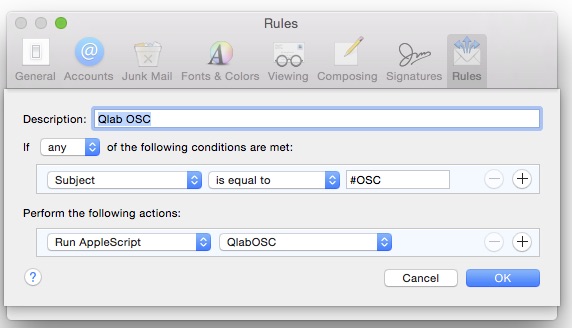
In the QLab workspace, we create a Script cue numbered REPLY (optionally in a
separate cue list):

Here's the script for that cue:
applescripttell application id “com.figure53.QLab.4” to tell front workspace
  try
    set cuelister to “”
    repeat with eachcue in (active cues as list)
      set cuelister to cuelister & “-” & q number of eachcue & ” • ” & q display name of eachcue
    end repeat
  end try
end tell
tell application “Mail”
  set themessage to make new outgoing message with properties {visible:true, subject:”From your QLab Workspace”, content:”Thank you. Command acknowledged. I am now playing” & cuelister}
  tell themessage
    make new to recipient at end of to recipients with properties {name:”your name”, address:”youraddress@mac.com”}
  end tell
  send themessage
end tell
Don't forget to put your name and email address in this script!
We then make sure we have both QLab and Mail open, and that QLab is set to the main cue list at the top of the show.
Here is an example email:
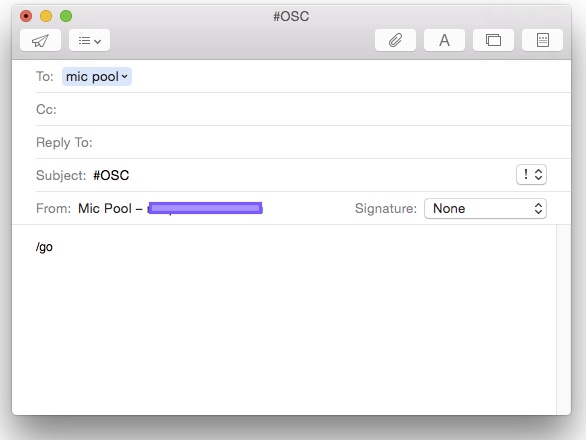
Other examples of OSC messages we might use are:
/panic
/reset
/playhead/1003
/pause
/resume
/cue/1001/start
etc.
Here is a typical reply from the workspace:
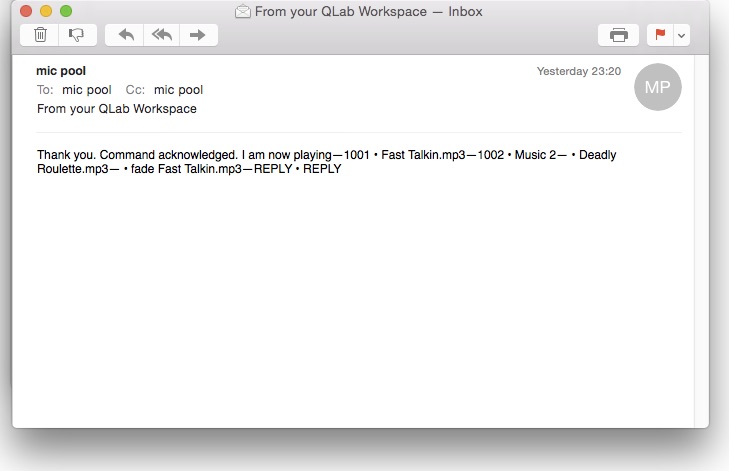
If you just want to send an email or SMS from QLab, perhaps confirming a wall clock has fired or something similar, then you can use this script:
tell application “Mail”
  set theSubject to “Your Subject” -- the subject
  set theContent to “Your message body” -- the content
  set theAddress to “recipient@someaddress.com” -- the receiver
  set msg to make new outgoing message with properties {subject:theSubject, content:theContent, visible:true}
  tell msg to make new to recipient at end of every to recipient with properties {address:theAddress}
  delay 1
  send msg
end tell
set message to the “Your Message”
tell application “Messages”
  send message to buddy “PHONE NUMBER” of service “SMS”
end tell
delay 5
tell application “Messages” to quit
