Sometimes, it might be handy just to drag a whole bunch of video files into a QLab workspace and have an instant slide show with crossfades. Or, to drag in audio files and crossfade through them with each GO, without the need to create Fade cues and so forth. And if there was random access, so the cues could be selected in any order and still crossfade, then so much the better!
If you are using QLab 4, the tools to do this are built right in. In QLab 3 it's still possible to do, but it's a bit more difficult. This chapter will explore both.
Here is a demo of a bunch of images being dragged into a QLab workspace and being randomly accessed and crossfaded (it would work just as well with audio files or movies):
When new cues are created in QLab 4, their default settings are determined by the Cue Template for that cue type. In the video above, five PNG files were dragged into the workspace, creating five Video cues.
Before dragging any files into the workspace, we first visit Workspace Settings → Cue Templates → Video and set some default properties that we want all Video cues to have.
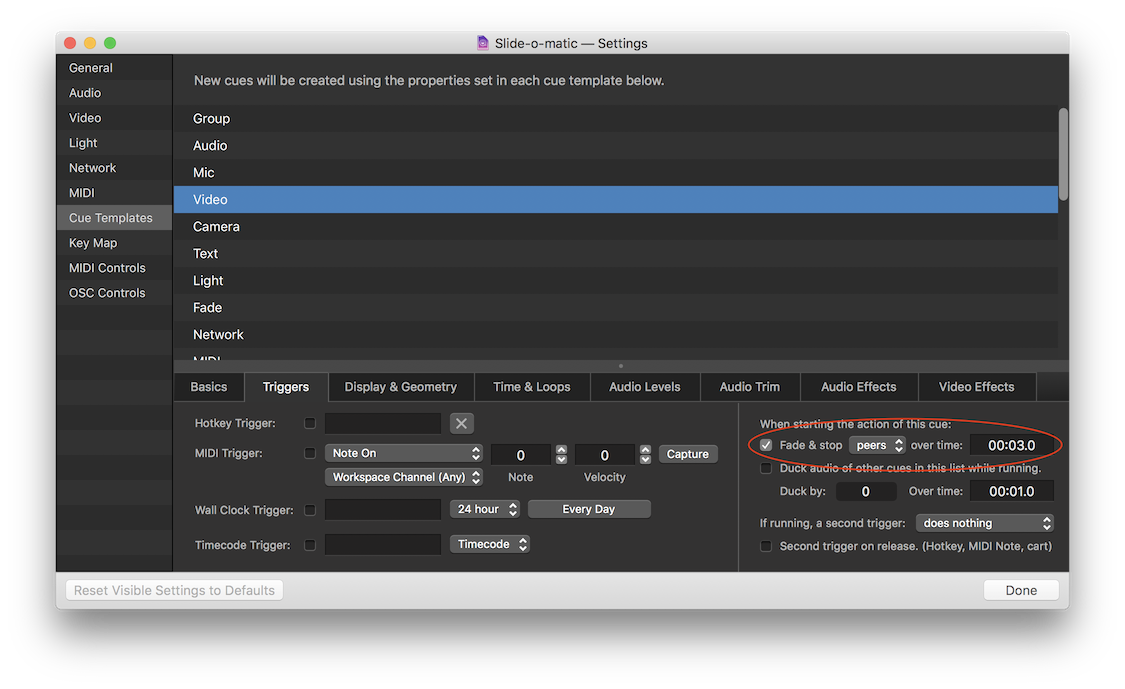
First comes the Triggers tab, where we set our cues to fade and stop "peers" over three seconds. This means that when each cue is run, it will fade out and stop all other cues in the same cue list.
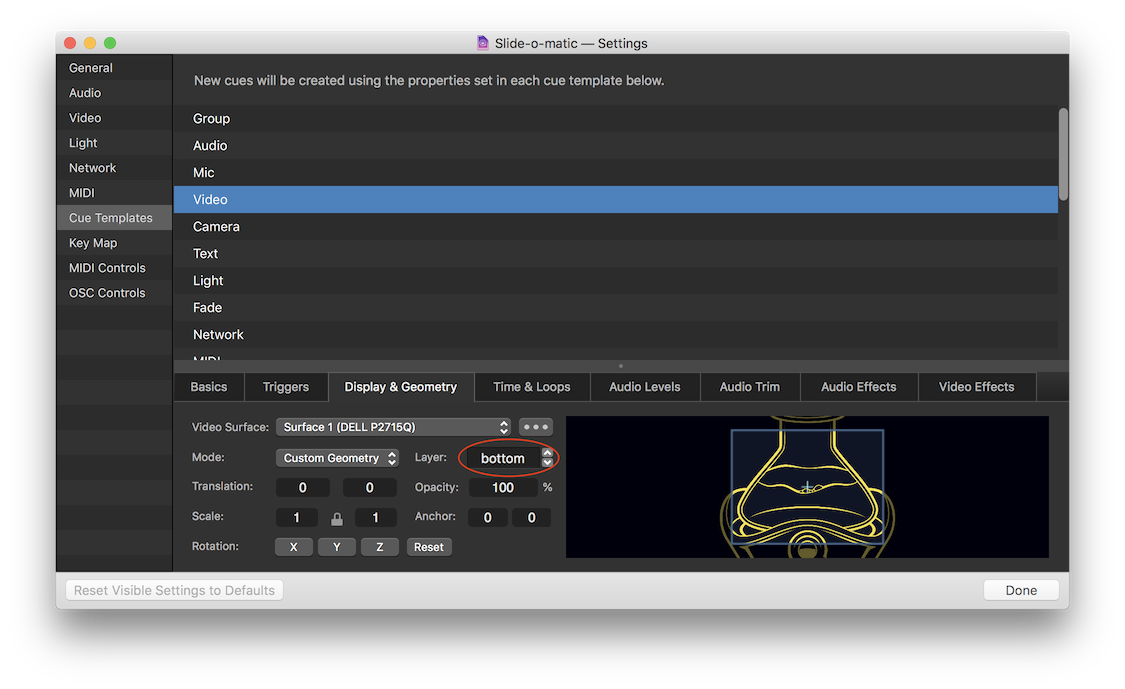
Next, we visit the Display & Geometry tab and set the default layer to "bottom". This means that each Video cue will start "behind" any currently running cues, which will allow it to be revealed slowly as the other cues fade out.
With those settings in place, you can just drag images into the workspace, select them, and hit GO. The selected image will start behind all other cues, and then those other cues will automatically fade out.
If you want to use this method with audio instead of video, be sure to set the cue template for Audio cues similarly.
Here's a video of the same basic workspace built in QLab 3. Because the technique requires co-opting the spacebar, this version doesn't work if you use the on-screen GO button.
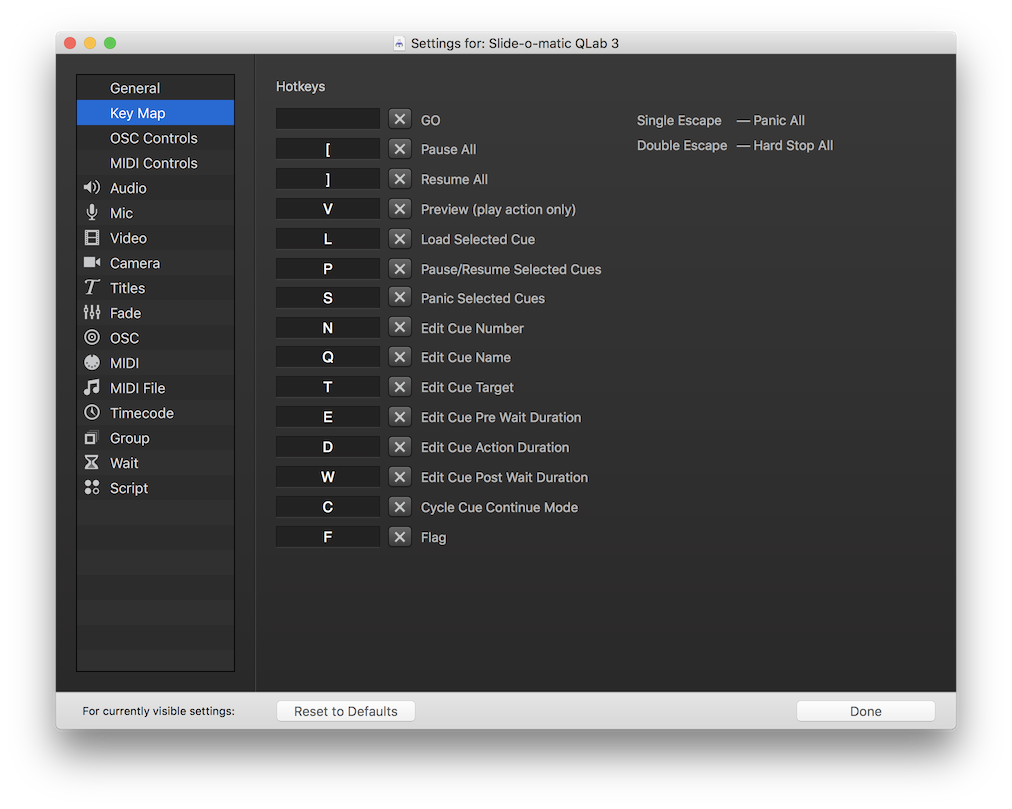
First of all, we need to intercept all the GO triggers. We can't disable the on-screen GO button, but we can remove the space bar from the default key map:
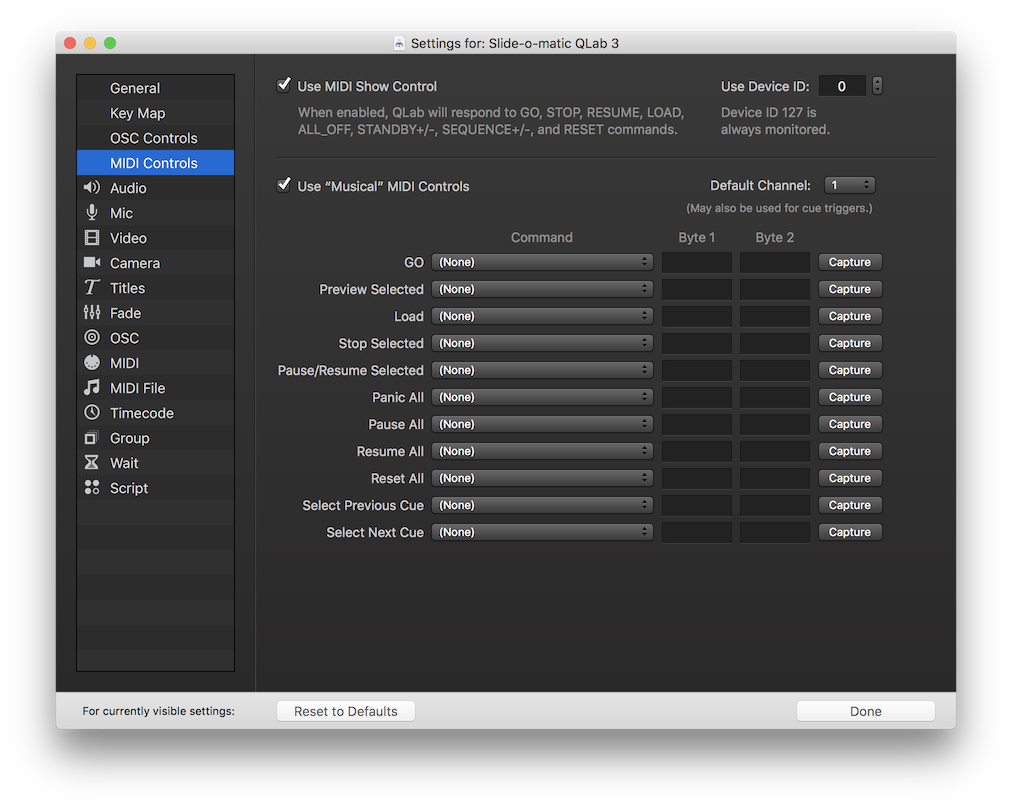
and we can double-check that there's no MIDI message assigned to GO:
Then, we set the following triggers for a Group cue with cue number GO:
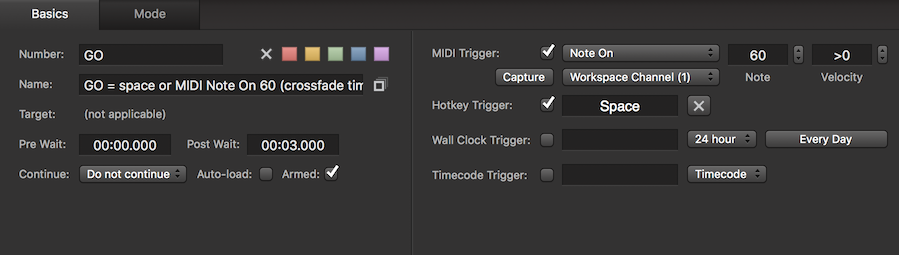
In that Group cue, which is set to "start first child and go next cue," is a Script cue and a number of utility OSC cues:
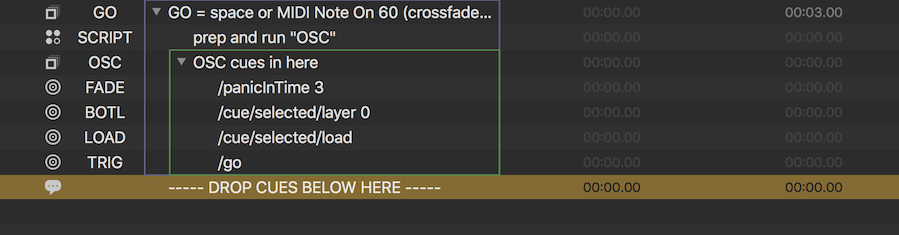
The Group cues collapse nicely, hiding the workings from careless fingers:

Here's the script in the Script cue:
applescripttell application id "com.figure53.qlab.3" to tell front workspace
  try
    set thefadetime to post wait of cue "GO" as string
    set thecustommessage to "/panicInTime " & thefadetime
    set the custom message of cue "FADE" to thecustommessage
    start cue "OSC"
  end try
end tell
The script sets the OSC message for the "FADE" OSC cue to:
/panicInTime 3
Where the 3 is whatever time is set in the post-wait of the Group cue numbered
GO.
It then triggers the Group cue numbered "OSC", which is set to "start all children simultaneously" and which contains all the OSC cues discussed above.
Note: if a crossfade is running, then any GO trigger is ignored, not queued. You need to wait for the post-wait of the cue GO to elapse before hitting GO again.
The colorful backgrounds of the sample images are from Free Stock Textures and are distributed under a Creative Commons 0 License

