Spreadsheets can be enormously helpful for preparing data for use in QLab workspaces, and also for presenting data from QLab workspaces in a clear, at-a-glance form which does not require spelunking through inspector tabs.
The first example in this chapter demonstrates how to use an Excel spreadsheet to create a "flashcard" workspace that presents information about British monarchs. The aim is to demonstrate how a QLab workspace which would take many hours of work to create manually can be programmatically generated in less than an hour.
Needless to say, this example requires Microsoft Excel.
First, we use ChatGPT to produce a table of all the historical data we need for the flashcards. ChatGPT is very good at creating and refining lists, although all information it provides should be rigorously fact-checked.
IMPORTANT: Neither ChatGPT nor any other so-called "artificial intelligence" LLM-based tool can be relied upon to be factually correct. They present completely fictional answers as confidently as real ones.
In this case, the accuracy of the information is not important. We're using the output for a QLab programming demo, not for an actual show.
Here's a series of interactions with ChatGPT to produce a table of information about British Monarchs. The prompt is shown together with a short excerpt of the data for spreadsheet import.
Make a table of ALL kings and queens of Britain in a format for import in excel. Column 1 Name of Monarch. Column 2 start date of reign. Column 3 end date of reign, column 4 length of reign as a single number, column 5 short summary of cause of death. List multiple reigns as individual entries.
Name of Monarch,Start Date of Reign,End Date of Reign,Length of Reign (Years),Cause of Death
William I (the Conqueror),1066-12-25,1087-09-09,20.7,Injuries from a riding accident
William II (Rufus),1087-09-09,1100-08-02,12.9,Killed in a hunting accident
Henry I,1100-08-02,1135-12-01,35.3,Food poisoning
Stephen,1135-12-22,1154-10-25,18.8,Stomach illness
Henry II,1154-12-19,1189-07-06,34.6,Natural causes
Include monarchs prior to 1066 in table.
Name of Monarch,Start Date of Reign,End Date of Reign,Length of Reign (Years),Cause of Death
Æthelstan,924-07-17,939-10-27,15.3,Natural causes
Edmund I,939-10-27,946-05-26,6.6,Stabbed during a brawl
Eadred,946-05-26,955-11-23,9.5,Chronic illness
Eadwig,955-11-23,959-10-01,3.9,Unknown illness
Change start and end dates to just year. Change reign length to years and months.
Name of Monarch,Start Year,End Year,Length of Reign (Years and Months),Cause of Death
Æthelstan,924,939,15 years 3 months,Natural causes
Edmund I,939,946,6 years 8 months,Stabbed during a brawl
Eadred,946,955,9 years 6 months,Chronic illness
Eadwig,955,959,3 years 10 months,Unknown illness
Edgar the Peaceful,959,975,15 years 9 months,Natural causes
Edward the Martyr,975,978,2 years 9 months,Murdered (likely on orders of his stepmother)
Remove text in brackets in cause of death column.
Name of Monarch,Start Year,End Year,Length of Reign (Years and Months),Cause of Death
Æthelstan,924,939,15 years 3 months,Natural causes
Edmund I,939,946,6 years 8 months,Stabbed during a brawl
Eadred,946,955,9 years 6 months,Chronic illness
Eadwig,955,959,3 years 10 months,Unknown illness
Edgar the Peaceful,959,975,15 years 9 months,Natural causes
Edward the Martyr,975,978,2 years 9 months,Murdered
Æthelred II (the Unready, 1st reign),978,1013,35 years 9 months,Natural causes
Remove commas within bracketed items, but keep brackets as () symbols , and split ligatures into separate characters.
Name of Monarch,Start Year,End Year,Length of Reign (Years and Months),Cause of Death
Aethelstan,924,939,15 years 3 months,Natural causes
Edmund I,939,946,6 years 8 months,Stabbed during a brawl
Eadred,946,955,9 years 6 months,Chronic illness
Eadwig,955,959,3 years 10 months,Unknown illness
Edgar the Peaceful,959,975,15 years 9 months,Natural causes
Edward the Martyr,975,978,2 years 9 months,Murdered (likely on orders of his stepmother)
Aethelred II (the Unready 1st reign),978,1013,35 years 9 months,Natural causes
Sweyn Forkbeard,1013,1014,0 years 1 month,Natural causes
Aethelred II (the Unready 2nd reign),1014,1016,2 years 2 months,Natural causes
Edmund II (Ironside),1016,1016,0 years 7 months,Murdered (circumstances unclear)
Cnut (Canute the Great),1016,1035,18 years 0 months,Natural causes
Harold I (Harefoot),1035,1040,4 years 4 months,Natural causes
Harthacnut,1040,1042,2 years 3 months,Stroke
Edward the Confessor,1042,1066,23 years 7 months,Natural causes
Harold II,1066,1066,0 years 9 months,Killed in battle (Battle of Hastings)
William I (the Conqueror),1066,1087,20 years 9 months,Injuries from a riding accident
William II (Rufus),1087,1100,12 years 11 months,Killed in a hunting accident
Henry I,1100,1135,35 years 4 months,Food poisoning
Stephen,1135,1154,18 years 10 months,Stomach illness
Henry II,1154,1189,34 years 6 months,Natural causes
Richard I (the Lionheart),1189,1199,9 years 9 months,Wound infection
John,1199,1216,17 years 6 months,Dysentery
Henry III,1216,1272,56 years 1 month,Natural causes
Edward I,1272,1307,34 years 8 months,Dysentery
Edward II,1307,1327,19 years 6 months,Murdered (likely suffocated)
Edward III,1327,1377,50 years 4 months,Stroke
Richard II,1377,1399,22 years 3 months,Possibly starved to death in captivity
Henry IV,1399,1413,13 years 4 months,Unknown illness
Henry V,1413,1422,9 years 5 months,Dysentery
Henry VI (1st reign),1422,1461,38 years 6 months,Murdered in captivity
Edward IV (1st reign),1461,1470,9 years 7 months,Natural causes
Henry VI (2nd reign),1470,1471,0 years 7 months,Murdered in captivity
Edward IV (2nd reign),1471,1483,11 years 10 months,Natural causes
Edward V,1483,1483,0 years 2 months,Disappeared (presumed murdered)
Richard III,1483,1485,2 years 2 months,Killed in battle (Battle of Bosworth Field)
Henry VII,1485,1509,23 years 8 months,Tuberculosis
Henry VIII,1509,1547,37 years 9 months,Natural causes
Edward VI,1547,1553,6 years 5 months,Tuberculosis
Mary I (Bloody Mary),1553,1558,5 years 4 months,Uterine or ovarian cancer
Elizabeth I,1558,1603,44 years 4 months,Pneumonia or blood poisoning
James I,1603,1625,22 years 0 months,Stroke
Charles I,1625,1649,23 years 10 months,Executed
Charles II,1660,1685,24 years 8 months,Apoplexy
James II,1685,1688,3 years 10 months,Stroke in exile
William III and Mary II (joint reign),1689,1694,5 years 10 months,Natural causes (Mary smallpox)
William III (sole reign),1694,1702,7 years 2 months,Pneumonia
Anne,1702,1714,12 years 4 months,Stroke
George I,1714,1727,12 years 11 months,Stroke
George II,1727,1760,33 years 4 months,Aneurysm
George III,1760,1820,59 years 3 months,Natural causes
George IV,1820,1830,10 years 5 months,Obesity-related illness
William IV,1830,1837,6 years 11 months,Heart failure
Victoria,1837,1901,63 years 7 months,Cerebral hemorrhage
Edward VII,1901,1910,9 years 3 months,Pneumonia
George V,1910,1936,25 years 8 months,Euthanasia
Edward VIII,1936,1936,0 years 11 months,Throat cancer
George VI,1936,1952,15 years 1 month,Lung cancer
Elizabeth II,1952,2022,70 years 7 months,Old age
Charles III,2022,Present,"Ongoing","N/A"
We can now copy that list from ChatGPT as a CSV (comma separated values) list and import it into an Excel spreadsheet by selecting Import from the File menu.
With the Excel spreadsheet open, create a new workspace in QLab. We're going to run a script which generates a lot of Text cues, so make sure the cue template for Text cues is set up the way you want.
The following script is included in the "Monarchs of England" example download as a stand-alone script, and also as a Script cue in the example workspace. Once you're happy with your Text cue template, either double-click the script to launch Script Editor and click the Run button (with the right-pointing "play" triangle icon), or arm the Script cue at the top of the workspace and run it.
Here's the script:
applescripttell application id "com.microsoft.Excel" to tell worksheet 1
  set theRowCount to (count of rows of used range)
  set theColCount to (count of columns of used range)
end tell

tell application id "com.figure53.QLab.5" to tell front workspace
  --make a random group
  make type "group"
  set theRandom to last item of (selected as list)
  set the mode of theRandom to start_random
  set the q number of theRandom to "RANDOM"

  set the q name of theRandom to "Monarchs of England"
  --make a flashcard
  repeat with eachFlashCard from 1 to theRowCount - 1
    set theData to {}
    tell application id "com.microsoft.Excel" to tell worksheet 1
      repeat with eachCell from 1 to theColCount
        set the end of theData to (value of cell eachCell of row (eachFlashCard + 1)) as text
      end repeat
    end tell
    --Make Group
    make type "group"
    set theGroup to last item of (selected as list)
    set the mode of theGroup to timeline
    set the q number of theGroup to "FLASH" & eachFlashCard
    set the fade and stop others of theGroup to 1
    set the fade and stop others time of theGroup to 0
    --Name of Monarch
    make type "text"
    set theCue to last item of (selected as list)
    set the q number of theCue to "NAME" & eachFlashCard
    set the text of theCue to item 1 of theData
    set the translation y of theCue to 400
    set the q name of theGroup to item 1 of theData
    move theCue to end of theGroup
    set theFormat to {fontFamily:"Helvetica Neue", fontStyle:"Bold", fontName:"Helvetica", fontSize:100, lineSpacing:1, rgbaColor:{red:1, green:1, blue:1, alpha:1.0}, range:{rangeOffset:1, rangeLength:-1}}
    set text alignment of theCue to "center"
    set text format of theCue to theFormat

    --Dates of Monarch
    make type "text"
    set theCue to last item of (selected as list)
    set the q number of theCue to "DATES" & eachFlashCard
    set the text of theCue to "(" & item 2 of theData & "-" & item 3 of theData & ")"
    set the translation y of theCue to 200
    move theCue to end of theGroup
    set theFormat to {fontFamily:"Helvetica Neue", fontStyle:"Bold", fontName:"Helvetica", fontSize:72, lineSpacing:1, rgbaColor:{red:1, green:1, blue:0.8, alpha:1.0}, range:{rangeOffset:1, rangeLength:-1}}
    set text alignment of theCue to "center"
    set text format of theCue to theFormat

    -- Length of Reign
    make type "text"
    set theCue to last item of (selected as list)
    set the q number of theCue to "LENGTH" & eachFlashCard
    set the text of theCue to item 4 of theData
    set the translation y of theCue to 0
    move theCue to end of theGroup
    set theFormat to {fontFamily:"Helvetica Neue", fontStyle:"Bold", fontName:"Helvetica", fontSize:72, lineSpacing:1, rgbaColor:{red:1, green:1, blue:0.8, alpha:1.0}, range:{rangeOffset:1, rangeLength:-1}}
    set text alignment of theCue to "center"
    set text format of theCue to theFormat
    -- Cause of Death
    make type "text"
    set theCue to last item of (selected as list)
    set the q number of theCue to "DEATH" & eachFlashCard
    set the text of theCue to item 5 of theData
    set the translation y of theCue to -200
    move theCue to end of theGroup
    set theFormat to {fontFamily:"Helvetica Neue", fontStyle:"Bold", fontName:"Helvetica", fontSize:72, lineSpacing:1, rgbaColor:{red:1, green:0.8, blue:0.8, alpha:1.0}, range:{rangeOffset:1, rangeLength:-1}}
    set text alignment of theCue to "center"
    set text format of theCue to theFormat
    move theGroup to end of theRandom
  end repeat

end tell
This script:
This process repeats until all rows of the spreadsheet have been processed.
Once the cue list is generated, delete or disarm the Script cue.
The example workspace has a background image at the top of the cue list, just to look nice.
You can now either trigger a random flashcard by starting cue RANDOM or select a Group cue within the Random Group cue and use GO to step through the monarchs chronologically.
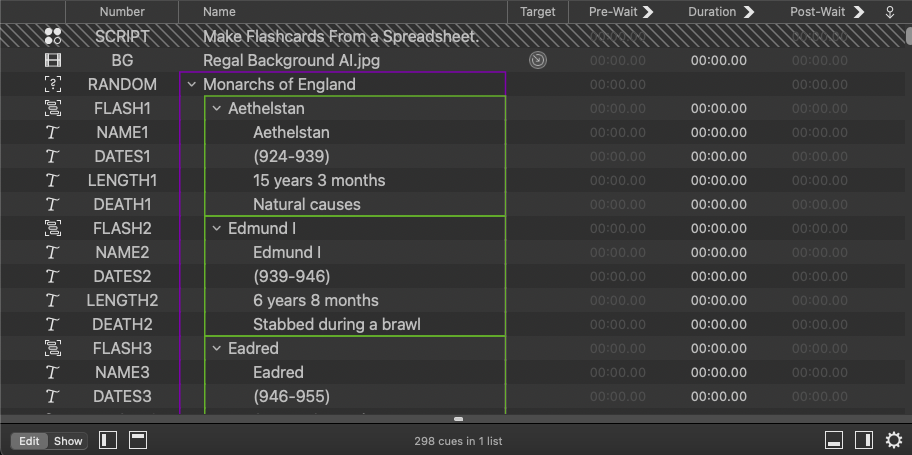
Here's the end result:
The second example in this chapter demonstrates taking data from a QLab workspace and displaying it in Excel in a useful and readable form.
A quick way to get the basic info from a QLab cue list into Excel is simply to select all cues and copy and paste them into cell A1 of a spreadsheet.
Here's an example QLab cue list:
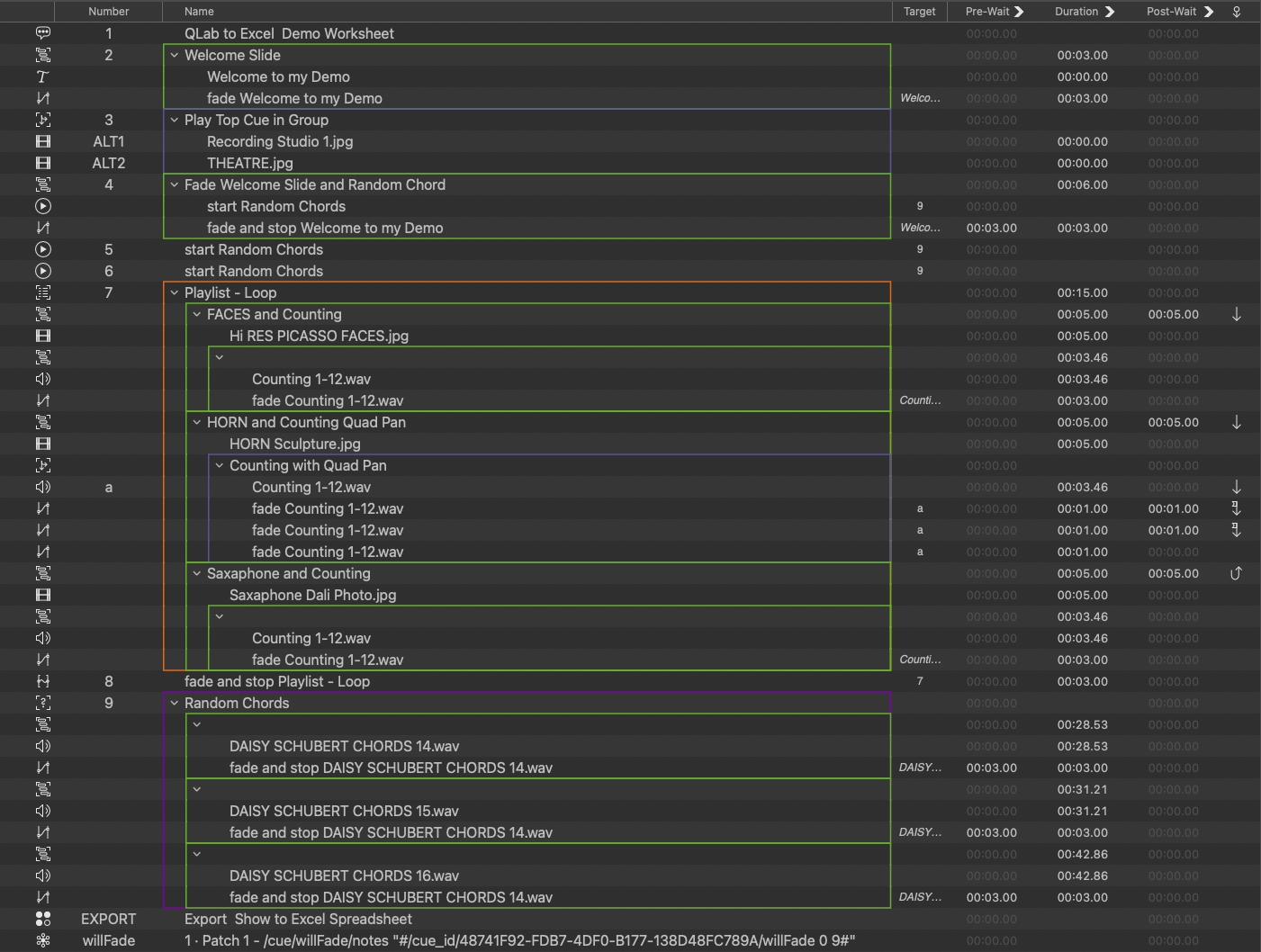
If you select all cues, copy, and then paste them into Excel, it will look like this:
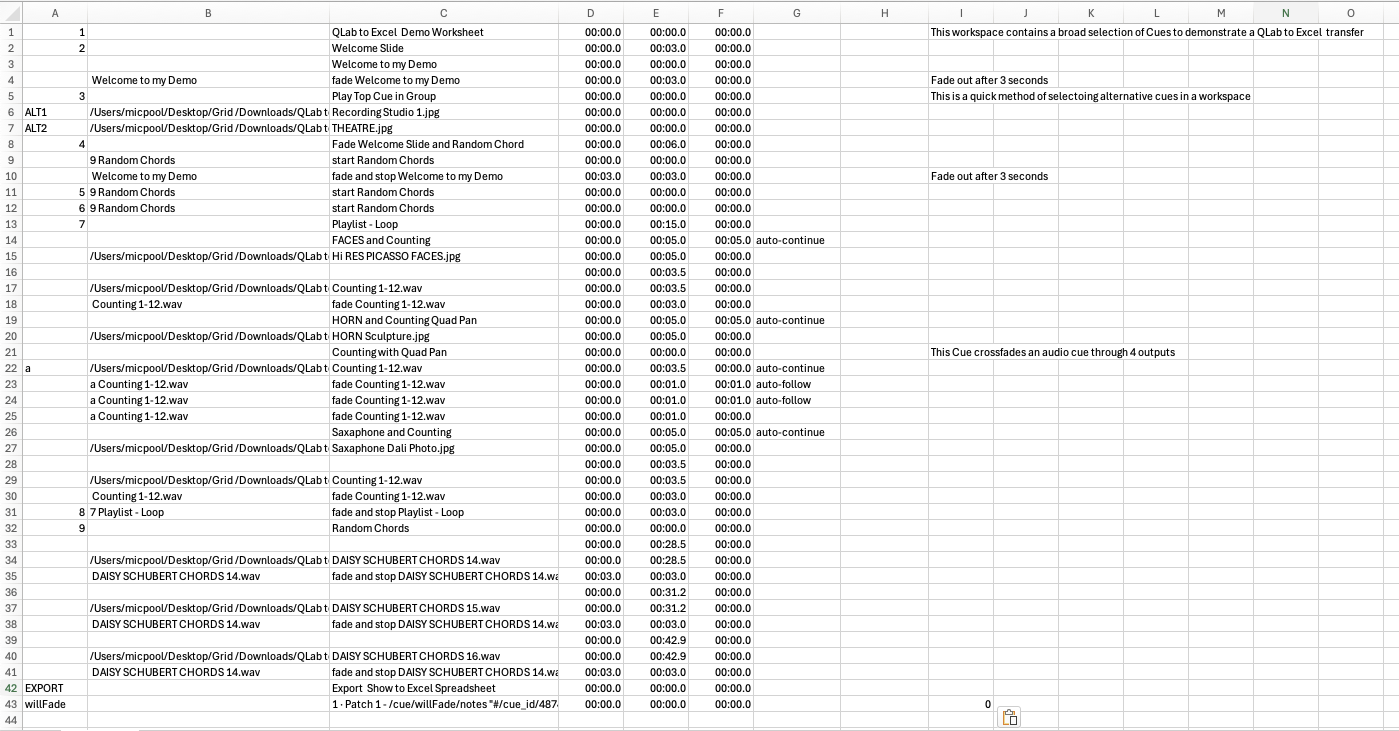
This shows the cue number, cue target (file or cue), cue name, pre-wait, duration, post-wait, continue mode, hotkey trigger (if set), and notes.
This is useful as a quick way to exchange basic cue information with other team members.
Here it is tidied up with a bit of formatting to aid readability:
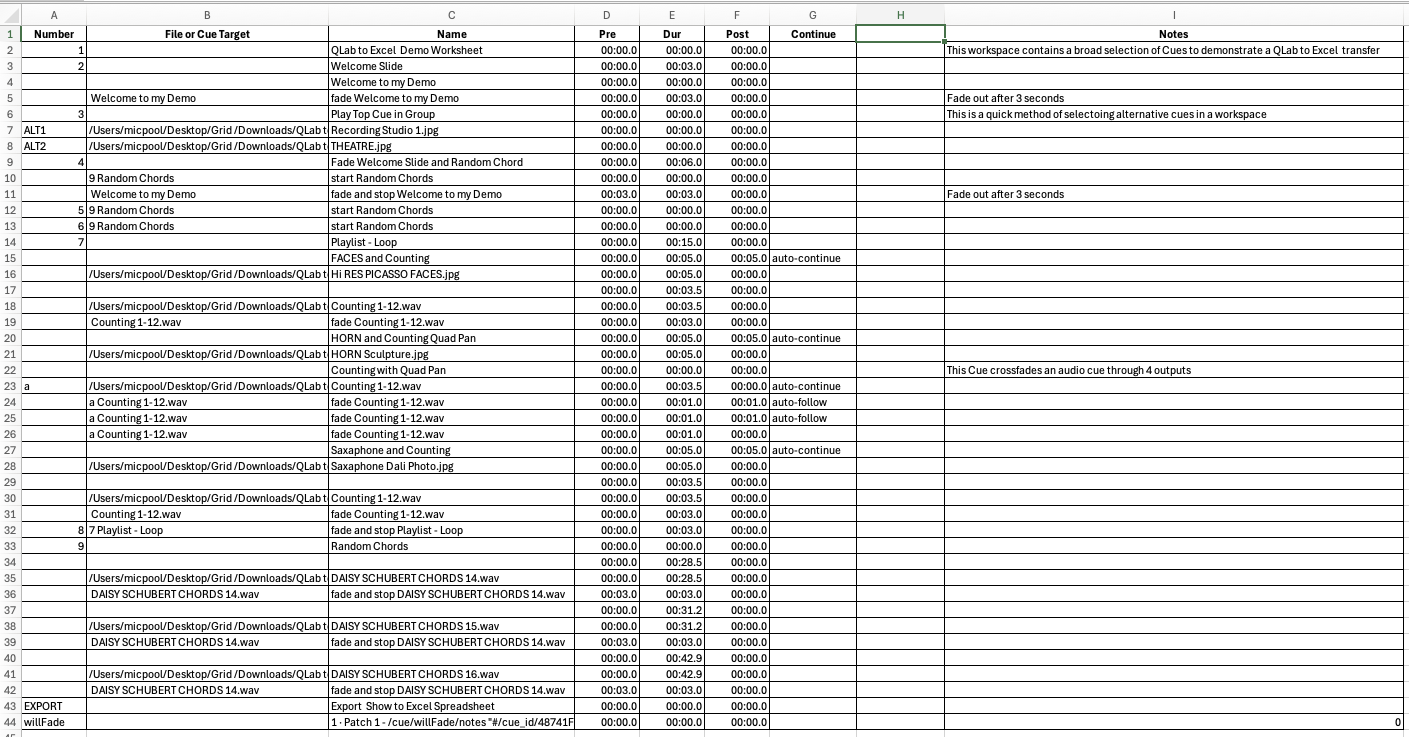
Clearly, a lot of information is not included in this copy-and-paste method. The main problem is that the structure of the cue list, particularly with nested groups, is lost. A scripting solution to create a spreadsheet from a QLab cue list needs to be able to represent the grouping and nesting of cues and to identify the type of each cue.
It may also be helpful to reorder the columns and include more columns for specific cue parameters, e.g. slider levels for cues with audio tracks.
Obviously, there is a practical limit to how many parameters it is practical to include in a spreadsheet which fits on a single monitor (even a 4K monitor), or an A4 sheet of paper (for American readers: an A4 page is similar to the 8.5 × 11 inch Letter page size), and which information is useful will vary from person to person and project to project.
There are two main approaches that can be taken to address this.
We could either create a universal script that can include any QLab cue parameter and incorporate the means to choose which ones to include with dialogs or menus. This requires a script that could run to thousands of lines of code in order to deal with the 100+ potential primary parameter columns and the 1500+ potential cells per cue that would enable the display of all audio crosspoints in cues that have audio tracks.
or...
We could create a much shorter script that can more easily be adapted to the requirements of a particular show or project.
In this tutorial, we will adopt the second approach.
The cue list to export:
A screen recording of the spreadsheet being generated:
In the screen recording, you can see the column headings being generated in a blank Excel document for the basic cue list information. Along with all the information we got in the copy-and-paste method, the script includes the cue type, the main audio level and cue outputs 1-8 for any cues that have audio tracks, and the name of the stage used by Video and Text cues.
The nesting level of each cue is calculated and the cue type of each cue is displayed, indented appropriately to show the cue structure clearly.
Any Group cues have their mode added to the cue type and are color-coded appropriately.
For cues with file targets, only the file names are included in the Target column, rather than the complete path.
For cues with audio tracks, the first nine slider levels are shown.
For Fade cues, only the active slider levels are shown.
The screen recording is shown in real time. As you can see, each cue takes less than a second to transfer to the spreadsheet so a thousand cues would comfortably be transferred in a quarter of an hour or less.
Here's the script, which can either run from a Script cue or in Script Editor. The latter would be the better option if you are adapting the script to show other parameters.
applescripttell application id "com.microsoft.Excel" to tell worksheet 1
  --set  column headings
  set theHeadings to {"NEST", "TYPE", "Q", "NAME", "TARGET", "PRE", "DUR", "POST", "CONTINUE", "VIDEO", "NOTES", "M", "1", "2", "3", "4", "5", "6", "7", "8"}
  set theWidths to {6, 20, 10, 36, 30, 8, 8, 8, 14, 14, 50, 6, 6, 6, 6, 6, 6, 6, 6, 6}
  set {C, L, R, N} to {"C", "L", "R", "N"} --Stringify C Centre L Left R Right Justification,  or N Number to 2 Decimal places
  set theFormats to {C, L, C, L, R, N, N, N, C, C, L, N, N, N, N, N, N, N, N, N}
  set myBorders to {border top, border bottom, border left, border right}
  --test all heading settings match
  set theHcount to count of theHeadings
  set theWcount to count of theWidths
  set theFcount to count of theFormats
  if (theWcount ≠ theHcount) or (theFcount ≠ theHcount) then
    display alert "Script Error: Headings, Widths, & Formats do not have the same number of items"
    return
  end if

  repeat with theHeading from 1 to count of theHeadings
    set the value of cell theHeading of row 1 to item theHeading of theHeadings
    --add border
    set theCell to cell theHeading of row 1
    repeat with i from 1 to 4
      set theBorder to get border theCell which border (item i of myBorders)
      set weight of theBorder to border weight thin
    end repeat
    set the column width of column theHeading to item theHeading of theWidths
    if item theHeading of theFormats is "C" then
      set the number format of column theHeading to "general"
      set the horizontal alignment of column theHeading to horizontal align center
    else if item theHeading of theFormats is "L" then
      set the number format of column theHeading to "general"
      set the horizontal alignment of column theHeading to horizontal align left
    else if item theHeading of theFormats is "R" then
      set the number format of column theHeading to "general"
      set the horizontal alignment of column theHeading to horizontal align right
    else if item theHeading of theFormats is "N" then
      set the number format of column theHeading to "0.00"
    end if
  end repeat
  set the horizontal alignment of row 1 to horizontal align center
  set the number format of row 1 to "general"
end tell

tell application id "com.figure53.QLab.5" to tell front workspace
  try
    stop cue "willFade"
  on error
    display alert "QLab to Excel requires QLab Workspace to contain a network cue numbered willFade"
    return
  end try
  set theRow to 2
  set theNestLevel to 0
  set theCurrentParent to ""
  set theCount to count of cues
  repeat with eachCue in cues
    if the q type of eachCue is not "cue list" then
      --determine the nest level
      set theNestLevel to 0
      set theNestCue to eachCue
      repeat until the q type of the parent of theNestCue is "cue list"
        set theNestCue to the parent of theNestCue
        set theNestLevel to theNestLevel + 1
      end repeat
      set thePad to ""
      repeat theNestLevel times
        set thePad to thePad & "        "
      end repeat

      if the q type of parent of eachCue is "cue list" then set theNestLevel to 0
      set theType to q type of eachCue
      if theType is "group" then
        set theType to thePad & (mode of eachCue as text) & " GROUP"
      else
        set theType to thePad & q type of eachCue as text
      end if
      set theParent to (q display name of the parent) of eachCue as text
      set theNumber to q number of eachCue as text
      set theName to q list name of eachCue as text
      set theTarget to ""
      set theLevels to {}
      if the q type of eachCue is in {"Fade", "Start", "Stop", "Pause", "Load", "Reset", "Devamp", "GoTo", "Target", "Arm", "Disarm"} then
        if the q number of cue target of eachCue is not "" then
          set theTarget to the (q number of (cue target of eachCue)) as text
        else
          set theTarget to (q list name of (cue target of eachCue)) as text
        end if
        if the q type of eachCue is "Fade" then
          repeat with eachChannel from 0 to 9
            --try
            set theCueID to uniqueID of eachCue
            set a to "/cue/willFade/notes " & quote & "#/cue_id/" & theCueID & "/willFade 0 " & eachChannel & "#" & quote
            set the custom message of cue "willFade" to a
            delay 0.01
            start cue "willFade"
            delay 0.01
            set theActive to notes of cue "willFade" as integer as boolean
            if theActive is true then
              set the end of theLevels to getLevel eachCue column eachChannel row 0 as text
            else
              set the end of theLevels to ""
            end if
          end repeat

        else
          repeat 9 times
            set end of theLevels to ""
          end repeat
        end if
      else if the q type of eachCue is in {"Audio", "Video"} then
        --Get File Path Short or long
        set thePathDisplay to "short" -- change to "long" for full path display
        set thePath to file target of eachCue
        if thePathDisplay is "short" then
          tell application "Finder" to set theTarget to name of (info for POSIX path of thePath) as text
        else
          tell application "Finder" to set theTarget to (POSIX path of thePath) as text
        end if
        repeat with eachChannel from 0 to 9
          if the audio input channels of eachCue > 0 then
            set the end of theLevels to getLevel eachCue column eachChannel row 0 as text
          else
            set end of theLevels to ""

          end if
        end repeat
      else
        repeat 9 times
          set end of theLevels to ""
        end repeat
      end if

      set thePre to pre wait of eachCue as text
      set theDuration to duration of eachCue as text
      set thePost to post wait of eachCue as text
      set theContinue to continue mode of eachCue as text
      if the continue mode of eachCue is do_not_continue then set theContinue to ""
      if the q type of eachCue is "video" or q type of eachCue is "text" then
        set theVideo to stage name of eachCue as text
      else
        set theVideo to ""
      end if
      set theNotes to notes of eachCue as text

      tell application id "com.microsoft.Excel" to tell worksheet 1
        set theValues to {theNestLevel, theType, theNumber, theName, theTarget, thePre, theDuration, thePost, theContinue, theVideo, theNotes, item 1 of theLevels, item 2 of theLevels, item 3 of theLevels, item 4 of theLevels, item 5 of theLevels, item 6 of theLevels, item 7 of theLevels, item 8 of theLevels, item 9 of theLevels, item 1 of theLevels, item 2 of theLevels, item 3 of theLevels, item 4 of theLevels, item 5 of theLevels, item 6 of theLevels, item 7 of theLevels, item 8 of theLevels, item 9 of theLevels}
        repeat with theCell from 1 to (count of theHeadings)
          set theItem to (item theCell of theValues)
          set the value of cell theCell of row theRow to theItem

          if theType contains "GROUP" then
            if theType contains "timeline" then
              set the color index of the interior object of (cell theCell of row theRow) to 35
            else if theType contains "first" then
              set the color index of the interior object of (cell theCell of row theRow) to 33
            else if theType contains "random" then
              set the color index of the interior object of (cell theCell of row theRow) to 38
            else if theType contains "playlist" then
              set the color index of the interior object of (cell theCell of row theRow) to 45
            end if
          end if
          --add border
          set theCell to cell theCell of row theRow
          repeat with i from 1 to 4
            set theBorder to get border theCell which border (item i of myBorders)
            set weight of theBorder to border weight thin
          end repeat
        end repeat

      end tell

      set theRow to theRow + 1
    end if
  end repeat
end tell
The script begins by defining the column headings. Three lists contain the heading text, the desired starting widths, and the formats and justification for each column.
To make the format list easier to edit, the four options are set as the values of variables: "C" for center-aligned, "L" for left-aligned, "R" for right-aligned, and "N" for number to 2 decimal places. This means the format list need not contain any quotation marks which makes editing and reading the list much easier.
This script has minimal error checking; checks for all likely problems would require many lines of code to be added. In general, it will be obvious where an error occurs because the spreadsheet will stop updating at which point the error message can be read directly in the Script Editor or Script cue footer and the problem can be fixed. However, there are a couple of error check routines included. The first of these checks that the three lists contain the same number of items and stops execution if this isn't the case with a helpful alert.
Next, the script creates the heading text and the column formats and sets widths for each column.
It then centers the column heading text and sets the heading rows format to general.
The script then turns its attention to QLab.
Another error check confirms that the QLab workspace, which contains the cue list that is being exported, contains a Network cue that is numbered "willFade". This enables a workaround to determine the active status of any crosspoint in a Fade cue.
There is then a repeat loop which processes every cue in the workspace, one at a time. The reason we repeat with every cue in **cues** of the workspace rather than every cue in the **cue list** is that a workspace contains every cue in a cue list, whereas a cue list only contains cues at the root level of that cue list. i.e. children of Group cues are cues of that Group, not of the cue list. (This is because a cue list is, as far as the workspace is concerned, another sort of Group cue.) If you have more than a simple cue list, you may need to add code to restrict the export to a single cue list.
Next, the nesting level of the cue being processed is calculated using a repeat loop that counts how many times it has to count "up" the hierarchy until the parent of the cue that it's examining is a cue list (as opposed to a Group cue.) A padding string is also calculated containing an appropriate number of spaces to indent the cue type in the Cue Type column.
It then tests to see if the cue type of the cue is Group. If it is, it prepends the padding string and mode of the Group cue to its cue type and assigns this string to the variable theType.
The number and name of the cue being processed are assigned to variables theNumber and theName.
The cues that have file targets are processed. If the file targets of these cues are numbered, then the number is assigned to the target variable; otherwise, the name is used.
If the cue being processed is a Fade cue and its target has an audio track, then we need to determine which crosspoints are active. There is no AppleScript hook to directly determine this, so we have to resort to a more complex method using the Network cue numbered "willFade" that must be present in the workspace.
The script creates an empty list variable, theLevels.
We are only interested in the levels of the first nine sliders in the Fade cue which are active (active levels are shown in yellow as opposed to inactive levels which are gray), so the script uses a repeat loop to change the custom message of the Network cue to examine each of the nine slider crosspoints, one crosspoint at a time. e.g.:
/cue/willFade/notes "#/cue_id/48741F92-FDB7-4DF0-B177-138D48FC789A/willFade 0 0#
This message sets the notes of cue "willFade" to the value returned from the OSC command /willFade with the arguments 0 0. These arguments represent the main slider level; the crosspoint at row 0, column 0.
We use the cue_id form to identify the cue, as the cue may not be numbered. If the Fade cue being tested has a cue target with no audio track the OSC /willFade returns false.
The script can then read the notes of cue "willFade", convert that text to an integer, and then convert that integer into a boolean (true or false).
If TRUE, then the level should be used, so the level of that crosspoint is added to the end of the list variable theLevels.
If FALSE, an empty string ("") is added instead of the level so that the spreadsheet won't display levels for sliders that are inactive.
If the cue being processed is not a Fade cue, then theLevels will only contain a list of nine empty strings.
Next, the cue being processed is tested to see if it is an Audio or Video cue by checking to see whether it has a file target.
There is a line at this point of the script that can be edited to choose whether we want to display the full path of the file or just its name.
Either the path or the name is then assigned to the variable theTarget based on this choice.
A repeat loop sets the list variable theLevels to the levels of the nine sliders we are including in our export.
Variables are then set for the pre- and post-waits, duration, and continue mode of the cue.
If the cue being processed is a Video cue or a Text cue, then it will have a video output. The script sets the variable theVideo to the name of the video stage in use by the cue.
If it's not a Video or Text cue, then theVideo is set to an empty string.
It's worth looking at this last section again as it gives a clue as to how to add other parameters to the spreadsheet. First, test to see if the cue type of the cue being processed is one that contains that parameter. If it is, set a variable to the value of that parameter. If it isn't, then set the variable to an empty string. All the parameters for each cue type are listed in QLab's AppleScript dictionary.
The script now returns its attention to the Excel spreadsheet.
First, it arranges the values of all the variables we have just assigned into a list variable, theValues, in the order of the headings.
At the top of the main loop, a variable theRow is initialized with a value of 2.
A repeat loop populates each cell in the row with a value from the values list variable, cell 1 of row 2 is set to the value of item 1 of theValues, cell 2 to item 2, etc.
If the cue currently being processed is a Group cue, a background color is assigned to each cell in the row according to the mode of the Group cue.
Each cell is bordered as it is processed.
theRow variable is incremented and the main repeat loop ends. Execution resumes with the next cue in the workspace until all cues are processed.
All images in this chapter were "AI" generated.
Excel is a product and registered trademark of Microsoft, Inc.
