Spreadsheets can be enormously helpful for preparing data for use in QLab workspaces, and also for presenting data from QLab workspaces in a clear, at-a-glance form which does not require spelunking through inspector tabs.
This is the second of three chapters on this subject and looks at how a spreadsheet can provide a tabular view of show data and also be used 'live' as a cue list in QLab.
Note: The examples in these tutorials are primarily demonstrations of how QLab can read from and write to spreadsheets. The downloadable examples should be consider proofs of concept, and should not be regarded as show-ready solutions!
The demo in this chapter shows the mutes of a 16-channel mixing console being automated from a spreadsheet cue list that shows all the mute data for all cues in a single view. As all the data manipulation features of a spreadsheet are available, the microphone plot can be edited rapidly.
As a bonus, it demonstrates a play text being ingested and processed to automatically generate a very accurate first draft of a plot of the required microphone activations, speech by speech.
QLab controls the spreadsheet through a cue cart, triggering the activation of the mixer mutes and also displaying the text of the play on a second operator display.
A lightly edited text is opened in TextEdit. The text contains minor modifications to ensure character names at the top of each line of dialogue can be distinguished from other mentions of the characters in stage directions and within dialogue.
The word "MUTE" is treated as a special character name that sets all microphones to MUTE.
A script running in QLab writes the headings to the spreadsheet to match a list of characters in the cue list named MICROPHONE. The cells under these headings will be referred to as "mute cells", which is to say that they are the indication of whether a given microphone (column) should be muted or not in a given preset or memory (row.)
The script detects the beginning of each speech and, at that point, places any text read since the beginning of the previous in the TEXT column of the spreadsheet, with new lines denoted by a forward slash (/).
It then writes the character name(s) in the CHARACTER column, creates a memory number, and writes it in the MEM column.
It sets all the mute cells in that row to "mute", indicated by an M on a red cell background and then unmutes the cell(s) matching the character(s) who are speaking (indicated by a blank white cell).
This repeats until the entire play text has been ingested.
At the top of the screen recording is the CONTROL cart with buttons to navigate up and down the spreadsheet, jump to any MEM, and GO on any mute state.
The green marker in the left column indicates the state that will be fired on the next GO, and the blue marker in the MEM column indicates the current mute state.
When a GO is received, the mute state is updated to the mutes shown in that row. The second cue cart below the spreadsheet displays this new mute state, and QLab also outputs the required OSC or MIDI messages to control a hardware or, as in the demo, a software mixer. The dialogue for that speech is displayed on the second monitor (top right of screen recording in the demo) The increment cue is then started automatically, the green and blue indicators increment one cell down, and the cue on that line is read to preload the next mute state, and dialogue display so they will activate immediately when the next GO is received.
In order for character names, and multiple character names, at the top of each speech to be distinguished from other mentions of the characters, in stage directions and within dialogue, a simple-to-remember and simple-to-implement rule is needed. The rule adopted in this demo is:
The character name(s) at the top of each speech must be single words in a stand-alone paragraph, in upper case, with no punctuation, separated by spaces.
The text used in this tutorial is from the Project Gutenberg open-source edition of Romeo and Juliet.
This is an excerpt of the text as it appears in the download from Project Gutenberg:
Enter Capulet in his gown, and Lady Capulet.
CAPULET.
What noise is this? Give me my long sword, ho!
LADY CAPULET.
A crutch, a crutch! Why call you for a sword?
CAPULET.
My sword, I say! Old Montague is come,
And flourishes his blade in spite of me.
Enter Montague and his Lady Montague.
MONTAGUE.
Thou villain Capulet! Hold me not, let me go.
LADY MONTAGUE.
Thou shalt not stir one foot to seek a foe.
Enter Prince Escalus with Attendants.
The character names are already in upper case but have periods (.) after them which will need to be removed. We also need paragraph breaks before and after the character names. Where multiple characters speak, these will have to then be edited to bring them into a single paragraph again manually. Some character names have spaces in them. As we are using spaces to separate multiple characters speaking a single speech, we'll replace spaces in names with an underscore (_).
This screenshot shows a find and replace action in progress for LADY CAPULET. removing the period, replacing the space within her name with an underscore and placing paragraph breaks either side. We also need to uncheck the ignore case option so that appearances of the character names in the stage directions and within the dialogue are not replaced.
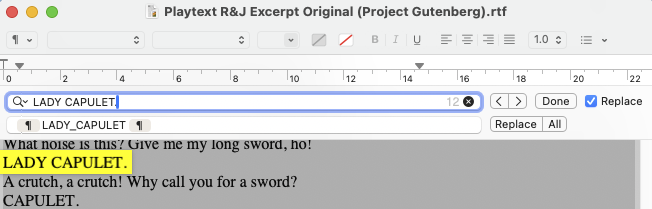
The Ignore Case and Insert Pattern options are a little hard to find as they are in a pop-up menu activated by clicking the triangle to the right of the magnifying glass.
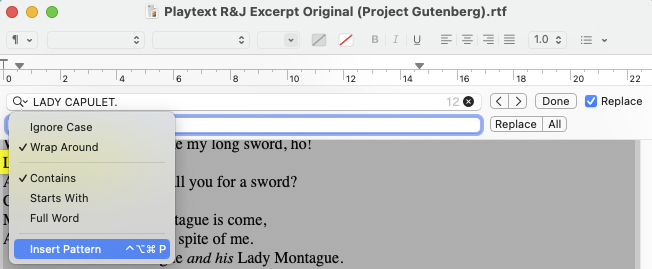
All the character names need to be found and replaced in this way.
Where all microphones should be muted, as they might when the prince and attendants enter, MUTE can be inserted in the play text conforming to the character name rule.
When the replacements are all applied, the text will look like this:
Enter Capulet in his gown, and Lady Capulet.
CAPULET
What noise is this? Give me my long sword, ho!
LADY_CAPULET
A crutch, a crutch! Why call you for a sword?
CAPULET
My sword, I say! Old Montague is come,
And flourishes his blade in spite of me.Enter Montague and his Lady Montague.
MONTAGUE
Thou villain Capulet! Hold me not, let me go.
LADY_MONTAGUE
Thou shalt not stir one foot to seek a foe.
MUTE
Enter Prince Escalus, with Attendants.
After the replacements, the entire text should be manually checked for outliers that have not been formatted correctly, and the text should be saved in a new document, the title of which should indicate that the text is prepared for import.
Microsoft Excel is a mature software package; the first version was published in 1985. It has an extensive AppleScript dictionary and its own macro language, Visual Basic for Applications (VBA). This makes it ideal for this project. However, the normal operation of the program, its AppleScript dictionary, and its VBA implementation haven't been kept consistent with each other as the program has evolved over the years, meaning that care and caution are necessary to ensure they play nicely together.
It's important to note that any alterations to a spreadsheet workbook by AppleScript or VBA do not appear in the undo stack, and in fact making changes via scripting will clear the existing undo stack. This means it is quite easy to erase rows of mute data quickly without the option of undoing that action!
Implementing undo stacks is way beyond the scope of this tutorial so, as a safety feature, this example includes a method to optionally autosave a copy of the spreadsheet every minute, limiting the amount of work that can be lost.
This will result in potentially hundreds of files which will have to be carefully managed by manually deleting those no longer required as necessary. Autosaving can be disabled when the programming is finished (and a backup copy is saved and readily available to revert to.)
In addition to being set up to receive data from QLab as part of a play text import, the spreadsheet can also be manually edited. Text can be entered in the TEXT, CHARACTER, and DIALOGUE cells. Mutes can be toggled by right-clicking in a mute cell or a range of mute cells.
Imported play texts can also be edited. For instance, in this screen recording, it has been decided to leave three microphones live through a section of dialogue to amplify fight reactions.
Included in the downloadable examples is a blank Excel workbook named Mutes 16ch Blank which is set up as follows:
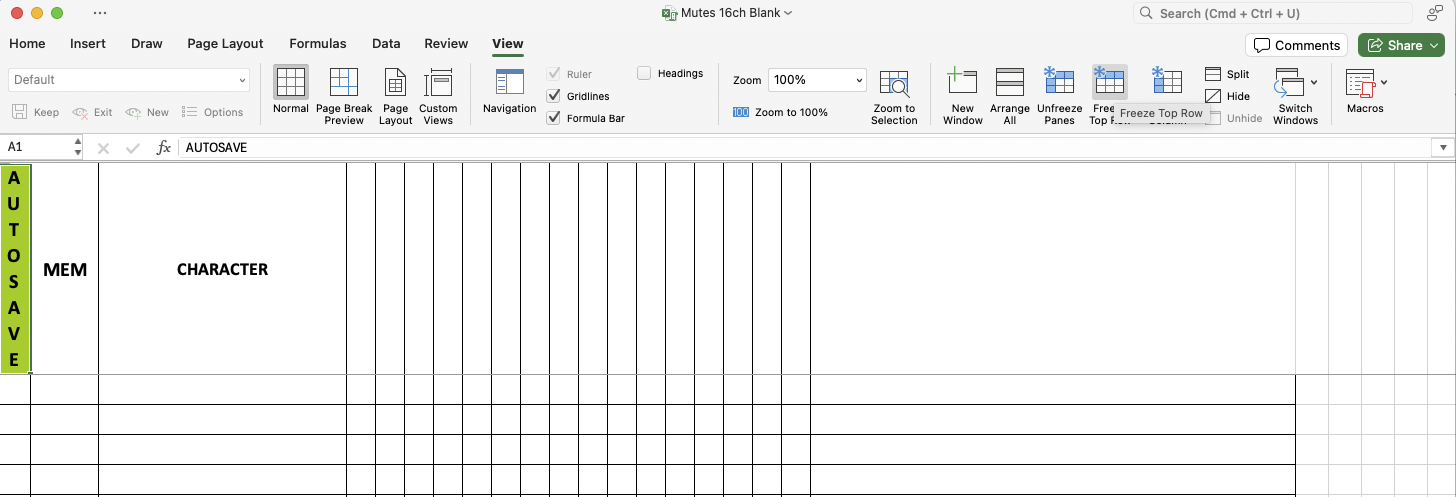
The file extension of the blank workbook is .xlsm; the "m" in that extension denotes a workbook that contains macros. The macros can be accessed and edited from the Visual Basic Editor, which is accessed from the Macros sub-menu in the Tools menu in the menu bar.
Visual Basic for Applications (VBA) is a programming language integrated into Microsoft Office applications, including Excel. It allows users to automate tasks, enhance functionality, and create custom solutions within spreadsheets. VBA is used to write macros, which are sequences of instructions that perform repetitive tasks, manipulate data, interact with Excel objects (like worksheets and cells), and extend the application's capabilities beyond its standard features. It is accessible via the Visual Basic Editor (VBE) and is particularly useful for users looking to streamline workflows and build complex data-driven tools.
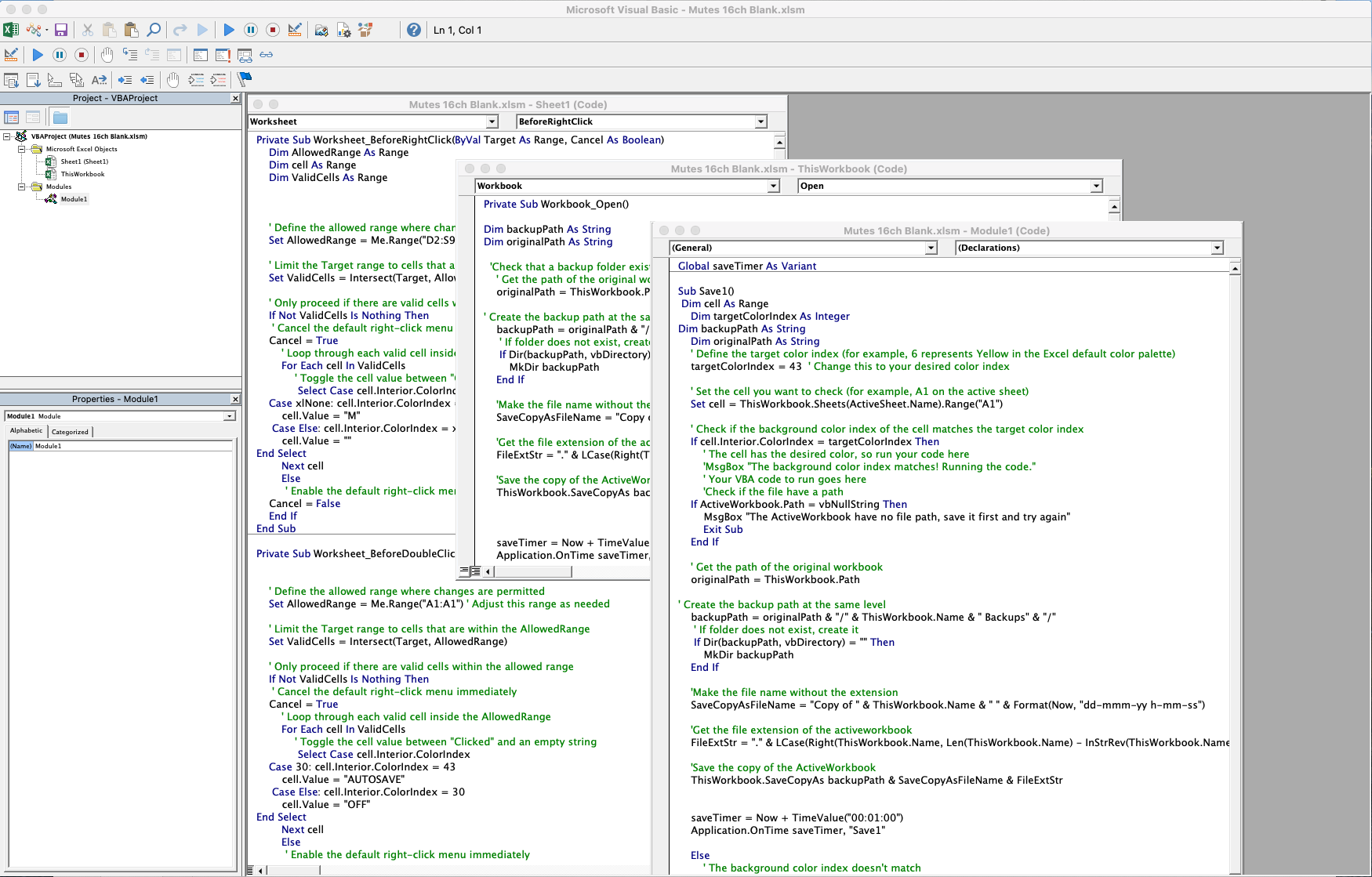
You can see from the screenshot that there are three sets of code. One for the sheet, another for the workbook, and a third that is a code module. The workbook and module code are used for the autosave features, and the sheet code is used for the right-click toggling of the mute cells and the double-click toggling of the AUTOSAVE cell (A1).
Here's the sheet code:
vbaPrivate Sub Worksheet_BeforeRightClick(ByVal Target As Range, Cancel As Boolean)
    Dim AllowedRange As Range
    Dim cell As Range
    Dim ValidCells As Range

    ' Define the allowed range where changes are permitted
    Set AllowedRange = Me.Range("D2:S9999") ' Adjust this range as needed

    ' Limit the Target range to cells that are within the AllowedRange
    Set ValidCells = Intersect(Target, AllowedRange)

    ' Only proceed if there are valid cells within the allowed range
    If Not ValidCells Is Nothing Then
     ' Cancel the default right-click menu immediately
    Cancel = True
        ' Loop through each valid cell inside the AllowedRange
        For Each cell In ValidCells
            ' Toggle the cell value between "Clicked" and an empty string
             Select Case cell.Interior.ColorIndex
               Case xlNone: cell.Interior.ColorIndex = 3
                  cell.Value = "M"
               Case Else: cell.Interior.ColorIndex = xlNone
                  cell.Value = ""
             End Select
        Next cell
        Else
         ' Enable the default right-click menu immediately
    Cancel = False
    End If
End Sub
This VBA subroutine toggles the background color and text in a right-clicked cell between an "M" on a red background and a blank cell. It tests to see whether the cell being right clicked is a mute cell i.e. a cell in AllowedRange. If it is, it suppresses the normal right click action (displaying a contextual menu.) It then tests if the cell is empty, and if it is, toggles it to show an "M" on a red background. If it isn't empty, toggle it to become empty.
If the cell is not a mute cell then the normal right click behavior is allowed.
vbaPrivate Sub Worksheet_BeforeDoubleClick(ByVal Target As Range, Cancel As Boolean)

    ' Define the allowed range where changes are permitted
    Set AllowedRange = Me.Range("A1:A1") ' Adjust this range as needed

    ' Limit the Target range to cells that are within the AllowedRange
    Set ValidCells = Intersect(Target, AllowedRange)

    ' Only proceed if there are valid cells within the allowed range
    If Not ValidCells Is Nothing Then
     ' Cancel the default right-click menu immediately
    Cancel = True
        ' Loop through each valid cell inside the AllowedRange
        For Each cell In ValidCells
            ' Toggle the cell value between "Clicked" and an empty string
             Select Case cell.Value
                Case "OFF":  cell.Value = "AUTOSAVE"
                Case Else: cell.Value = "OFF"
             End Select
        Next cell
        Else
         ' Enable the default right-click menu immediately
    Cancel = False
    End If
End Sub
This VBA subroutine toggles the text in cell A1 between "AUTOSAVE" and "OFF" when the cell is double-clicked. It tests to see whether the cell being double-clicked is cell A1. If it is, it suppresses the normal double-click action. It then tests if the cell value is "AUTOSAVE", and if it is, toggles it to "OFF". If it isn't, toggles it to "AUTOSAVE".
If the double-click isn't in cell A1 then double-clicking reverts to the normal behavior and displays the contextual menu.
Unless you are doing regular complex work with spreadsheets, learning VBA is a lot of effort for very limited usefulness, and it's certainly beyond the scope of this tutorial to explore in any depth. However, because VBA has so much published material to support it, ChatGPT and other so-called AI systems can answer most questions about using it. A combination of the commenting within the script and ChatGPT should enable you to find out as much (or as little) as you want to know. It is important to remember, though, that ChatGPT nor any other so-called "artificial intelligence" LLM-based tool can be relied upon to be factually correct. They present completely fictional answers as confidently as real ones, so you need to check the answers you receive from them.
The only part of the code that you may need to edit is the AllowedRange for the right-click action. e.g. If you modified the spreadsheet to only deal with eight microphones (by deleting columns L to S), you would change the code to:
vbaSet AllowedRange = Me.Range("D2:K9999")
Adjust this range as needed.
Worksheet code:
vbaPrivate Sub Workbook_Open()

Dim backupPath As String
Dim originalPath As String

  'Check that a backup folder exists for this file and save a copy of thefile (regardless of the setting of the AUTOSAVE)
    ' Get the path of the original workbook
    originalPath = ThisWorkbook.Path

' Create the backup path at the same level
    backupPath = originalPath & "/" & ThisWorkbook.Name & " Backups" & "/"
     ' If folder does not exist, create it
     If Dir(backupPath, vbDirectory) = "" Then
        MkDir backupPath
    End If

    'Make the file name without the extension
    SaveCopyAsFileName = "Copy of " & ThisWorkbook.Name & " " & Format(Now, "dd-mmm-yy h-mm-ss")

    'Get the file extension of the activeworkbook
    FileExtStr = "." & LCase(Right(ThisWorkbook.Name, Len(ThisWorkbook.Name) - InStrRev(ThisWorkbook.Name, ".", , 1)))

    'Save the copy of the ActiveWorkbook
    ThisWorkbook.SaveCopyAs backupPath & SaveCopyAsFileName & FileExtStr

    saveTimer = Now + TimeValue("00:01:00")
    Application.OnTime saveTimer, "Save1"

End Sub
This code runs once when the workbook is opened, and makes a backup copy of the workbook regardless of the AUTOSAVE toggle in cell A1.
If no backup folder for the specific workbook exists, one is created and the backup is stored there.
At the end of the script, the code sets a timer for one minute. When that minute has elapsed, it runs the subroutine "Save1", which is contained in the code for the module (Module 1):
vbaGlobal saveTimer As Variant

Sub Save1()
 Dim cell As Range
    Dim targetColorIndex As Integer
Dim backupPath As String
    Dim originalPath As String
    ' Define the target color index (for example, 6 represents Yellow in the Excel default color palette)
    targetValue = "AUTOSAVE"

    ' Set the cell you want to check (for example, A1 on the active sheet)
    Set cell = ThisWorkbook.Sheets(ActiveSheet.Name).Range("A1")

    ' Check if the background color index of the cell matches the target color index
    If cell.Value = targetValue Then
        'Check if the file have a path
    If ActiveWorkbook.Path = vbNullString Then
        MsgBox "The ActiveWorkbook have no file path, save it first and try again"
        Exit Sub
    End If

    ' Get the path of the original workbook
    originalPath = ThisWorkbook.Path

' Create the backup path at the same level
    backupPath = originalPath & "/" & ThisWorkbook.Name & " Backups" & "/"
     ' If folder does not exist, create it
     If Dir(backupPath, vbDirectory) = "" Then
        MkDir backupPath
    End If

    'Make the file name without the extension
    SaveCopyAsFileName = "Copy of " & ThisWorkbook.Name & " " & Format(Now, "dd-mmm-yy h-mm-ss")

    'Get the file extension of the activeworkbook
    FileExtStr = "." & LCase(Right(ThisWorkbook.Name, Len(ThisWorkbook.Name) - InStrRev(ThisWorkbook.Name, ".", , 1)))

    'Save the copy of the ActiveWorkbook
    ThisWorkbook.SaveCopyAs backupPath & SaveCopyAsFileName & FileExtStr

    saveTimer = Now + TimeValue("00:01:00")
    Application.OnTime saveTimer, "Save1"

    Else
        saveTimer = Now + TimeValue("00:01:00")
        Application.OnTime saveTimer, "Save1"
    End If

End Sub
This checks the value of the background of cell A1, which is toggle-able by double clicking (as driven by the sheet code.) If the text is "AUTOSAVE", it saves the workspace as a copy in the backups folder and re-starts the one minute timer.
If the text isn't "AUTOSAVE", then the timer starts again; if autosave is toggled later, autosaving will resume.
This coded autosave must not be confused with Excel's built-in autosave, which only works for files stored in cloud services like OneDrive or SharePoint. Because of this, Excels built-in autosave is less suitable for this project, but it could be used if preferred. For locally saved files, Excel provides a feature called AutoRecover. If Excel crashes, AutoRecover can restore the last saved version of the workbook which is stored in a temporary AutoRecover directory. However, access to that directory is only made available if Excel has crashed, so this tool cannot be used to revert a change that was deliberately made.
If you use the autosave feature written in this script, it's best to close Excel if you are changing to a different spreadsheet. The reason for this is that VBA code in the module continues running even when the workbook is closed. There are ways of stopping it, but these seem to cause Excel to hang if you try to quit without saving. At the moment, restarting Excel when switching away from using this workbook is the least problematic option.
The script for play text import can be run from the SHOWRENDER Script cue in the Scripts cue list. That script looks like this:
applescript--Ingest a prepared script and convert to a Microphone Plot in in an Excel

--set up
use AppleScript version "2.4"
use scripting additions
use framework "Foundation"

--initialise some variables
set theCast to {}
set theProgress to false

--confirm execution dialog
display dialog " This script  requires an Excel Spreadsheert and a text edit file with Character name(s) at the top of each speech consisting of  a single word in a stand-alone paragraph, in upper case, with no punctuation, and separated by spaces.

Character Names must match Names in the MICROPHONES  Cue List

If the notes of this cue (SHOWRENDER) are SYNC then the Text Edit document will show the progress of the Ingest, but it will not be possible to halt the script. To enable the ESC key to stop the script leave notes of the cue blank!

Proceed?"

tell application id "com.figure53.QLab.5" to tell front workspace
  if notes of cue "SHOWRENDER" is "SYNC" then set theProgress to true
  --GetCast Variables and Excel Column Names from QLab workspace
  set theCastCount to count of (cues whose q number begins with "char")
  repeat with theIndex from 1 to theCastCount
    set the end of theCast to q name of cue ("char" & (theIndex as text))
  end repeat

  --clear Column Names
  repeat with theCol from 1 to theCastCount
    tell application "Microsoft Excel" to set the value of cell (theCol + 3) of row 1 to ""
  end repeat

  --set Column Names
  repeat with theCol from 1 to (count of items of theCast)
    tell application "Microsoft Excel" to set the value of cell (theCol + 3) of row 1 to item theCol of theCast
  end repeat

  --Parse Play text
  set theCharFlag to false
  set firstFlag to false
  set theIndex to 1 --counter for paragraphs of play text
  set thecueCounter to 1 --counter for Dialogue Blocks
  ignoring white space
    tell application "TextEdit" to tell front document
      --set up
      considering case

        if theProgress is true then activate
        --cursor to top of text edit document by brute force
        set theCount to count of paragraphs
        repeat theCount times
          tell application "System Events" to tell application process "Text Edit"
            key code 126 using option down
          end tell
        end repeat

        delay 1
        if theProgress is false then tell application id "com.figure53.QLab.5" to activate

        --Process Dialogue Blocks
        set theDialog to ""
        repeat until theIndex > theCount --main repeat loop*******
          set theCharacterFlag to false
          set theSummary to ""
          set theParagraph to paragraph theIndex as text
          set theCharacterList to {}
          set theCharacter to ""

          --deal with blank lines
          set AppleScript's text item delimiters to {return & linefeed, return, linefeed, character id 8233, character id 8232}
          set newText to text items of theParagraph
          set AppleScript's text item delimiters to {""}
          set theParagraph to newText as text

          --parse paragraph
          if theParagraph is not "" then
            repeat with eachword in words of theParagraph
              set theCharacter to eachword as text
              if theCharacter is "MUTE" or theCharacter is in theCast then
                set theCharacterFlag to true
                set the end of theCharacterList to theCharacter
              end if
            end repeat
            if theCharacterFlag is false then
              set theDialog to theDialog & "/" & theParagraph
            end if
          end if

          --processing characters
          if theCharacterFlag is true then
            set firstFlag to true
            tell application "Microsoft Excel"
              set the value of cell (theCastCount + 4) of row (thecueCounter) to theDialog
              set theDialog to ""
              repeat with eachitem in items of theCharacterList
                set theCharacter to eachitem as text
                set theSummary to (theSummary & theCharacter & " ")

                set theRange to "B" & ((thecueCounter + 1) as text)
                select cell theRange
                set the value of cell theRange to thecueCounter
                set theRange to "C" & ((thecueCounter + 1) as text)
                --print the Summary
                --Mute ALL
                if firstFlag is true or theCharacter is "MUTE" then
                  repeat with theColumn from 1 to theCastCount
                    set the value of cell (theColumn + 3) of row (thecueCounter + 1) to "M"
                    set color index of interior object of cell (theColumn + 3) of row (thecueCounter + 1) to 3
                  end repeat
                  set firstFlag to false
                end if

                --Unmute Characters Channel
                if theCharacter is not "MUTE" then
                  set thePosition to (my firstIndexOf:theCharacter inList:theCast)
                  set theColumnUnMute to 3 + thePosition
                  set the value of cell theColumnUnMute of row (thecueCounter + 1) to ""
                  set color index of interior object of cell theColumnUnMute of row (thecueCounter + 1) to 0
                end if
              end repeat
              set the value of cell theRange to theSummary
              set thecueCounter to the thecueCounter + 1
            end tell
          end if

          --ready for next paragraph
          set theIndex to theIndex + 1
          --scroll text
          if theProgress is true then
            tell application "TextEdit"
              tell application "System Events" to tell application process "Text Edit" to key code 125
            end tell
          end if

        end repeat --main repeat loop****************************************
        --last dialog
        tell application "Microsoft Excel"
          set the value of cell (theCastCount + 4) of row (thecueCounter) to theDialog
          set theDialog to ""
        end tell
      end considering
    end tell
  end ignoring
end tell

--Sub routines
on firstIndexOf:anItem inList:aList
  set anArray to current application's NSArray's arrayWithArray:aList
  return (anArray's indexOfObject:anItem) + 1
end firstIndexOf:inList:
The script uses NSArray to find the position of character names in a list so it knows which channels to mute. NSArray is part of the Apple Foundation library.
A dialogue explains what is about to happen and warns that the script, once running, can't be halted unless the notes of cue "SHOWRENDER" are blank or, more accurately, do not contain the word SYNC.
To move the cursor through the TextEdit document as it processes, that document must be active. Because of this, the keyboard focus cannot be returned to QLab for long enough for it to receive any input to stop the script. If the notes of cue "SHOWREADER" are SYNC, then the text edit document will scroll to show the progress of the ingest. If the notes are blank, the text edit document won't scroll, and QLab can stop the script at any time, either by selecting the Cue and pressing "S" or using ESC.
The script gets the cast names from the MICROPHONES cue list and adds them to a list variable theCast.
It clears the existing column headings for the Mic Mute columns and then sets them to the items in theCast list variable.
If the text document is syncing its progress, the cursor is sent to the beginning of the play by repeatedly simulating the keying of the up arrow.
A variable, thecueCounter, is initialized to a value of 1. This is incremented each time a new speech is detected and is used to calculate an identifying number for the mute state in the MEM column and to determine the spreadsheet row that data is written to as the text ingest progresses.
The program collects lines of text that do not contain character names as it reads through the text in the variable theDialog, separating each line with a forward slash (/). Blank lines are stripped out.
Because the code is contained in a consider case block, the match between character names in the text and character names in the MICROPHONE cue list in QLab will be case-sensitive. (Apple's default is to ignore case when comparing string values.)
When it does find a name that matches a character in theCast variable or the word MUTE it:
theSummary;theDialogue variable to the current row's dialogue column and resets the variable theDialogue to an empty string;theCast using a subroutine that uses NSArray;thecueCounter by 1;The final few lines write any dialog after the last character name has been detected.
The cues that are primarily responsible for the operation of the workspace are contained in the cue list named ENGINE.
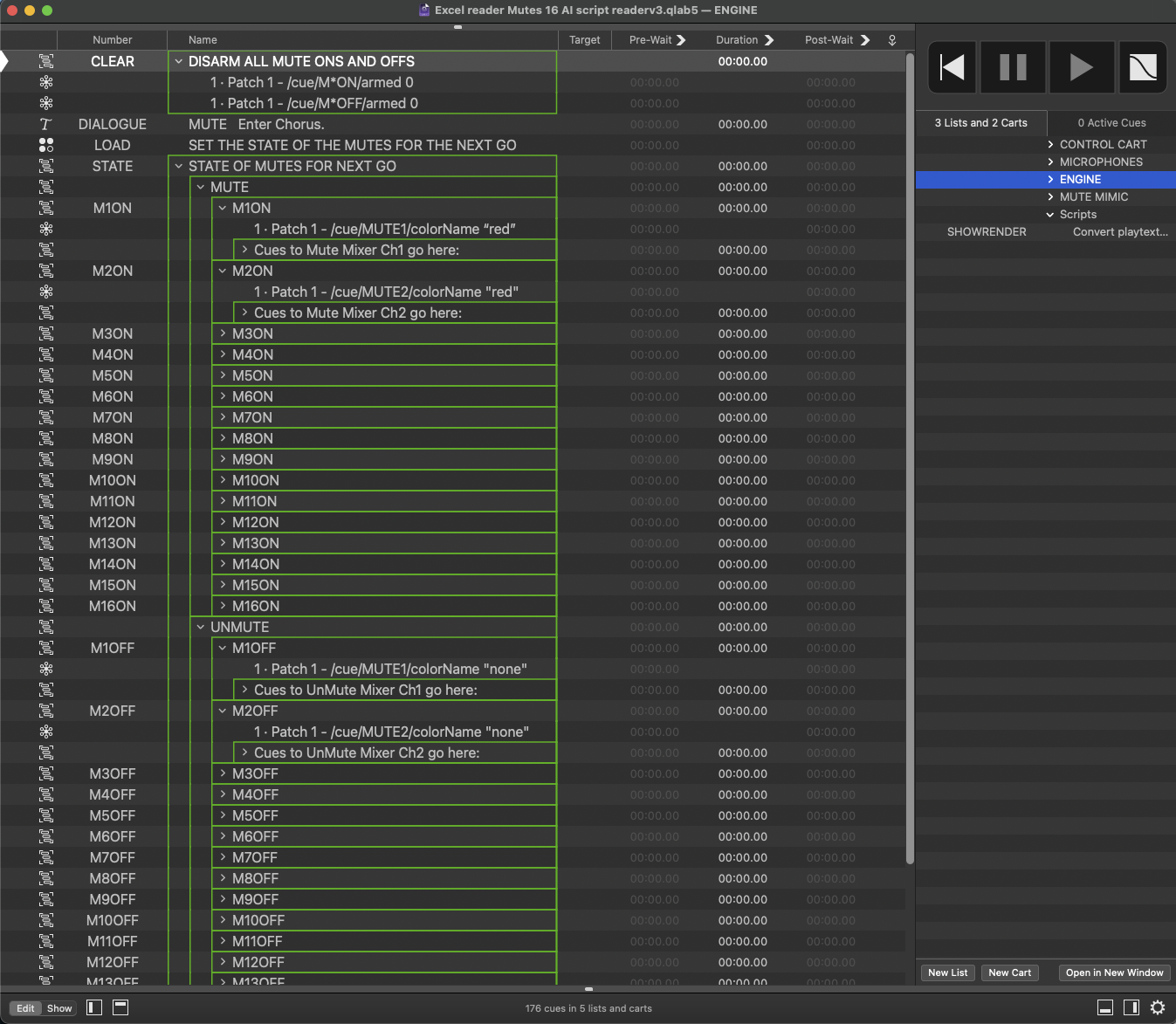
A Text cue numbered DIALOGUE displays the current speech from the play text on a second display for the operator.
A Group cue numbered CLEAR disarms all the mute on and mute off cues in cue STATE.
A Group cue numbered STATE contains a Timeline Group cue containing a set of cues which set the mutes of the sixteen mixer channels ON (microphone muted), and another Group cue containing a set of cues which sets them OFF (microphone live).
Each MUTE ON Group cue contains a Network cue with an OSC message which sets the color of a cue in the MUTE MIMIC cart to red:
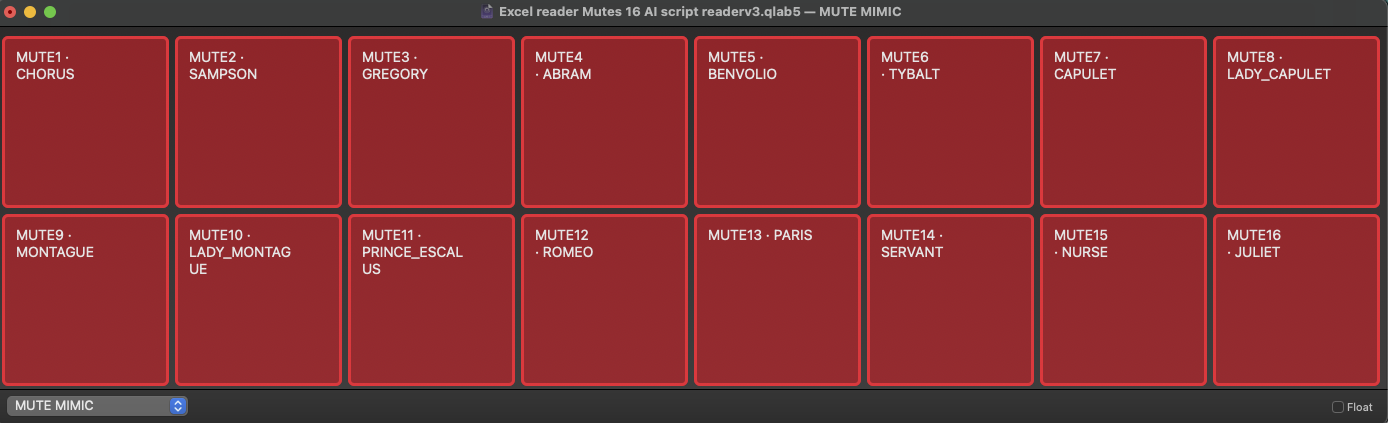
together with the cues to turn that channel's mute ON on a physical mixer or, as in the case of the demo, a software mixer:

Each MUTE OFF Group cue contains a Network cue with an OSC message, which sets the color of a cart button in the MUTE MIMIC cart to none, together with the cues to turn that channel's mute OFF.
The mute state is set by disarming the MUTE OFF Group cues, and arming the MUTE ON Group cues for channels that are muted, and arming the MUTE OFF groups, and disarming the MUTE ON Group cues for channels that are live.
The heart of the ENGINE is the Script cue numbered LOAD. This reads the spreadsheet and sets the arms and disarms of the cues in the STATE Group cue to match the mute cells in the spreadsheet.
applescript--**********************Load the Mutes*******************************************************
--RUN WITH SCRIPT CUE  INSPECTOR WINDOW ON BASICS TAB REGARDLESS OF WHETHER THE INSPECTOR IS OPEN OR NOT!!! 10 TIMES FASTER.
--Translate Mute Data from an Excel spreadsheet to control mutes on a sound console
set theCount to 16 --number of microphone channels
--try
set theMutes to {}
tell application id "com.figure53.QLab.5" to tell front workspace
  start cue "CLEAR" --disarm all Mute Unmute Cues
  set theRow to notes of cue "MEM"
end tell
set theTids to AppleScript's text item delimiters
set AppleScript's text item delimiters to ","
tell application "Microsoft Excel" to tell front sheet
  set theRowRef to "B" & theRow
  set theCast to value of cell ("C" & theRow)
  set theDialogue to value of cell ("T" & theRow)
  set theMem to value of cell ("B" & theRow)
  repeat with eachMute from 1 to theCount
    set the end of theMutes to value of cell (eachMute + 3) of row (theRow as integer)
  end repeat
end tell
--Parse the data and perform actions depending on whether a cell contains M (MUTED) or has an empty string as its value (NOT MUTED)
tell application id "com.figure53.QLab.5" to tell front workspace
  set theIndex to 1
  repeat with eachitem in (text items of theMutes)
    if text of eachitem is "M" then
      set the armed of cue ("M" & theIndex & "ON") to true
    else
      set the armed of cue ("M" & theIndex & "OFF") to true
    end if
    set theIndex to theIndex + 1
  end repeat
  --Store Dialog
  tell application id "com.figure53.QLab.5" to tell front workspace
    --convert / to return
    set AppleScript's text item delimiters to {"/"}
    set newText to text items of theDialogue
    set AppleScript's text item delimiters to {return}
    set theDialogue to newText
    set the notes of cue "DIALOGUE" to theCast & return & theDialogue
  end tell
end tell

set AppleScript's text item delimiters to theTids
The script gets the number of microphone channels in use from the MICROPHONES cue list.
It disarms all MUTE ON and OFF Group cues in cue STATE by starting cue CLEAR.
Then, it gets the number stored in the notes of cue MEM, which is the row number (not the MEM number) of the Spreadsheet line that will be actioned on the next GO trigger.
Then it gets the following information from the current row of the spreadsheet: character names, dialogue, MEM number, the mute state of each mixer channel.
Then it processes this data in QLab to arm the appropriate Group cues in cue STATE so that the mixer channel mutes will immediately be actioned when the next GO is triggered.
Finally it converts all the forward slash separators in theDialogue to returns and then sets the notes of the Text cue numbered DIALOGUE to the character name(s) plus the dialogue to make a complete screen of text, ready to display on the next GO.
The control cart is the main controller for playback of the muse state presets.
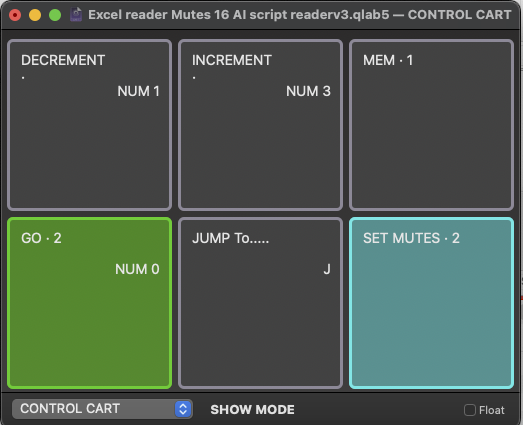
DECREMENT, triggered in the demo workspace by hotkey NUM 1, is a Script cue with this script:
applescript--get the current row number
tell application id "com.figure53.QLab.5" to tell front workspace to set theRow to notes of cue "MEM" as integer
--decrement the row number
if theRow is greater than 2 then set theRow to theRow - 1
tell application "Microsoft Excel" to tell front sheet
  set theRangeString to ("A" & theRow as text)
  set theRange to (range theRangeString)
  set color index of interior object of column 1 to 0 --clear the green indicator (State to be set when next GO is triggered )
  set color index of interior object of range theRangeString to 4 --set the green indicator  to the new row
  select range theRangeString
  set theValue to value of cell ("B" & theRow as text) --get the MEM number for this MEM

end tell
tell application id "com.figure53.QLab.5" to tell front workspace
  set the notes of cue "MEM" to theRow --store the Excel row number for the next GO in the notes of cue MEM
  --display the MEM number of the mute state to be actioned on the next GO on the GO and SET MUTES CART BUTTON Mutes
  set the q name of cue "GO" to theValue
  set the q name of cue "SET MUTES" to theValue
  start cue "LOAD"
end tell
INCREMENT, triggered in the demo workspace by hotkey NUM 3, is a Script cue with this script:
applescript--get the current row number
tell application id "com.figure53.QLab.5" to tell front workspace to set theRow to notes of cue "MEM" as integer
--increment the row number
set theRow to theRow + 1
tell application "Microsoft Excel" to tell front sheet
  set theRangeString to ("A" & theRow as text) --& ":A" & theRow as text
  set theRange to (range theRangeString)
  set color index of interior object of column 1 to 0 --clear the green indicator (State to be set when next GO is triggered )
  set color index of interior object of range theRangeString to 4 --set the green indicator  to the new row
  select range theRangeString
  set theValue to value of cell ("B" & theRow as text) --get the MEM number for this MEM
end tell
tell application id "com.figure53.QLab.5" to tell front workspace
  set the notes of cue "MEM" to theRow --store the Excel row number for the next GO in the notes of cue MEM
  --display the MEM number of the mute state to be actioned on the next GO on the GO and SET MUTES CART BUTTON Mutes
  set the q name of cue "GO" to theValue
  set the q name of cue "SET MUTES" to theValue
  start cue "LOAD"
end tell
MEM is a Memo cue which displays the MEM number of the current mute state and stores the row number (not the MEM number) of the mute state that will be actioned when the next GO is triggered.
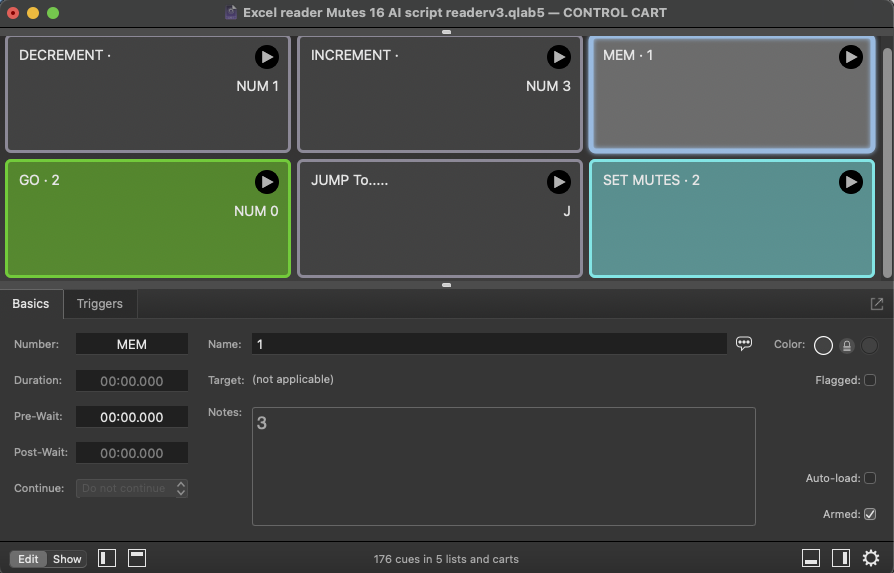
GO, triggered in the demo workspace by hotkey NUM 0, is a Script cue with this script:
applescript--*********************DO MUTES & DIALOGUE***********************
tell application id "com.figure53.QLab.5" to tell front workspace
  start cue "STATE"
  set the text of cue "DIALOGUE" to (notes of cue "DIALOGUE" as text)
  start cue "DIALOGUE"
  set theRow to notes of cue "MEM"
  set theRowRef to "B" & theRow
end tell
--Highlight the last memory data recalled in the excel spreadsheet
tell application "Microsoft Excel" to tell front sheet
  set color index of interior object of column 2 to 0
  set color index of interior object of range theRowRef to 8
  select range theRowRef
  set theValue to value of cell ("B" & theRow as text)

  tell application id "com.figure53.QLab.5" to tell front workspace
    start cue "INCREMENT"
    set the q name of cue "MEM" to theValue
  end tell
end tell
The order of events in this script prioritizes the immediate activation of the new mutes by starting cue STATE, followed by the display of the dialogue for that speech by copying the dialogue from the notes of cue DIALOGUE and starting the cue. (In case the cue is not currently running).
It then clears the background color from all cells in column 2 and sets the background color of the current MEM to indicate the current mutes applied.
Finally, the script updates the name of cue MEM to display the current MEM.
JUMP (hotkey J) is a Script cue with this script:
applescriptset theMaxCues to 9999 --maximum search range for cues
set theQ to text returned of (display dialog "Spreadsheet Memory to Jump To" default answer 1)
tell application "Microsoft Excel" to tell front sheet
  set searchRange to range ("B1:B" & (theMaxCues as text))
  try
    set foundrange to (find searchRange what theQ look at whole)
  on error
    tell application id "com.figure53.QLab.5" to display alert "MEM does not exist"
    return
  end try
  set theRow to first row index of foundrange
  set theRowRef to "A" & theRow
  set color index of interior object of column 1 to 0
  set color index of interior object of range theRowRef to 4
  select range theRowRef
end tell
tell application id "com.figure53.QLab.5" to tell front workspace
  set the notes of cue "MEM" to theRow
  set the q name of cue "GO" to theQ
  set the q name of cue "SET MUTES" to theQ
  start cue "LOAD"
end tell
All the other CONTROL cues use the number of the spreadsheet row stored in the notes of cue MEM as the row reference, but JUMP finds a cue from it's MEM number.
The MEM number is entered by the user in a dialog. The reply to this dialog is searched for using Excel's AppleScript search function:
applescriptset foundrange to (find searchRange what theQ look at whole)
It then sets the green marker to the found cue.
SET MUTES is a script cue:
applescript--*********************DO MUTES***********************
tell application id "com.figure53.QLab.5" to tell front workspace
  set theRow to notes of cue "MEM"
  set theRowRef to "B" & theRow
  start cue "STATE"
end tell
--Highlight the last memory data recalled in the excel spreadsheet
tell application "Microsoft Excel" to tell front sheet
  set color index of interior object of column 2 to 0
  set color index of interior object of range theRowRef to 8
  select range theRowRef
  set theValue to value of cell ("B" & theRow as text)
  --****************************DO DIALOG******************	--Display Dialog
  tell application id "com.figure53.QLab.5" to tell front workspace
    set the q name of cue "MEM" to theValue
    set the text of cue "DIALOGUE" to notes of cue "DIALOGUE"
    start cue "DIALOGUE"

  end tell
end tell
Its operation is similar to GO, except it does not advance the playhead.
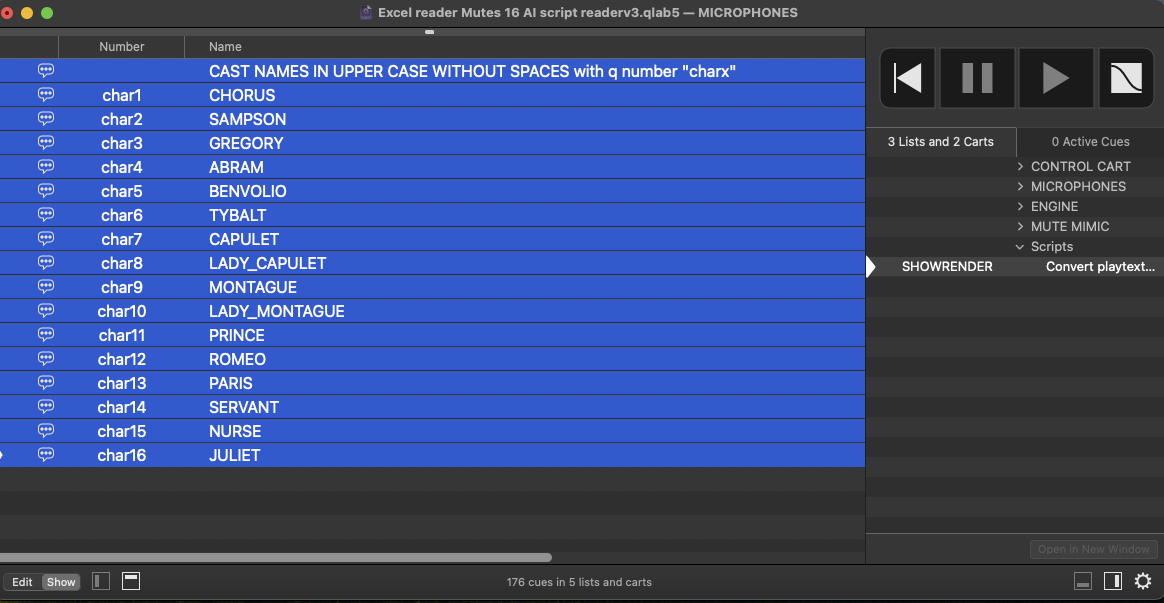
This cue list lists the microphone/character names. These are the names that must match exactly, including case and punctuation, the character names in the play text.
All images in this chapter were "AI" generated.
Text from 'Romeo and Juliet' via Project Gutenberg.
Excel is a product and registered trademark of Microsoft, Inc.
