The file target search tool helps you address the problem of cues missing their file targets. This can happen when a workspace is moved from one computer to another, or when media files are reorganized on disk while the QLab workspace is closed.
The file target search tool allows you to specify a folder in which QLab should search for files that match the name of the missing file targets of cues in the workspace. You can confirm or reject each match, and then have QLab automatically relink one or multiple cues automatically.
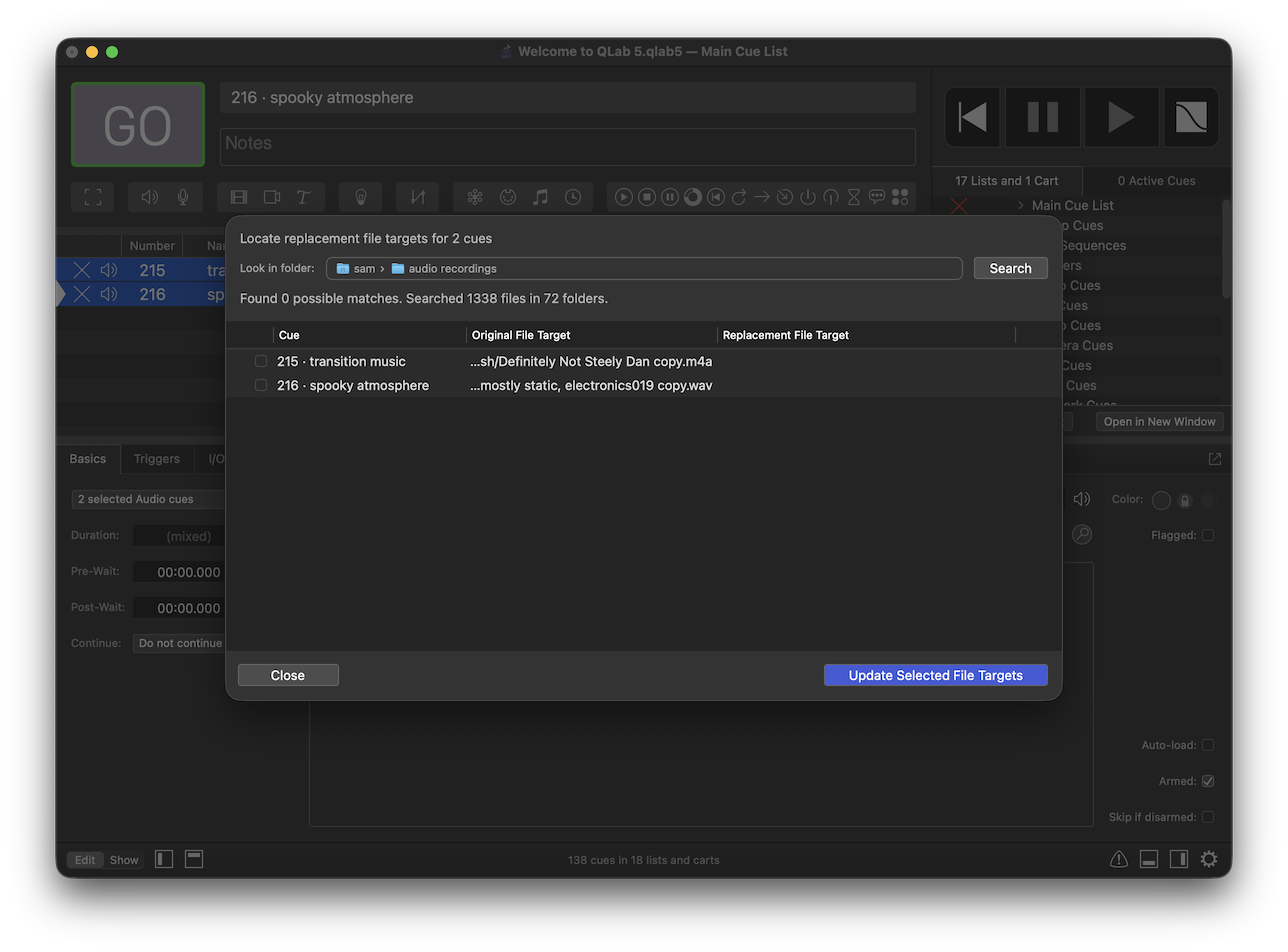
To use the file target search tool, select an Audio or Video cue and choose Open file target search tool from the Tools menu, or select a missing file target warning in the Warnings tab of the Workspace Status window and click the button labeled .
You can click in the file well labeled Look in folder to select a folder for searching. QLab will look inside that folder, as well as every folder inside it.
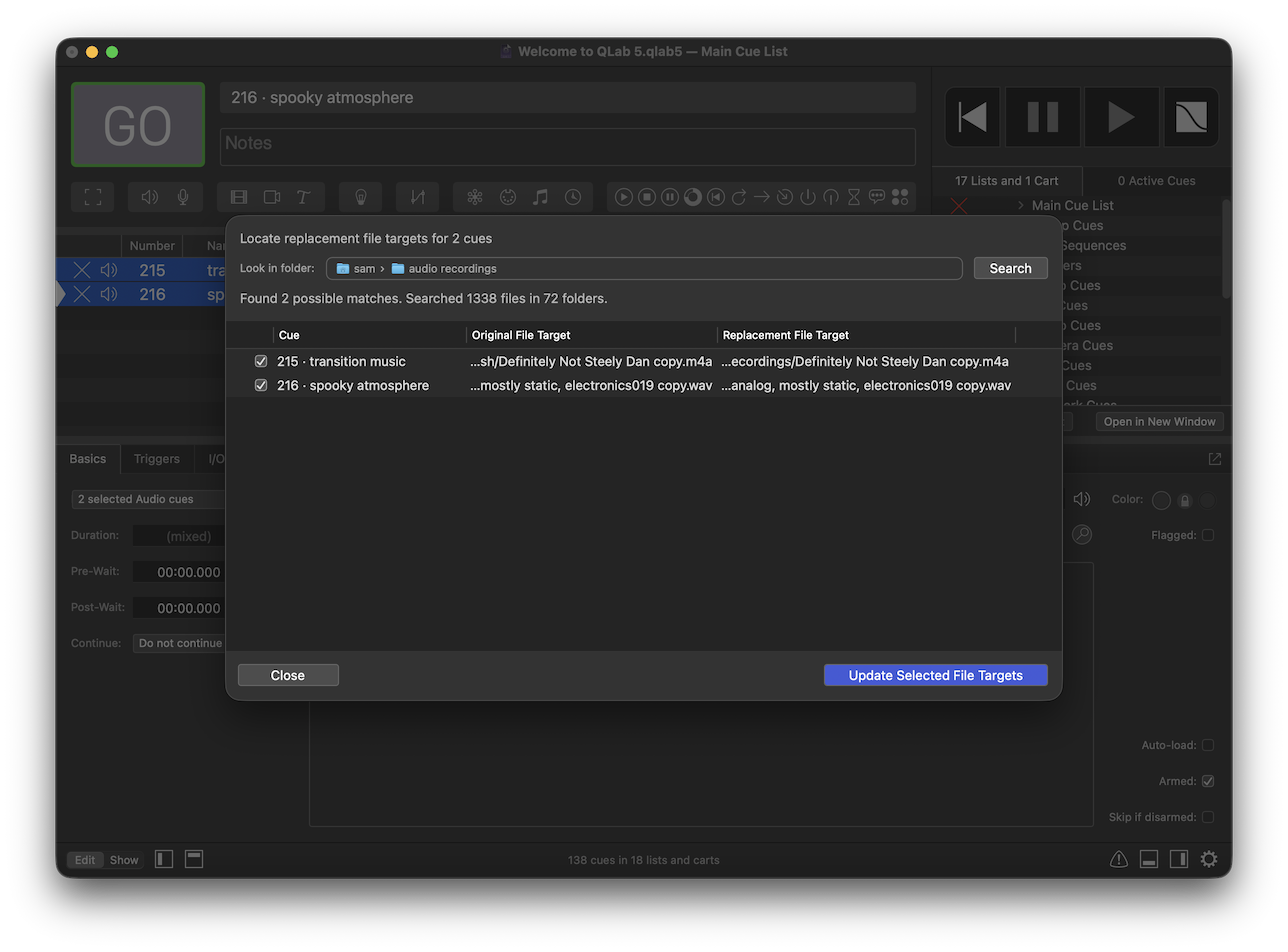
If QLab finds a potential match for the missing file or files, it will present the file name and complete path of the replacement for you to approve or reject.
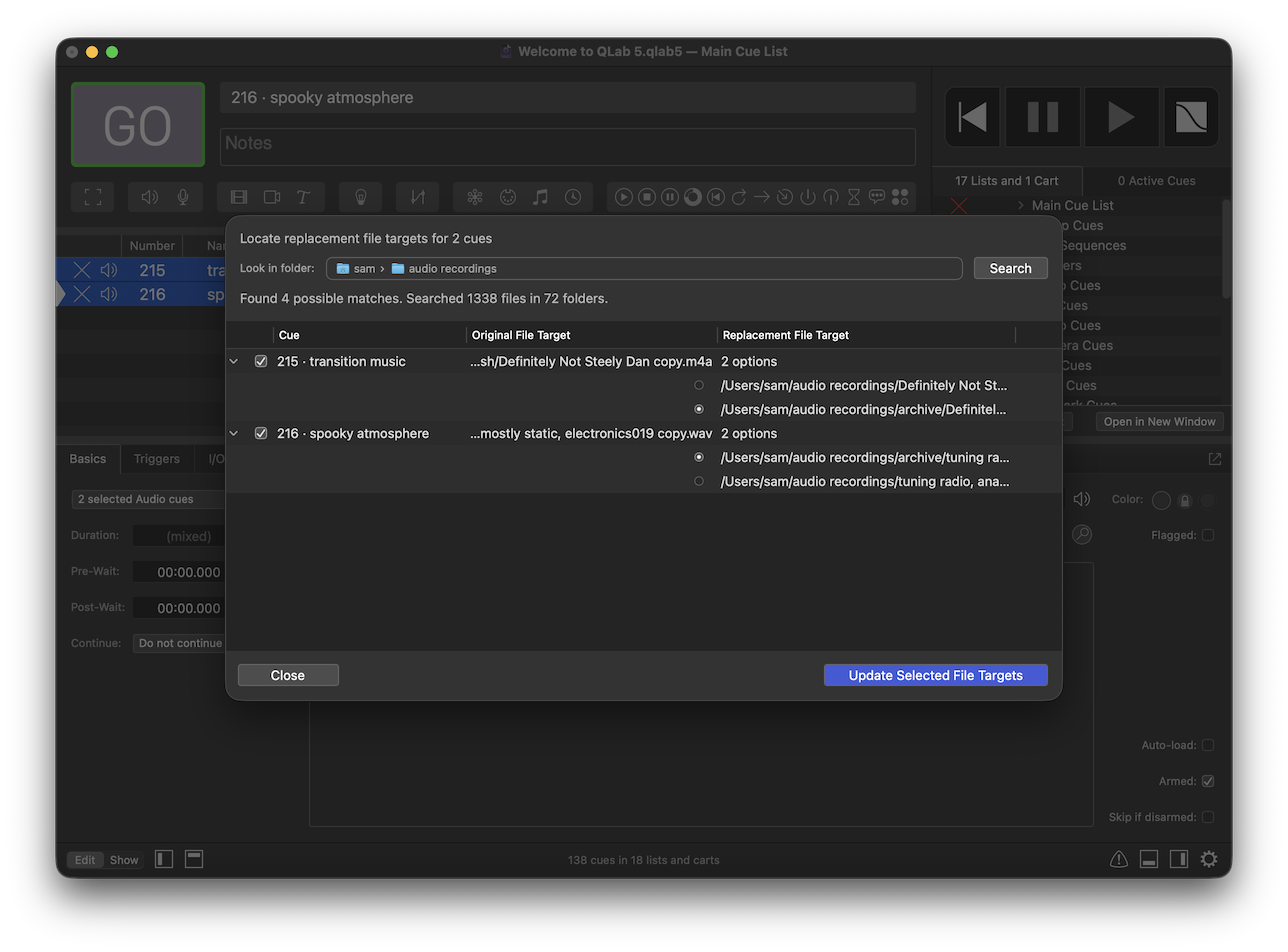
If QLab finds more than one potential match, it will present all options and allow you to select the option you prefer.
You can check or uncheck the box on the left side of each cue to include or exclude that cue from the update.
